If you use MX Player as your media player on Android, you’ve probably noticed a common annoyance – ads in MX Player. What once began as a simple, ad-free local video player has evolved into a full-fledged entertainment hub. MX Player now streams movies, web series, and TV channels, supported heavily by advertisements. While these ads help keep the app free, they often interfere with the viewing experience – especially when all you want is to play a local video.
Many users have reported pop-ups, banner ads, and even downloaded offline ads appearing on their devices. This article explores everything you need to know about ads in MX Player – why they exist, how to stop them, remove downloaded ad files, and whether the Pro version is worth it.
Types of Ads in MX Player?
Ads in MX Player are promotional banners, pop-ups, or video clips displayed within the app interface. They can appear:
- On the home screen
- Before playing a video
- While browsing online content
- Or even as cached media files stored locally
MX Player, owned by Times Internet (India), uses advertisements to monetize its free app version. These ads are often personalized, meaning they’re based on your activity, viewing habits, and sometimes device data. There are two types of ads in MX Player:
- Online Ads: Displayed when the app connects to the internet.
- Offline Ads: Downloaded and stored on your device, appearing even without an internet connection.
The Problem with Ads in MX Player
While monetization is understandable, ads in MX Player can lead to multiple problems:
- Interruptions: Ads appear even when you just want to play an offline video. This can be frustrating, especially for local file playback.
- Battery Drain: Background ad downloads and rendering increase CPU usage.
- Data Consumption: The app fetches online ad content and video previews, consuming mobile data.
- Privacy Concerns: Personalized ads may rely on user data, including device identifiers and browsing patterns.
- Storage Issues: Downloaded ads take up space in your internal storage under hidden folders.
How to Stop Ads in MX Player
Let’s discuss effective ways to stop ads in MX Player – from simple settings adjustments to advanced ad-blocking techniques.
Disable Personalized Ads in MX Player Settings
MX Player allows users to turn off ad personalization. While this won’t remove all ads, it will limit targeted advertising. This step ensures that MX Player doesn’t track your activity for ad customization. It does not stop ads completely. It only make ads non-personalized. It only disables personalized (interest-based) ads, meaning you’ll still see ads, but they may be less relevant. This option depends on the MX Player version, your region, and device brand. Newer and updated versions of MX Player have removed or relocated the Personalized Ads option. In some countries, ad-privacy controls are handled by the system (Google) instead of the app. And in Android TV, this setting is usually not available at all.
- Open MX Player.
- Go to Settings → Privacy → Personalized Ads
- Turn the option Off.
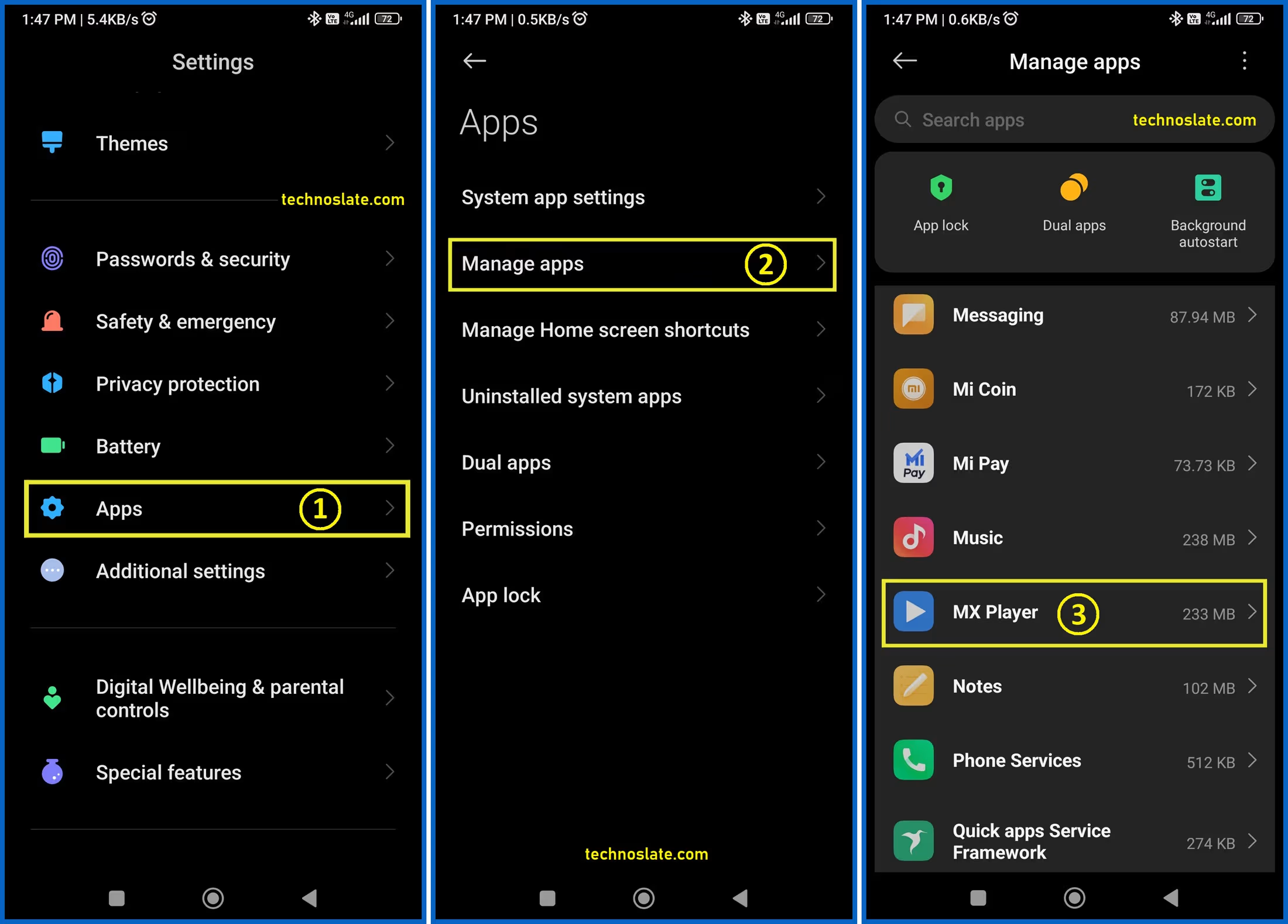
Restrict Internet Access for MX Player
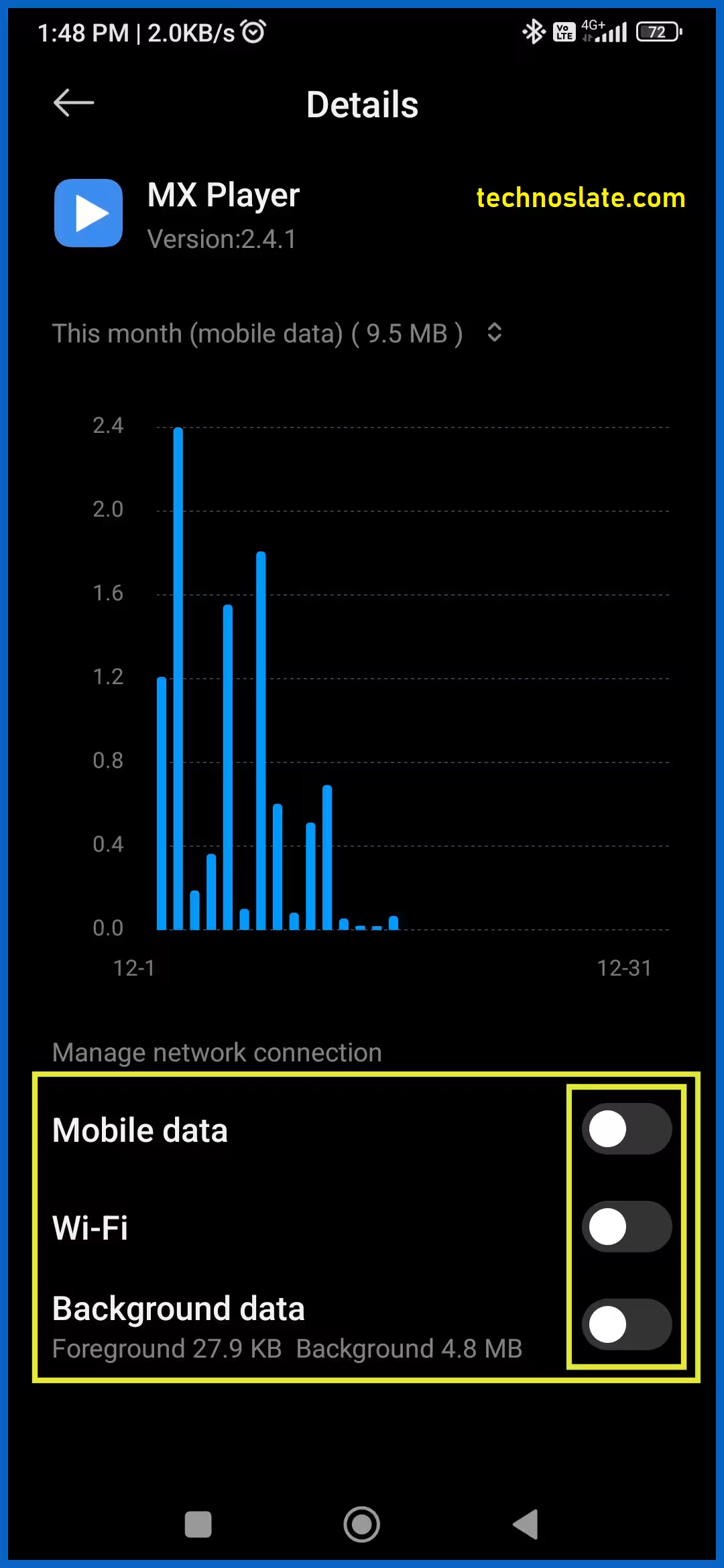
If you mainly use MX Player for offline videos, you can prevent it from connecting to the internet. Without internet, it can’t load new ads. This method effectively stops online ads and reduces battery consumption.
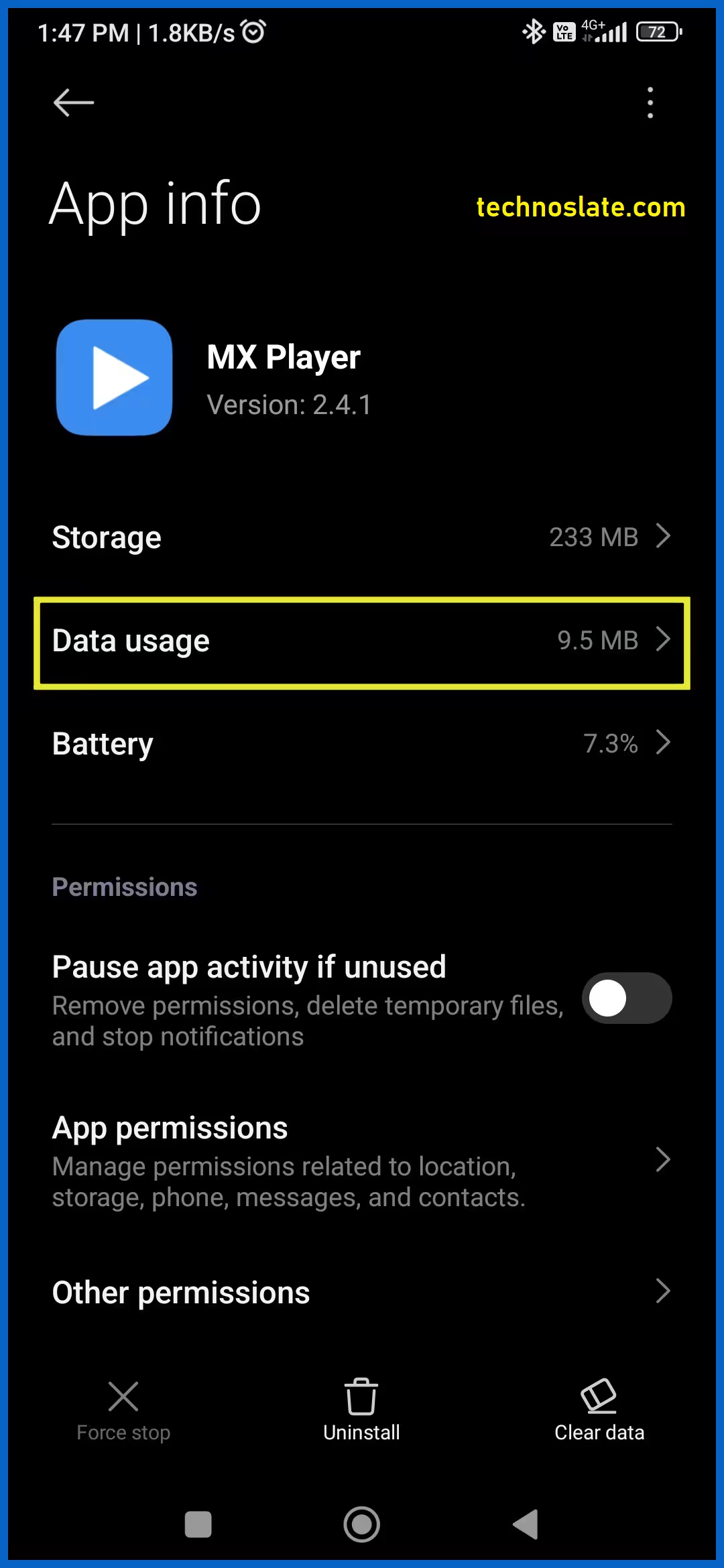
- Go to Settings → Apps → MX Player
- Open Data usage. Disable Wi-Fi and Mobile Data access. Also, disable Background data.
Use a Private DNS to Block Ads
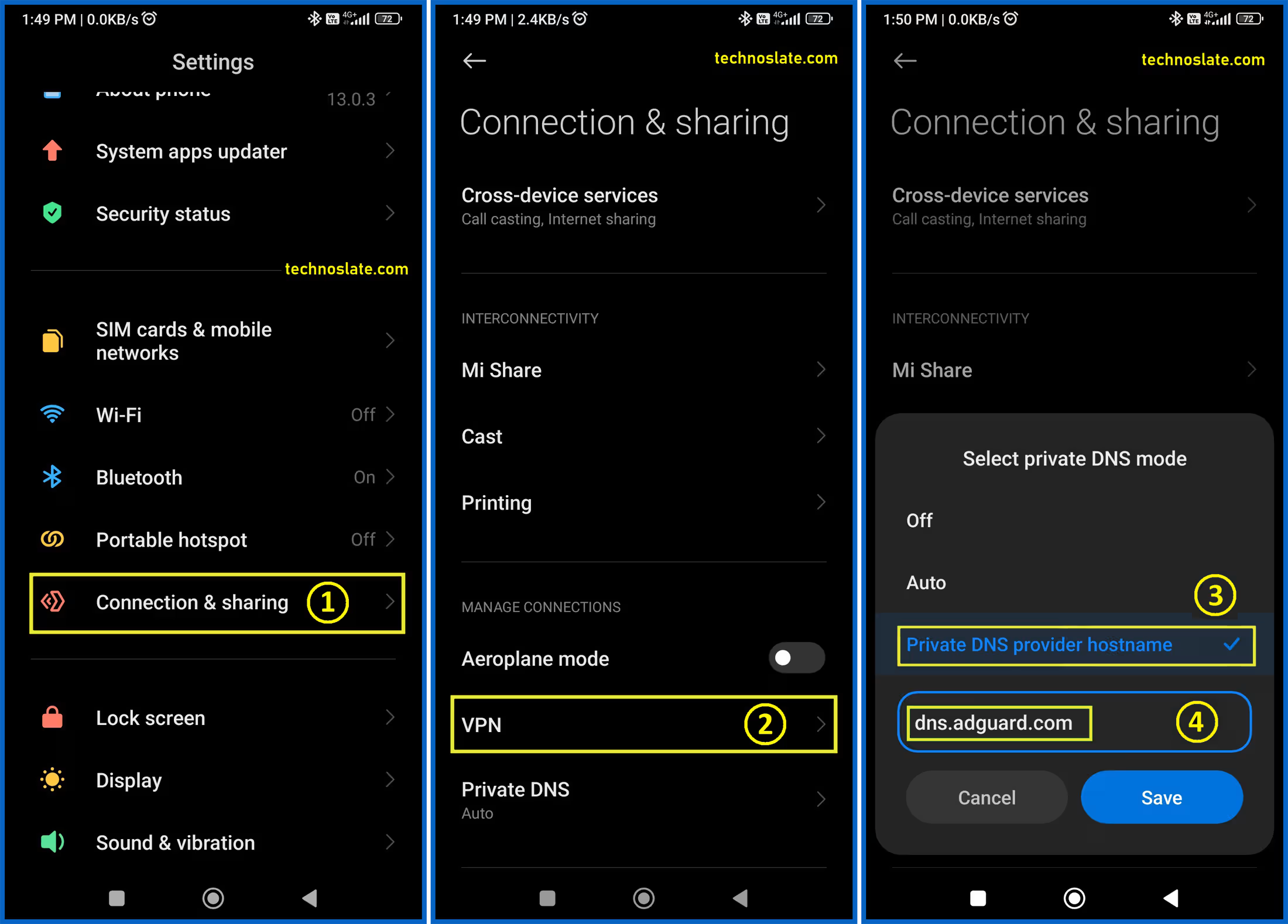
Android’s built-in Private DNS feature allows system-wide ad blocking without any third-party apps. This setup filters most ad domains, including MX Player’s ad servers.
- Open Settings → Network & Internet → Private DNS.
- Select Private DNS provider hostname.
- Enter one of the following: dns.adguard.com or dns.family.adguard.com
- Save and reconnect to the internet.
Clear Cached or Downloaded Ads
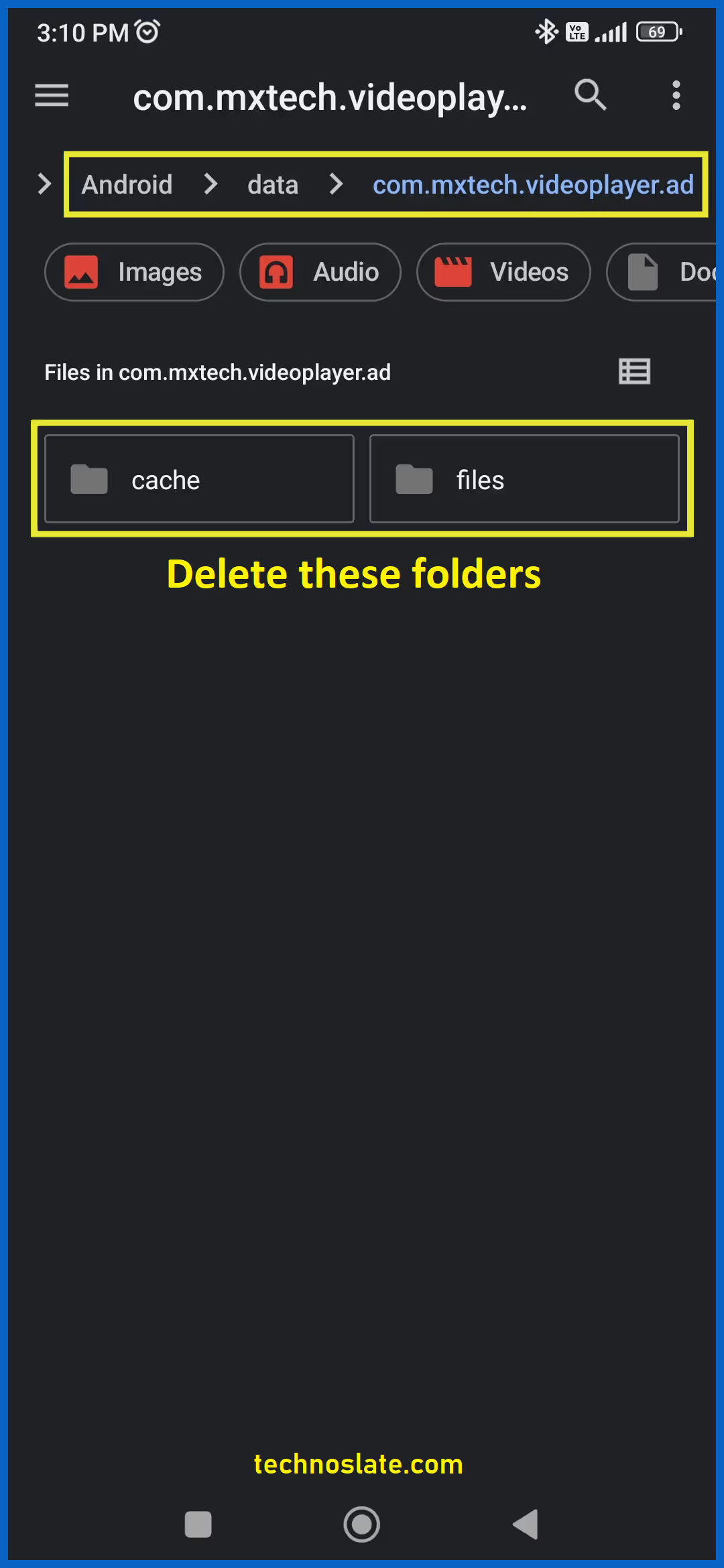
MX Player sometimes downloads ad files or temporary promotional banners that remain even offline. You can delete them manually. Be careful not to delete folders containing your downloaded videos or subtitles.
- Open your File Manager or Files by Google.
- Navigate to: Android/data/com.mxtech.videoplayer.ad/files/ or Android/data/com.mxtech.videoplayer.ad/cache/
- Delete folders such as ads, cache, temp.
Use the Ad-Free MX Player Pro (if available in your region)
MX Player offers a Pro version available on Google Play Store. This version is completely ad-free, supports all features, and performs faster. MX Player Pro offers a completely ad-free experience, allowing users to watch videos without any interruptions. Videos load more quickly in the Pro version, reducing wait times and ensuring instant playback. It also provides a smoother and more responsive user interface, making navigation effortless. Additionally, MX Player Pro is more efficient in terms of battery and data usage, making it ideal for longer viewing sessions. If you value uninterrupted playback, MX Player Pro is worth the small one-time cost. Please note that in some regions, MX Player Pro is no longer updated or available.
Use a System-Wide Ad Blocker (Optional)
For users who want to block ads across all apps, not just MX Player, ad-blocking apps like AdGuard or Blokada Slim are effective. These apps filter out ad requests at the DNS level, preventing most in-app ads from loading.
- AdGuard: Paid but offers a complete ad-free experience without root access.
- Blokada Slim: Free and open-source (available on F-Droid).
| Method | Effectiveness | Difficulty | Internet Needed |
|---|---|---|---|
| Disable personalized ads | Moderate | Easy | No |
| Restrict data access | High | Easy | No |
| Use private DNS | High | Medium | Yes |
| Clear cached ads | Moderate | Medium | No |
| Upgrade to MX Player Pro | 100% | Easy | No |
| Use AdGuard/Blokada | High | Medium | Yes |
Advantages of Removing Ads in MX Player
Getting rid of ads in MX Player offers multiple benefits beyond just visual comfort.
- Uninterrupted Playback: No distractions while watching videos or movies.
- Faster App Performance: Ads can slow down app responsiveness. Without them, the interface feels smoother.
- Reduced Data Usage: Ads constantly consume internet bandwidth — blocking them saves data.
- Improved Privacy: Ad tracking and personalized data sharing are minimized.
- Better Battery Life: Ads require processing power and background downloads, both of which drain the battery.
- Cleaner Interface: An ad-free MX Player looks more professional and is easier to navigate.
Disadvantages of Blocking Ads in MX Player
While blocking ads improves the experience, there are a few trade-offs to consider.
- Loss of Revenue for Developers: Ads support free updates and maintenance. Blocking them may impact development funding.
- Limited Features in Free Version: Some features, like online streaming, rely on ads for monetization.
- Updates May Reintroduce Ads: Future updates can override ad-block settings, requiring reconfiguration.
- DNS Blocking Limitations: Some ads may still slip through if they’re served from the same domain as app content.
- Potential App Malfunction (Rare): Aggressive ad-blocking tools may interfere with app connectivity or playback.
Ads in MX Player: Free vs Pro
| Feature | Free | Pro |
|---|---|---|
| Ads | Yes (Online + Offline) | No |
| Price | Free | Paid (One-time) |
| Privacy | Personalized ads tracking | Ad-free, better privacy |
| Internet Usage | High (ads, promotions) | Low |
| App Speed | Slower due to ad loading | Faster |
| User Experience | Moderate | Excellent |
Additional Tips to Optimize MX Player
If you’re customizing your playback experience, here are extra tips beyond just removing ads:
- Use Local Subtitles: Avoid streaming subtitle files online; this prevents ad calls.
- Disable Recommendations: In settings, turn off “Online Recommendations” and “Content suggestions.”
- Use Offline Mode: Play only local files to avoid triggering ad services.
- Clear Cache Regularly: It removes stored data and residual ad files.
- Avoid Beta Versions: Beta updates may contain new ad mechanisms or bugs.
FAQs About Ads in MX Player
- Why am I seeing ads in MX Player even offline?
- MX Player stores cached promotional content or offline ad media that can appear even without the internet. You can delete them manually from the app’s data folders.
- How can I remove ads permanently?
- The only permanent solution is purchasing MX Player Pro, which removes all forms of advertising.
- Is it safe to use DNS ad blockers?
- Yes, reputable DNS providers like AdGuard and Google are safe and widely used to block ads system-wide.
- Does blocking ads violate MX Player’s policy?
- No, adjusting privacy settings or using private DNS doesn’t violate policy. However, using modified APKs is illegal and unsafe.
- Why does MX Player need internet access for local videos?
- It shouldn’t – but it uses connectivity for promotions, analytics, and recommendations. Restricting data access prevents this.
- Can I use MX Player Pro on multiple devices?
- Yes, if purchased via Google Play, you can install it on any device using the same Google account.
- Does clearing cache delete my videos or subtitles?
- No, clearing cache only removes temporary files like ads or previews, not your actual videos or subtitles.
Final Words
With MX Player evolving into a full OTT platform (like Netflix or Hotstar), advertisements are expected to remain a key part of its revenue model. However, user demand for minimal ads may encourage the developers to introduce better ad customization or subscription-based ad-free tiers. In 2025 and beyond, privacy-conscious users are increasingly adopting ad-free versions or DNS-based solutions to balance usability and data safety.
Ads in MX Player may be a necessary trade-off for free content, but for users who primarily watch offline videos, they serve little purpose and only reduce performance. If you prefer simplicity, privacy, and uninterrupted playback, blocking ads or switching to MX Player Pro is the best choice. Just remember to clear cached ads occasionally and manage internet access carefully.
Ultimately, the goal isn’t just to remove ads – it’s to create a smoother, cleaner, and distraction-free viewing experience. While ads in MX Player may not disappear completely for free users, these steps ensure a smoother experience. Whether you choose manual blocking, DNS filtering, or upgrading to Pro, your MX Player can once again be the lightweight, reliable media player it was meant to be.
Now, you know very well about how to add important details and emergency info on android lock screen. If this post helped you then please share it with your friends and family to know about it. If you have any questions then feel free to ask in comment section. We will try our best to help you. You can read more such interesting articles here.
Might just spend some time chilling here.
actually pretty posts. Definitely makes a difference.
its working man
Nothing groundbreaking, but reliable and fun.