Your Windows drive is almost full, but where did all the storage actually go?
You remove a few files, uninstall programs you no longer use, and even empty the Recycle Bin. Yet the free space barely increases. The real problem isn’t the low storage warning, it’s finding what’s consuming your disk space without wasting time searching through countless folders.
That’s where WizTree comes in. It gives you a clear picture of how your storage is being used, helping you quickly identify the files and folders that occupy the most space. Instead of relying on guesswork, you can understand exactly where your storage has gone and decide what deserves your attention. By the end, you’ll know how to analyze your storage with confidence and make informed decisions without deleting files blindly.
What Is WizTree and Why Do People Use It?
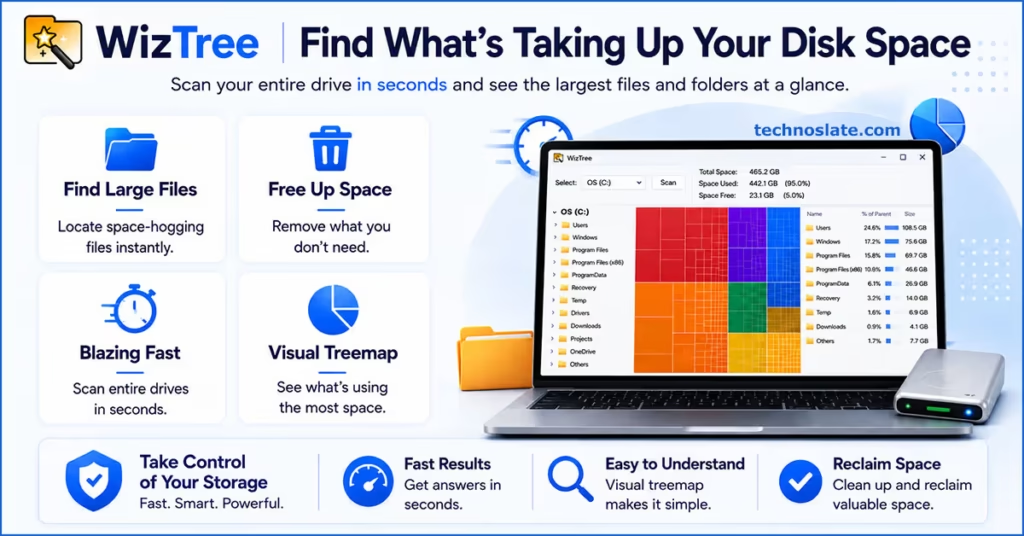
WizTree is a disk space analyzer for Microsoft Windows that helps you understand how the storage on your drive is being used. Instead of showing only the total used and available space, it breaks down your storage into folders and files, giving you a clear picture of where your disk capacity is going.
Most people install it when they run into a storage problem. A Windows update won’t install, a new game refuses to download, or a project can’t be saved because the drive is almost full. Rather than opening countless folders and checking their sizes manually, it organizes everything in a single view, making it much easier to identify what’s consuming space.
It’s also useful for finding storage heavy files that are easy to overlook. Old backups, downloaded installers, video projects, virtual machine files, compressed archives, and years of accumulated downloads can quietly occupy a significant amount of disk space. Seeing everything in one place helps you quickly identify these files and decide what deserves your attention.
Unlike tools that automatically clean your PC or optimize Windows, it focuses on helping you understand your storage first. It doesn’t decide what should be deleted or make changes on its own. Instead, it provides the information you need to choose whether a file should be kept, moved, archived, or removed.
This makes it useful for a wide range of users. Whether you’re trying to free up space on a personal computer, organize a drive that’s become cluttered over time, monitor folders that continue to grow, or review your storage before upgrading to a larger drive, It helps you make informed decisions based on what is actually stored on your system.
Why Is WizTree So Fast?
One of the biggest reasons people prefer WizTree is its scanning speed. Instead of checking every file one by one, it uses a much smarter approach to collect storage information. Here’s what makes it so fast:
- Speed Has a Condition: This advantage depends on the file system used by the drive, which we’ll cover in the next section.
- Uses NTFS: On Windows – drives formatted with NTFS, every file and folder is recorded in a built in database called the Master File Table (MFT).
- Automatic Updates: Windows keeps the MFT updated whenever a file or folder is created, renamed, modified, or deleted.
- Reads the MFT: Instead of scanning every file individually, it reads the information already stored in the MFT, allowing it to analyze the drive much faster.
- Like a Library Catalog: Imagine searching for a book in a library. Checking the catalog is much quicker than walking through every shelf. It works the same way by using an existing index instead of performing a file by file search.
Does WizTree Work Equally Fast on Every Drive?
No. Although it is known for its fast scanning, the actual scan time depends on the file system used by the drive you’re analyzing. Here’s what you can expect:
| Storage Type | Expected Performance |
|---|---|
| NTFS Drive | Very Fast |
| FAT32 Drive | Moderate |
| exFAT Drive | Moderate |
| Network Drive / NAS | Depends on network speed |
A few things to keep in mind:
- NTFS Drives: These usually deliver the fastest scanning experience because it can use the scanning method explained in the previous section.
- FAT32 & exFAT Drives: Many USB flash drives, memory cards, and portable storage devices use these file systems. WizTree can still analyze them, but scans may take longer than on NTFS drives.
- Network Drives: When scanning a shared folder or NAS device, the scan speed also depends on your network connection. A slow or busy network can increase the time required to complete the analysis.
A slower scan doesn’t mean WizTree is less accurate. It simply adapts to the type of storage you’re analyzing, so the experience can vary from one drive to another.
Key Features of WizTree
WizTree includes several features that make it easier to understand and manage disk space. Instead of manually checking folders, you can quickly identify where your storage is being used and focus on the files that matter most. Here are its key features:
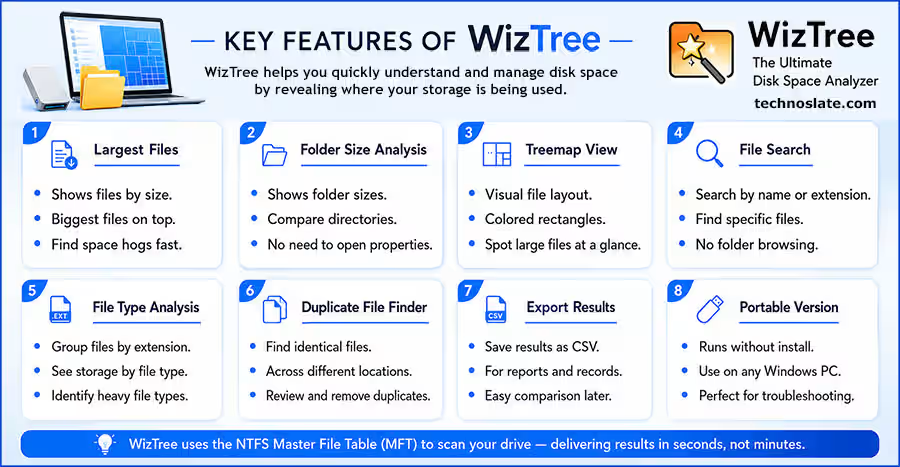
- Largest Files: Displays files in descending order by size, making it easy to identify the biggest storage consumers.
- Folder Size Analysis: Shows the size of each folder, allowing you to compare directories without opening their properties one by one.
- Treemap View: Provides a visual layout of your files using colored rectangles, helping you spot large files at a glance.
- File Search: Lets you search for files by name or extension, making it easier to locate specific files without browsing through multiple folders.
- File Type Analysis: Groups files by their extensions so you can see how much storage different file types occupy.
- Duplicate File Finder: Helps identify identical files stored in different locations, making it easier to review unnecessary duplicates.
- Export Results: Allows you to save scan results in CSV format for future reference, reporting, or comparison.
- Portable Version: Offers a portable edition that runs without installation, making it convenient for troubleshooting different Windows computers.
How to Download and Install WizTree
Getting started with WizTree only takes a few minutes. To ensure you’re using a genuine and up to date version, always download the software from its official website instead of third party download platforms.
- Step 1: Download WizTree
- Visit the official website and choose the version that best fits your needs:
- Installer: Installs it like a standard Windows application. This is the recommended option for most users.
- Portable: Runs without installation, making it a good choice if you want to use it from a USB drive or avoid installing additional software.
- Visit the official website and choose the version that best fits your needs:
- Step 2: Run the Installer
- Open the downloaded setup file. If Windows displays a User Account Control (UAC) prompt, click Yes to continue. This is a standard security prompt that appears when an application needs permission to install.
- Step 3: Complete the Installation
- For most users, the default installation settings are the best choice.
- Accept the license agreement.
- Choose the installation location, or keep the default folder.
- Click Install. Wait for the installation to finish.
- Click Finish to close the setup.
- For most users, the default installation settings are the best choice.
- Step 4: Launch WizTree
- After the installation is complete, open it from the Start menu or the desktop shortcut if you created one during setup. The application is ready to use immediately, so you can begin analyzing your storage without any additional configuration.
How to Use WizTree
Once you’ve installed WizTree, analyzing your storage takes only a few steps.
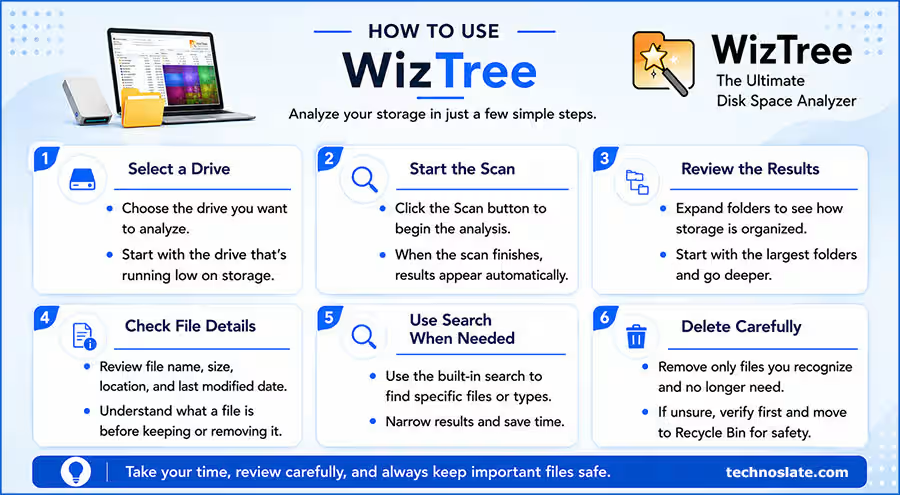
- Step 1: Select a Drive
- Choose the drive you want to analyze from the drop down list at the top of the window. If you’re trying to free up space on your computer, start with the drive that’s running low on storage.
- Step 2: Start the Scan
- Click the Scan button to begin the analysis. When the scan finishes, WizTree automatically displays the storage information for the selected drive.
- Step 3: Review the Results
- Expand the folders to see how your storage is organized. Instead of opening every directory, begin with the folders that occupy the most space and work your way deeper until you identify the files responsible for the storage usage.
- Step 4: Check File Details
- Before making any changes, review important details such as the file name, size, location, and last modified date. This helps you understand what a file is before deciding whether to keep or remove it.
- Step 5: Use Search When Needed
- If you’re looking for a specific file or file type, use the built in search feature to narrow the results instead of browsing through every folder manually.
- Step 6: Delete Carefully
- Only remove files that you recognize and no longer need. If you’re unsure about a file, verify its purpose before deleting it. For personal files, moving them to the Recycle Bin first is usually a safer option than deleting them permanently.
Understanding the Treemap View
The Treemap is one of the easiest ways to understand how your storage is being used. Instead of reading through long lists of files, you get a visual layout that highlights the files occupying the most space. Here’s how to read it:
- Each rectangle represents a file. Every block in the Treemap corresponds to a single file stored on the selected drive.
- Larger rectangles mean larger files. The more storage a file occupies, the bigger its rectangle appears. Smaller files are displayed as smaller blocks.
- Colors separate file groups. Different colors help distinguish files visually, making it easier to recognize storage patterns across the drive.
- Large files stand out instantly. Instead of scrolling through hundreds of file names, your attention naturally goes to the biggest rectangles, helping you identify storage heavy files much faster.
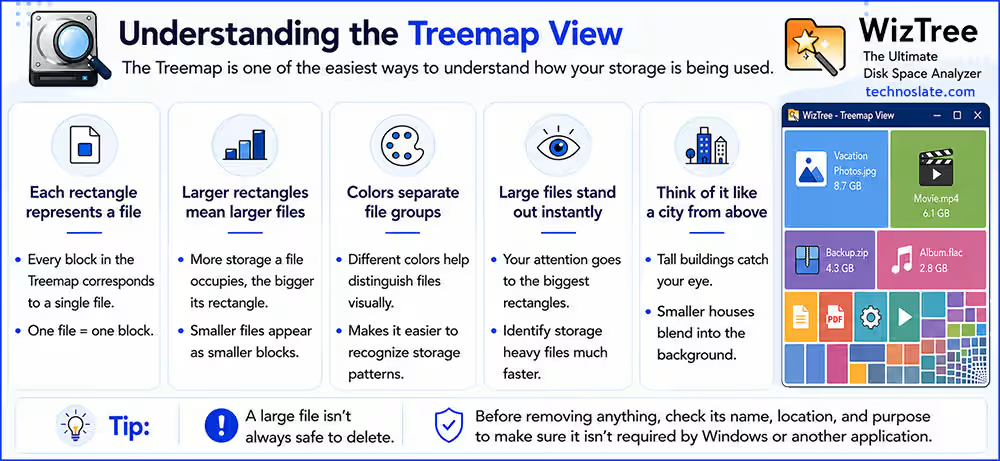
Think of it like looking at a city from above. Tall buildings immediately catch your eye, while smaller houses blend into the background. The Treemap works in a similar way by making the largest files the most noticeable.
Is WizTree Safe to Use?
Yes, WizTree is generally considered safe to use when it’s downloaded from the official website. The software is designed to analyze your storage, and simply scanning a drive doesn’t delete, move, or modify your files. Nothing changes on your computer unless you choose to take action.
When you launch WizTree, Windows may ask for Administrator permission through the User Account Control (UAC) prompt. This is a normal security feature that allows the application to access the information needed to analyze supported drives. Without these permissions, some drives or folders may not be fully accessible.
Another common concern is privacy. It works directly on your computer and doesn’t require you to create an account or sign in before using its core features. This allows you to analyze your local storage without depending on an online service.
To avoid unofficial or modified copies, always download it from the developer’s official website instead of unknown third party sources. Using the official release helps ensure you’re installing the latest and authentic version of the software.
As with any disk management tool, review a file carefully before deleting it. Once you confirm a deletion, recovering important data may not always be easy.
WizTree Limitations
While WizTree is an excellent disk space analyzer, it’s important to understand what it isn’t designed to do. Knowing its limitations helps you set the right expectations and decide whether it’s the right tool for your needs. Here are the main limitations:
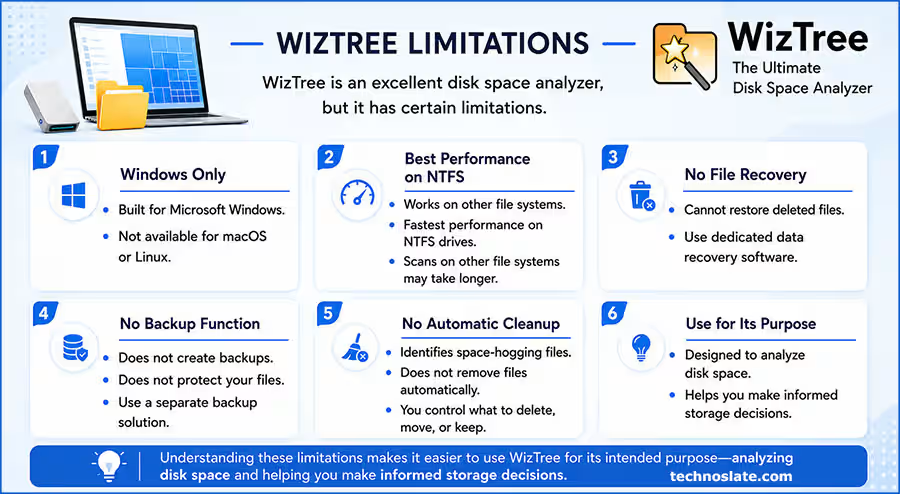
- Windows Only: It is built specifically for Microsoft Windows. It isn’t available for macOS or Linux.
- Best Performance on NTFS: Although it can analyze other file systems, its fastest performance is available on NTFS drives. Scans on other file systems may take longer.
- No File Recovery: It can’t restore deleted files. If you’ve accidentally removed important data, you’ll need dedicated data recovery software.
- No Backup Function: The software doesn’t create backups or protect your files. If you want to keep your data safe, you’ll need a separate backup solution.
- No Automatic Cleanup: It helps you identify files that are using storage, but it doesn’t automatically remove them with a single click. You stay in complete control of what gets deleted, moved, or kept.
Understanding these limitations makes it easier to use WizTree for its intended purpose, analyzing disk space and helping you make informed storage decisions.
Frequently Asked Questions (FAQs)
- Does WizTree work with both SSDs and HDDs?
- Yes. It can analyze both Solid State Drives (SSDs) and Hard Disk Drives (HDDs). The overall scan time depends more on the file system and the amount of stored data than on the type of drive itself.
- Can it display hidden and system files?
- Yes. If Windows permissions allow it, WizTree can include hidden and protected system files in its analysis, giving you a more complete view of your storage.
- Why does WizTree report more used space than I expected?
- Many users only think about their personal files when checking storage usage. However, applications, system files, cached data, backups, and other background files can also occupy a significant amount of space, which may explain the difference.
- Does it replace Windows Disk Cleanup?
- No. It helps you understand how your storage is being used, while Windows Disk Cleanup is designed to remove specific categories of unnecessary system files. They are built for different purposes and can be used together.
- Is it suitable for large drives?
- Yes. It can analyze everything from small drives to multi terabyte storage devices. The time required depends on the drive’s file system and the amount of data it contains.
- How often should I use WizTree?
- There’s no fixed schedule. For most users, running a scan whenever storage starts filling up is enough. If you frequently work with large files or your storage changes regularly, checking it from time to time can help you stay organized.
Conclusion
WizTree makes it easier to understand what’s occupying your Windows storage, so you can make informed decisions instead of relying on guesswork. Whether you’re trying to free up space, organize a cluttered drive, or simply keep your storage under control, having a clear view of your files can save both time and effort.
While it isn’t designed to replace backup, recovery, or cleanup tools, it excels at helping you identify where your storage is being used. That’s what makes it a practical choice for everyday users as well as professionals who regularly work with large amounts of data. If your drive keeps filling up and you’re tired of searching through folders manually, It offers a simple and efficient way to understand your storage and take action with confidence.
Found this article useful? Share it with your friends and colleagues. If you have any questions or need further guidance, leave a comment below – we’d love to hear from you. Explore our website for more helpful articles and updates.
Everything Search : 15 Powerful Tips to Find Files Faster on Windows