Why External Storage Is Essential for Windows and Android Users
We live in a digital world where every photo, video, document, and app takes up space. If you’ve ever received the dreaded “Storage Full” notification on your Android phone or seen your Windows PC slow down because the hard drive is overloaded, you know how frustrating it can be. That’s where external storage solutions come in – they’re not just a luxury, they’ve become a necessity, convenience, safety, and efficiency.
Whether it’s a Windows PC at home or an Android phone in your pocket, storage is the invisible backbone of your digital life. But there’s a problem: internal storage, no matter how large it seems at first, eventually runs out. That’s when the frustrations begin – slow device performance, inability to install new apps, or worse, the panic of losing important files. This is where external storage solutions come in. Think of them as the extra shelf or cabinet for your digital life – a place where you can safely store data, keep things organized, and even speed up your devices.
What Exactly Is External Storage?
External storage refers to any device or medium that allows you to store data outside your device’s internal memory. It’s physically separate from your PC or phone but connects easily via USB, USB-C, or OTG (On-The-Go) for Android devices. Unlike cloud storage, which depends on an internet connection, external storage keeps your files physically close to you, allowing instant access anytime, anywhere. In simple terms, external storage is like carrying a portable safe for your digital files. It lets you expand your device’s storage without replacing your internal memory, making it a convenient and cost-effective solution.
Why External Storage Is Better Than Relying on Internal Storage Alone
Modern Android devices and Windows PCs are more powerful than ever, but their internal storage can fill up fast. Photos, 4K videos, apps, and even games can take dozens of gigabytes, leaving your device sluggish. Best external storage is not just about adding space – it brings several practical advantages that improve your digital life. One advantage of the Best External Storage Solutions is their ability to handle massive data transfers. While internal storage has become larger on modern devices, there are several reasons why best external storage often outperforms internal storage when it comes to flexibility and efficiency.
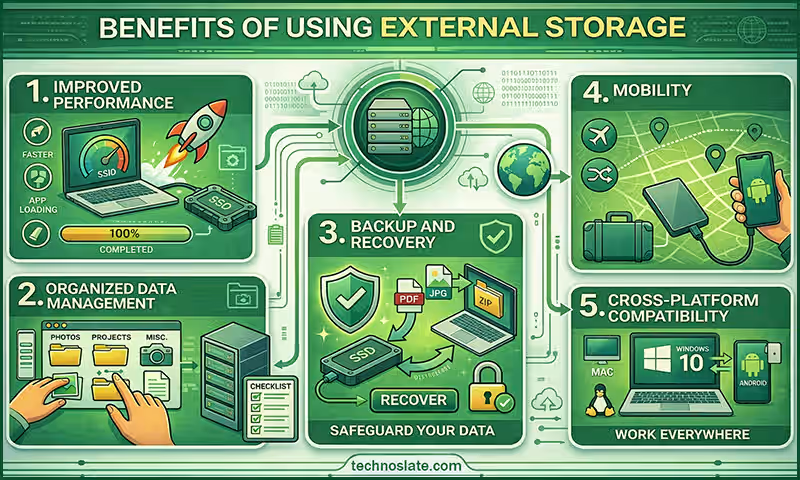
- Improved Performance: A full internal drive slows down performance. Windows PCs may lag, apps may freeze, and boot times may increase. Android devices can experience delayed app launches or camera failures. By transferring large files from your internal storage to external drives, your PC or Android device runs faster. Applications open quickly, multitasking becomes smooth, and device lag reduces dramatically. Offloading files to external storage can restore speed and responsiveness.
- Organized Data Management: External storage helps you categorize files by type or project. With the Best External Storage Solutions, you can easily expand your device’s storage capacity. You can have separate drives for videos, documents, music, or work projects, making it easier to find what you need quickly.
- Backup and Recovery: Many external drives come with backup software. You can automatically back up important files, preventing data loss due to accidental deletion, virus attacks, or system crashes. External storage can act as a backup in case your device crashes. Unlike internal memory, which is tied to a single device, external drives ensure your files are safe even if your computer or phone fails.
- Mobility: High-capacity SSDs and portable hard drives can fit in your bag or even pocket. This mobility allows you to carry large files, presentations, or media libraries without needing the internet or cloud storage.
- Cross-Platform Compatibility: Most external drives work with both Windows and Android devices (with OTG support), making it easy to transfer files between platforms without cables, Wi-Fi, or internet limitations. Unlike internal drives, external storage is portable. You can carry your files to a friend’s house, transfer them between multiple devices, or take work home without relying on cloud servers.
Disadvantages of External Storage
While external storage offers many advantages, it’s important to understand its limitations:
- Physical Damage Risk: External drives are portable, but this makes them vulnerable to drops, spills, or wear and tear. SSDs are more durable than HDDs, but caution is always needed.
- Cost: High-capacity SSDs are expensive compared to internal memory. While HDDs are cheaper, they are slower and less durable.
- Loss or Theft: Unlike internal storage tied to your device, an external drive can be lost or stolen, potentially exposing sensitive data. Encryption can help mitigate this risk.
- Connectivity Issues: Some older Android phones or PCs may not support USB-C or OTG, requiring adapters or limiting speed.
Despite these minor drawbacks, the benefits far outweigh the risks, especially for users who work with large files, manage multiple devices, or care about speed and reliability.
Types of External Storage
There are several types of external storage, each suited for different needs:
- Portable Hard Disk Drives (HDDs)
- High storage capacity at a low cost.
- Ideal for videos, photos, and backups.
- Slower than SSDs and prone to mechanical damage.
- Solid State Drives (SSDs)
- Faster, more durable, and shock-resistant.
- Excellent for editing videos, running apps, or transferring large files.
- More expensive than HDDs for the same capacity.
- USB Flash Drives
- Small, lightweight, and convenient for quick transfers.
- Storage ranges from 16GB to 1TB.
- Best for portability, but not ideal for heavy workloads.
- MicroSD Cards (OTG-Compatible for Android)
- Expandable memory for phones and tablets.
- Affordable and portable.
- Limited read/write speeds compared to SSDs.
Problems Without External Storage
Not having external storage can create many headaches:
- Running Out of Space: You may not be able to store photos, record videos, or download apps.
- Slow Device Performance: A full internal drive slows Windows boot times, lags apps, and delays multitasking.
- Limited Mobility: Transferring large files between devices becomes tedious and time-consuming.
- Data Risk: Without a backup option, accidental deletion or device failure can lead to permanent data loss.
- Frustration and Stress: Waiting for a full device to respond or being unable to save work can waste time and cause unnecessary stress.
Best External storage solves all of these problems and restores peace of mind, convenience, and efficiency. Choosing the right storage solution depends on what matters most to you. If you prioritize speed and durability, SSDs are ideal. If you need huge storage at low cost, HDDs work best. For mobility and small transfers, USB drives or microSD cards are perfect. If you want shared access for multiple devices at home or office, NAS is the ultimate choice. In the next section, we’ll explore how to choose the perfect external storage based on your lifestyle and usage, and provide tips for maximizing performance.
How to Choose the Right – Best External Storage & Maximize Its Use
By now, you know what best external storage is, the different types available, and their pros and cons. But the question many users face is: Which external storage solution is the best for me? Choosing the right device depends not only on technical specs but also on your lifestyle, how you use your Windows PC or Android device, and your budget. In this section, we’ll break down step-by-step guidance for selecting the perfect and best external storage and share tips to maximize its use, so you can make an informed decision that suits your needs perfectly. Choosing the best external storage solution isn’t just about picking the one with the largest capacity.
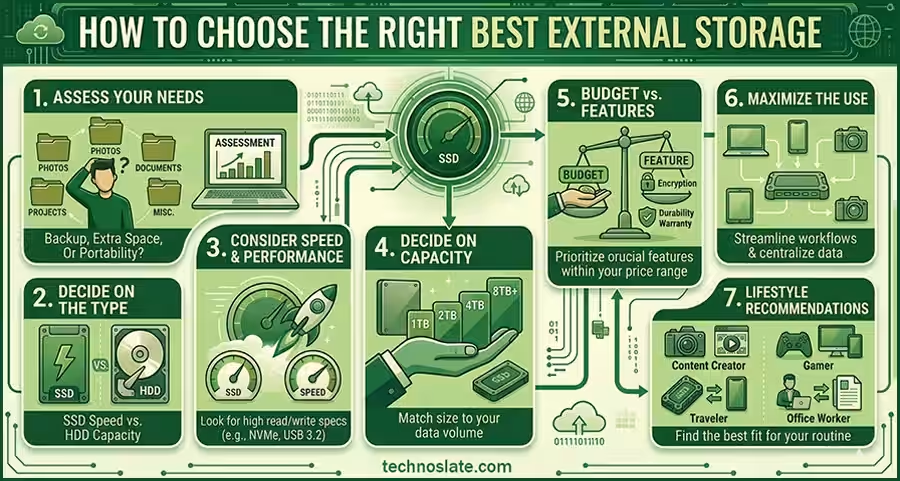
Step 1: Assess Your Needs
Before purchasing any storage device, you need to ask yourself a few critical questions:
- What type of files will I store?
- If you mostly have documents, PDFs, and photos, even a USB drive or a microSD card could suffice.
- If you work with videos, large games, or editing projects, you need high-capacity SSDs or HDDs for speed and reliability.
- How often will I transfer files?
- Frequent transfers between devices? SSDs or USB 3.0/3.1 drives are better for fast read/write speeds.
- Occasional storage for backups? HDDs or microSD cards are fine.
- Do I need mobility?
- If you travel frequently or carry your storage to work, school, or meetings, choose lightweight SSDs or flash drives.
- If it’s for home use only, a NAS or large HDD can stay connected to your network.
- Compatibility:
- Make sure the device works with your Windows version and Android device (check OTG or USB-C support).
- Some SSDs or HDDs may require formatting for specific devices, so confirm compatibility before purchase.
Step 2: Decide on the Type of External Storage
Once you know your needs, selecting the right type becomes easier:
- SSD (Solid State Drive):
- Best for speed, durability, and portability.
- Ideal for content creators, professionals, or anyone handling large files.
- HDD (Hard Disk Drive):
- Perfect for bulk storage at an affordable price.
- Ideal for backups, media libraries, and archiving files.
- USB Flash Drive:
- Best for casual users and students who need quick file transfers or portable storage.
- MicroSD Card:
- Great for Android devices with limited internal memory or cameras.
- Affordable and portable, but limited in speed compared to SSDs.
- NAS (Network Attached Storage):
- Excellent for families or small offices who want centralized storage and access across multiple devices.
- Advanced features like media streaming, RAID redundancy, and cloud-like functionality.
Step 3: Consider Speed and Performance
Speed is a crucial factor, especially if you handle large files, videos, or games. Here’s what you should consider:
- SSD Speed: SSDs are far faster than HDDs because they have no moving parts. If you work with high-resolution video editing, running applications directly from an external drive, or transferring files quickly between devices, SSD is the best choice.
- HDD Speed: HDDs are slower due to mechanical parts but are perfect for storing large media files that don’t require rapid access.
- USB Flash Drive / MicroSD: Speed varies widely. Look for USB 3.0 or UHS-3 MicroSD cards for fast performance.
- NAS Performance: Speed depends on network connectivity. For high-speed access, connect via Gigabit Ethernet or Wi-Fi 6 for optimal performance.
Step 4: Decide on Storage Capacity
How much storage do you really need? Consider the following:
- Basic users: 128GB–512GB is usually enough for documents, music, and photos.
- Media-heavy users: 1TB–2TB is ideal for storing videos, movies, and high-resolution images.
- Power users / professionals: 4TB+ or NAS solutions for editing, large backups, or multi-device access.
Pro Tip: Think ahead. Storage needs grow over time, so it’s better to invest in slightly more than you currently need.
Step 5: Budget vs. Features
Your budget will influence your choice heavily:
- Affordable Options: HDDs, basic USB drives, or microSD cards.
- Mid-range Options: Portable SSDs with moderate speed and capacity.
- Premium Options: High-capacity SSDs, rugged SSDs for travel, and NAS systems with advanced backup features.
Remember: Paying a bit more for speed, durability, or features like waterproofing, shockproofing, or encryption can save you money in the long run by protecting your files.
Step 6: Maximize the Use of Your External Storage
Buying the right and best external storage is only half the battle. Here’s how to get the most out of your device:
- Organize Your Files:
- Create folders by type (Documents, Videos, Photos, Apps) or by project.
- Avoid dumping everything in the root folder; it becomes hard to find later.
- Use Backup Software:
- Many SSDs, HDDs, and NAS devices come with backup apps.
- Set up automatic daily or weekly backups to avoid accidental data loss.
- Encrypt Sensitive Data:
- Use built-in encryption (BitLocker for Windows or third-party apps) for important files.
- This keeps your data safe if your drive is lost or stolen.
- Safely Eject the Drive:
- Always eject properly to avoid file corruption.
- Sudden removal, especially from SSDs or HDDs, can cause errors.
- Keep Drives Updated:
- For NAS devices, check for firmware updates regularly.
- SSDs sometimes need software updates for performance or reliability.
- Combine Storage Solutions:
- Use SSD for speed, HDD for bulk storage, and cloud backup for safety.
- This multi-tier approach ensures your data is fast, safe, and accessible.
- Label and Track Your Devices:
- If you have multiple drives, labeling helps avoid confusion.
- Color-coded drives or stickers make it easy to identify quickly.
Step 7: Lifestyle-Based Recommendations
- For Travelers: Rugged portable SSDs like the Samsung T7 or SanDisk Extreme SSD. Small, lightweight, and shock-resistant.
- For Students: USB drives or 128GB–512GB SSDs for class notes, presentations, and media.
- For Content Creators: 1TB+ SSDs with fast read/write speeds or a combination of SSD and HDD for storage + editing.
- For Home Offices: NAS for centralized storage, backup, and multi-device access.
Step 8: Common Mistakes to Avoid
- Buying storage based solely on price – cheaper drives may fail sooner.
- Ignoring speed requirements, especially for video or photo editing.
- Forgetting to backup external storage itself; drives can fail.
- Using a single external storage solution for all devices without considering compatibility.
Best External Storage Solutions for Windows & Android
When it comes to best external storage, not all drives are created equal. Depending on your needs – speed, portability, capacity, or budget – different solutions excel in different areas. In this section, we’ll break down the most popular types of top and best external storage, share links to purchase them, highlight their unique selling points, and discuss their benefits and drawbacks so you can choose the perfect option. Finding the right storage solution can be overwhelming, but we’ve done the research for you. Here’s a curated list of the best external storage options that work seamlessly with both Windows PCs and Android devices:
1. Portable Solid State Drives (SSD) 
- Samsung T7 Portable SSD
- Why it’s great: Ultra-fast read/write speeds, compact, shock-resistant.
- Best for: Professionals who work with large files like videos or photos.
- SanDisk Extreme Portable SSD
- Why it’s great: Rugged design, waterproof, ideal for outdoor use.
- Best for: Travelers or photographers.
- Crucial X8 Portable SSD – X9 & X9 Pro
- Why it’s great: Durable aluminum casing, super-fast transfer speeds, works with Windows, Android (OTG), and even consoles.
- Best for: Gamers and creative professionals.
Unique Selling Points:
- Speed: SSDs use flash memory, so they offer much faster read/write speeds than traditional hard drives. This is perfect if you transfer large files, edit videos, or use heavy apps.
- Durability: SSDs have no moving parts, making them shock-resistant and more reliable for travel.
- Portability: Lightweight and compact, many SSDs fit easily into a bag or even a pocket.
Benefits:
- Significantly faster than HDDs, reducing waiting time for file transfers.
- Very durable, ideal for carrying between work, home, or travel.
- Often compatible with both Windows and Android (OTG support required for Android).
- Lower power consumption than HDDs, saving battery when used with laptops.
Drawbacks:
- Price: SSDs cost more per GB compared to HDDs. A 1TB SSD can be several times the price of a 1TB HDD.
- Limited lifespan for write-heavy workloads (though modern SSDs last for years).
- Some Android devices may need a USB-C OTG adapter to connect.
2. Portable Hard Disk Drives (HDD) 
- WD My Passport HDD
- Why it’s great: Affordable, high capacity (up to 5TB), simple plug and play.
- Best for: Everyday users who need tons of storage without breaking the bank.
- Seagate Backup Plus Portable HDD – 1 TB, 2 TB, 5 TB
- Why it’s great: Large storage, plug and play, Reliable brand, perfect for heavy files
- Best for: YouTubers / video editors – who requires very big storage
- Toshiba Canvio Basics
- Why it’s great: Decent reliability, Generally cheaper than other brands
- Best for: Large data backup, long term storage
Unique Selling Points:
- High Capacity at Low Cost: HDDs are ideal if you need terabytes of storage for videos, photos, or backups without spending a fortune.
- Plug-and-Play Simplicity: Most drives work immediately with Windows PCs; some work with Android via OTG adapters.
Benefits:
- Affordable per GB, making large storage feasible.
- Reliable for storing bulk data, backups, and media libraries.
- Compatible with older PCs and laptops without needing advanced drivers.
- Large capacities (up to 5TB or more) available for home or office use.
Drawbacks:
- Slower speeds compared to SSDs; large file transfers may take longer.
- Mechanical parts make them vulnerable to drops or shocks.
- Bulkier and heavier than portable SSDs.
- Power consumption slightly higher, especially for bus-powered drives.
3. USB Flash Drives 
- SanDisk Ultra Flair USB 3.0 – 64 GB with Type C
- Why it’s great: Fast transfer speeds, Very compact, Metal body → durable
- Best for: College / office daily use, quick transfer
- Kingston DataTraveler – 64 GB, 128 GB
- Why it’s great: Extremely portable, reliable, good for quick file transfers.
- Best for: Students or casual users who want small-scale storage.
Unique Selling Points:
- Extreme Portability: Small enough to fit on a keychain.
- Plug-and-Play Convenience: Instantly accessible on Windows and Android devices (OTG support needed).
Benefits:
- Lightweight and easy to carry anywhere.
- Affordable and available in capacities from 16GB to 1TB.
- Excellent for quick transfers of documents, presentations, or media files.
- No installation required; works across multiple devices seamlessly.
Drawbacks:
- Not ideal for large media storage like videos or backups due to limited capacity.
- Slower than SSDs; large file transfers may lag.
- Easy to lose because of the small size.
4. MicroSD Cards (OTG-Compatible for Android) 
- Samsung EVO Plus 64 GB MicroSD Card – 10 Year Warranty
- Why it’s great: High-speed microSD card for Android phones and tablets with expandable memory.
- Best for: Android users who don’t want to rely solely on internal storage.
- HP SDXC 64 GB MicroSD Card – 10 Year Warranty
- Why it’s great: Affordable, Enough for basic usage, Works in most phones
- Best for: Low storage device users
- SanDisk Extreme MicroSD – for 4K video and Drones – 64 GB, 128 GB, 256 GB
- Why it’s great: Very high speed, Durable, Reliable performance
- Best for: Gamers, 4K video recording, Mid-level performance
- Lexar High-Performance MicroSD
- Why it’s great: Balance of speed + price, Faster than basic cards but cheaper, Reliable for mid-level usage
- Best for: Budget gamers, DSLR / camera users
Unique Selling Points:
- Designed for Android Devices: Expand your phone or tablet storage instantly.
- High Speed Options: Many microSD cards now support fast read/write speeds for 4K videos.
Benefits:
- Affordable and highly portable.
- Allows Android users to store photos, videos, and apps without deleting files.
- Works in cameras and tablets too, offering multi-device compatibility.
- No need for bulky external drives; fits neatly in your phone.
Drawbacks:
- Limited durability; microSD cards are prone to corruption if removed improperly.
- Speeds vary greatly; some cheap cards are very slow.
- Requires OTG support to use as external storage on Android.
- Easy to misplace due to tiny size.
Comparing the Types of Best External Storage
| Storage Type | Speed | Portability | Capacity | Durability | Price |
|---|---|---|---|---|---|
| SSD | Very Fast | High | Moderate | High | Expensive |
| HDD | Moderate | Medium | High | Moderate | Affordable |
| USB Flash | Low | Very High | Low | Moderate | Very Affordable |
| MicroSD | Low-Moderate | Very High | Low-Moderate | Moderate | Affordable |
Tips for Using External Storage Efficiently
- Always eject safely to avoid file corruption.
- Use folders and naming conventions to keep your files organized.
- Regularly backup important data from both Android and PC to prevent loss.
- Always encrypt sensitive data on external storage.
- Carry a small USB-C hub for easier connection between devices.
- Use cloud backup alongside physical storage for double protection.
Conclusion
Choosing the right and best external storage is more than just buying a device – it’s about matching your storage to your lifestyle, workflow, and device requirements. By considering factors like speed, capacity, durability, and budget, you can pick a solution that not only solves storage issues but also enhances your digital experience. Maximizing the use of your external storage ensures your files are safe, your devices run faster, and your workflow stays smooth. Whether it’s a portable SSD for speed, a HDD for bulk storage, a USB drive for portability, or a NAS for shared access, external storage is an essential tool for every Windows and Android user in 2026.
Invest wisely, organize effectively, and your external storage will serve you for years, keeping your digital life fast, secure, and stress-free. In conclusion, best external storage isn’t just an accessory – it’s essential for today’s digital lifestyle. From expanding space and improving performance to securing backups and providing mobility, external storage enhances your Windows and Android experience. Whether you’re a student, professional, content creator, or casual user, understanding and investing in external storage is a smart step toward a smoother, safer, and more organized digital life.
From portable SSDs for professionals to microSD cards for Android users, the options are diverse. By understanding your needs and picking the right solution, you can boost device performance, save money, and protect your important data effortlessly.
Now, you know about the best external storage and how to choose best external storage according to your needs. If this post helped you then please share it with your friends and family to know about it. If you have any questions then feel free to ask in comment section. We will try our best to help you. You can read more such interesting articles here.