In a digital world dominated by cloud-based file transfer tools like Google Drive, Dropbox, AirDrop, and Nearby Share, there’s a growing need for a solution that is simple, secure, fast, private, and free. LocalSend fills this gap by providing a peer-to-peer local network file sharing application that does not require the internet or cloud storage. It prioritizes user privacy, supports many platforms, and eliminates login and account hassles. In this guide, we dive into everything about LocalSend – how it works, its standout benefits, bonus features, limitations and drawbacks, and tips and comparisons.
What Is LocalSend?
LocalSend is an open-source file sharing application designed to transfer files directly between devices on the same local network – typically a shared Wi-Fi or hotspot. It supports major operating systems including Windows, macOS, Linux, Android, and iOS. Unlike cloud-based transfers that send data to a remote server first, LocalSend uses peer-to-peer (P2P) communication over your local network, meaning your files never leave your environment. This approach ensures privacy, speed, and total independence from the internet.
Key Characteristics
- Local Network Discovery
- When LocalSend is open on multiple devices connected to the same Wi-Fi or hotspot, it automatically discovers nearby devices running the app. These devices are then listed with fun or customizable names, making identification easy. In simple terms, no internet connection required- transfers occur over the local network.
- Peer-to-Peer File Transfer
- This app establishes a direct Peer-to-Peer (P2P) connection between devices using HTTPS encryption. This means files are transferred directly from one device to another – no servers, no cloud intermediaries. This app works offline, so you won’t have to deal with ads or worry about tracking.
- Secure Transmission
- All data is encrypted in transit using HTTPS and TLS/SSL protocols. The app may generate certificates on the fly to secure the communication channel. End-to-end encryption ensures data privacy.
- Easy Sending & Receiving Workflow
- You select files (or even clipboard text), choose the receiving device, confirm the transfer, and the files are delivered securely over the network. Supports multiple platforms including desktops and smartphones. This app does not need any account or signup – just install and start sending files.
Advanced and Underrated Benefits of LocalSend
- Cross-Platform Compatibility
- This app supports multiple ecosystems including Windows, macOS, Linux, Android, and iOS, making it ideal for users with diversified devices. Instead of juggling AirDrop for Apple, Nearby Share for Android, Bluetooth, or cables, this app provides a unified interface across all platforms.
- No Login, No Tracking – Works Without Internet
- It does not require you to create an account, store your credentials online, or share any personal data. There are no ads or trackers embedded in the app. This app is perfect for situations where internet connectivity is limited, costly, or unavailable, such as remote places, travel, workplaces with restricted networks, or air-gapped environments.
- Handles Text and Clipboard Sharing
- Besides file sharing, it also supports sending text and clipboard content between devices – an extremely handy yet lesser-known capability that enhances productivity.
- Faster File Transfers & No File Size Limits
- Since transfers happen over your local network, LocalSend places no artificial restrictions on file size – allowing large videos, archives, and documents to be transmitted without concern. Since files are transferred locally without upload/download to a server, speeds can be significantly faster, especially for large files. However, actual speed depends on network infrastructure.
- Automatic Device Discovery & Quick-Save Mode
- You don’t have to manually input IP addresses or configure complicated settings – the app automatically detects devices. For trusted networks, this app allows automatic acceptance of files (Quick Save), which streamlines transfers without interruptions.
- Share via Link or QR Code
- Not every user knows that this app can create a local link or QR code for devices that do not have the app installed. This is useful for temporary sharing without app installation.
- Open-Source Transparency with Complete Privacy and Control
- Being open-source means anyone can inspect, modify, or contribute to the codebase. There are no hidden “black box” elements, building trust with technical users. Unlike cloud services where data might be stored on remote servers, with LocalSend data stays within your network. This is invaluable for privacy-conscious users and secure environments.
- Useful in Enterprise or Team Settings
- In offices with shared networks (especially secure or restricted environments), it lets teams share documents without cloud dependency or external services.
Real User Experiences: What People Like About It
According to app ratings and user reviews, this app is generally praised for its cross-platform functionality, ease of use, open-source nature, and fast transfer speeds. Users appreciate not having ads and not needing accounts. Many users report that it works especially well where other services struggle to locate devices or manage cross-OS transfers, such as between Android and macOS.
Disadvantages & Limitations (Often Overlooked)
Despite its strengths, it has some important drawbacks that are less frequently covered:
- Must Be on the Same Local Network
- LocalSend strictly requires devices to be connected to the same local network (Wi-Fi or hotspot). This means you can’t transfer files between distant locations without creating a local network or using VPN solutions.
- Dependency on Network Quality
- Because it relies on your Wi-Fi or network environment, if your local network is weak, congested, or unstable, transfers may slow down or fail.
- Device Discovery Issues
- Some users report occasional problems where devices fail to appear or connect, requiring troubleshooting such as firewall changes, router settings, or manual adjustments.
- Background Reliability Challenges
- Especially on mobile platforms (Android/iOS), the app may not reliably operate in the background, often requiring the screen to remain on or the app to be open. This can interrupt long transfers.
- Occasional Failures With Very Large Files or Complex Transfers
- Some users note that files above ~2 GB sometimes fail or slow down, though results vary and are often related to specific device or network configurations.
- No Remote or Internet-Based Delivery
- Unlike cloud services, LocalSend has no built-in feature for sending files over the internet, which limits its use for remote sharing unless paired with other networking tools.
How to Use LocalSend
- Send File:
- Install the app from Google Play Store. Open LocalSend and Allow permissions like for Nearby devices, Files & media, Notifications.
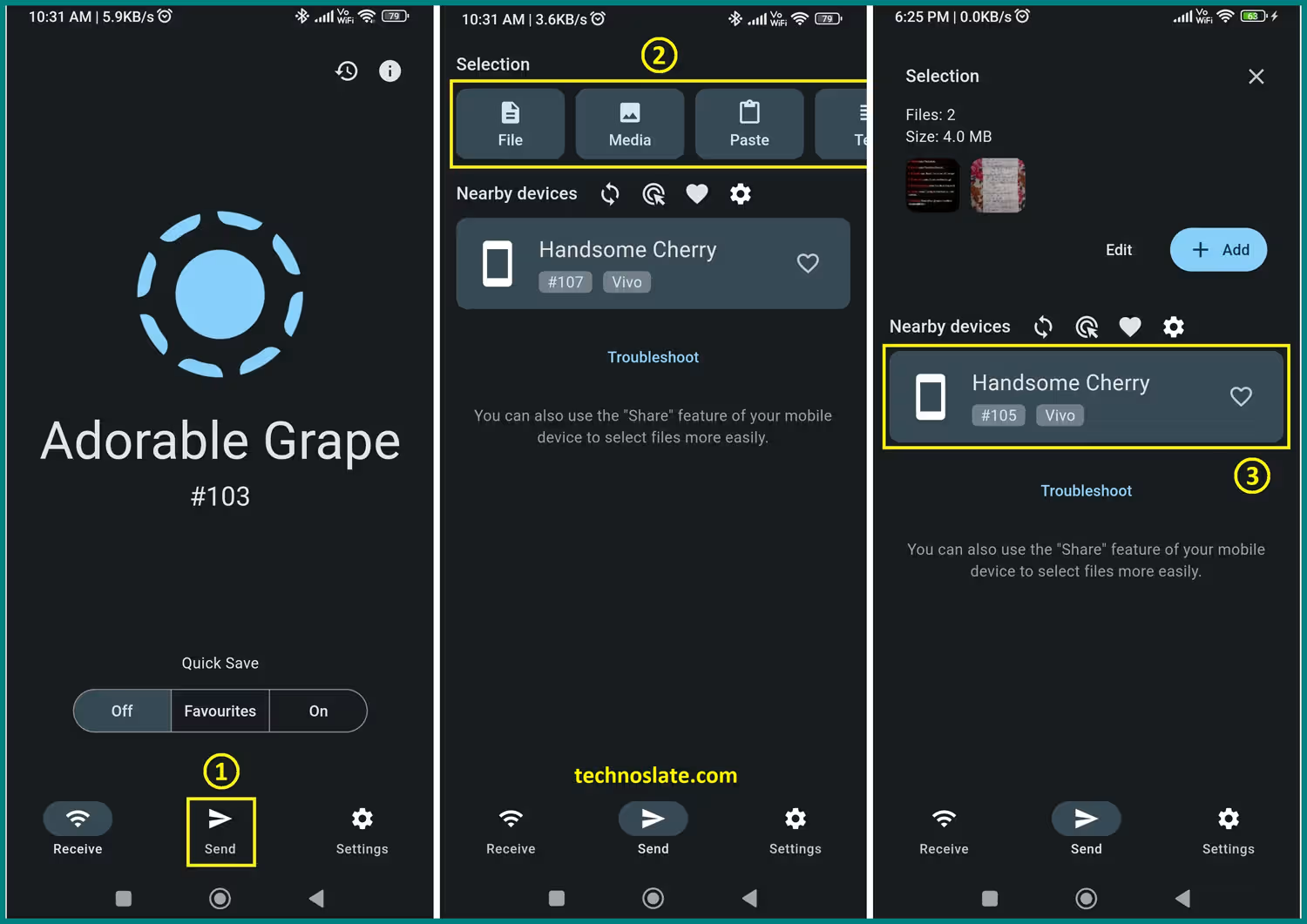
- Tap Send. Choose what to send and Select the file(s): Files, Photos & Videos, Text or Clipboard. Choose a target device from the list.
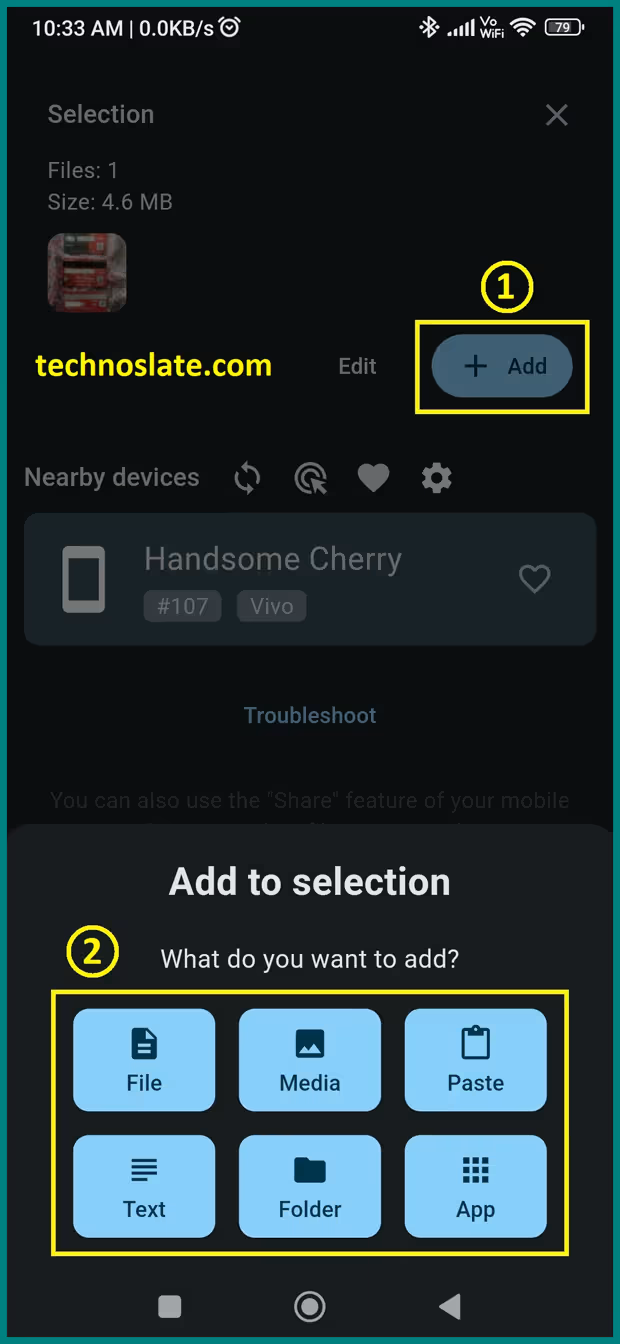
- You can also add files to an existing selection. For example, if you first selected images and now want to add a video, audio, or any other files to send, tap Add, choose the media type, and then select the file.
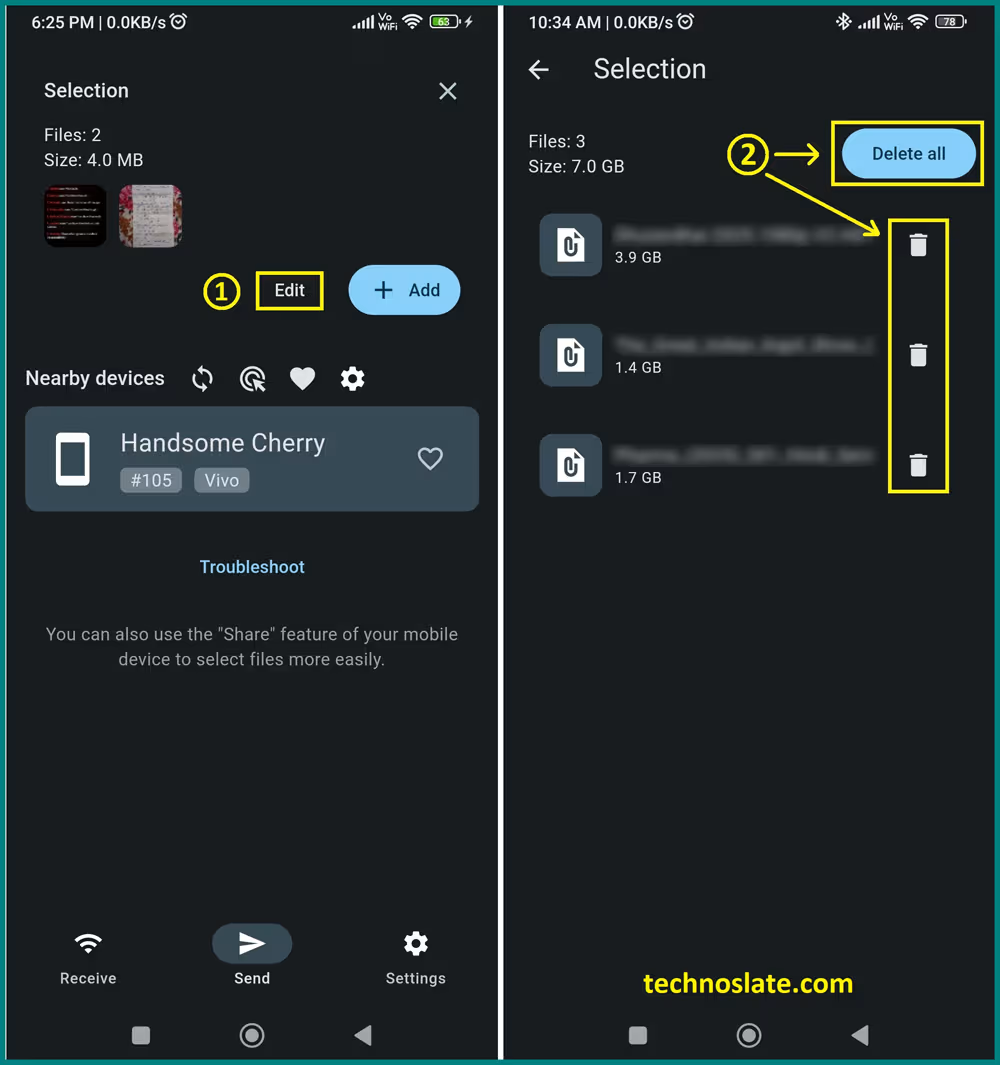
- If you don’t want to send any of the selected files, tap Edit first and then delete the file to remove it from the selection. A file deleted from here will only be removed from your list; it will not be deleted from your device.
- Install the app from Google Play Store. Open LocalSend and Allow permissions like for Nearby devices, Files & media, Notifications.
- Receive File:
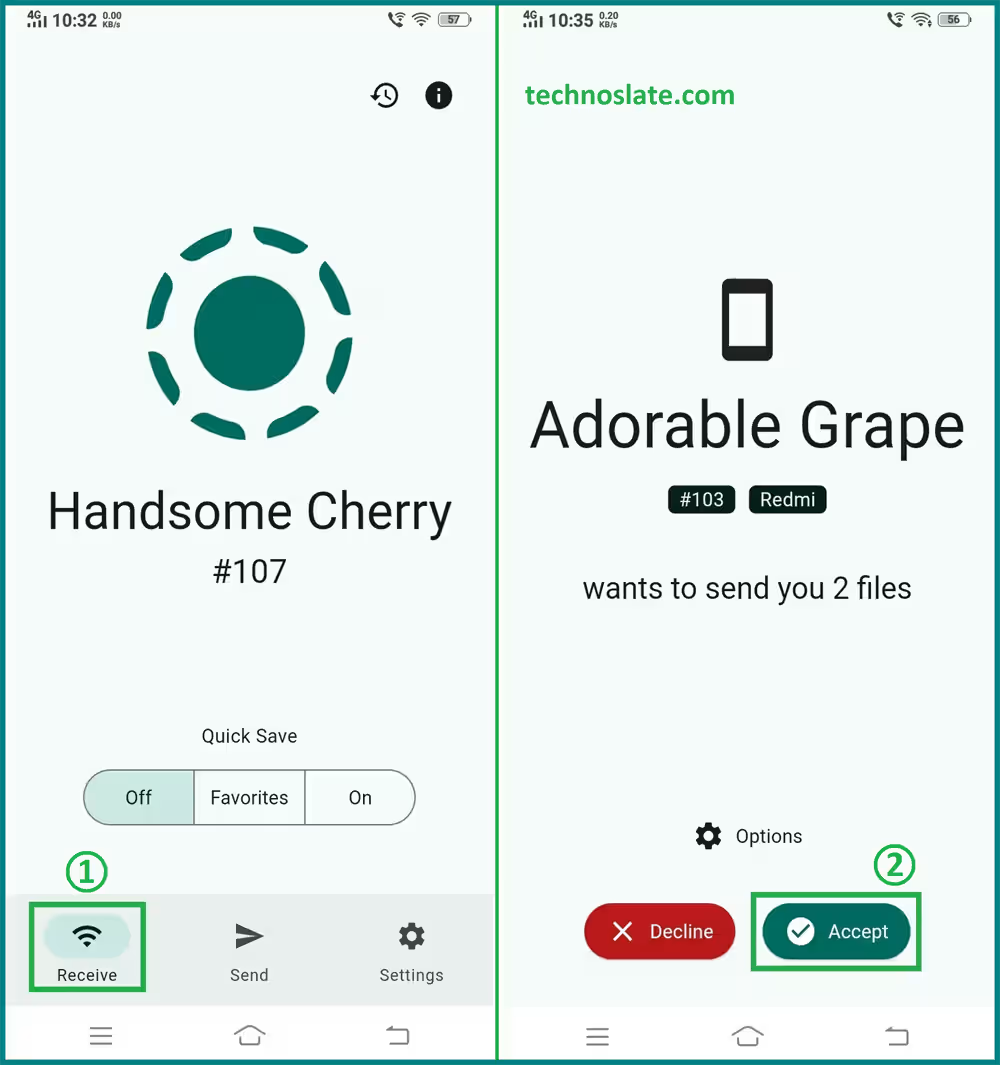
- Open LocalSend. Stay on the Receive screen. When a file arrives, tap Accept.
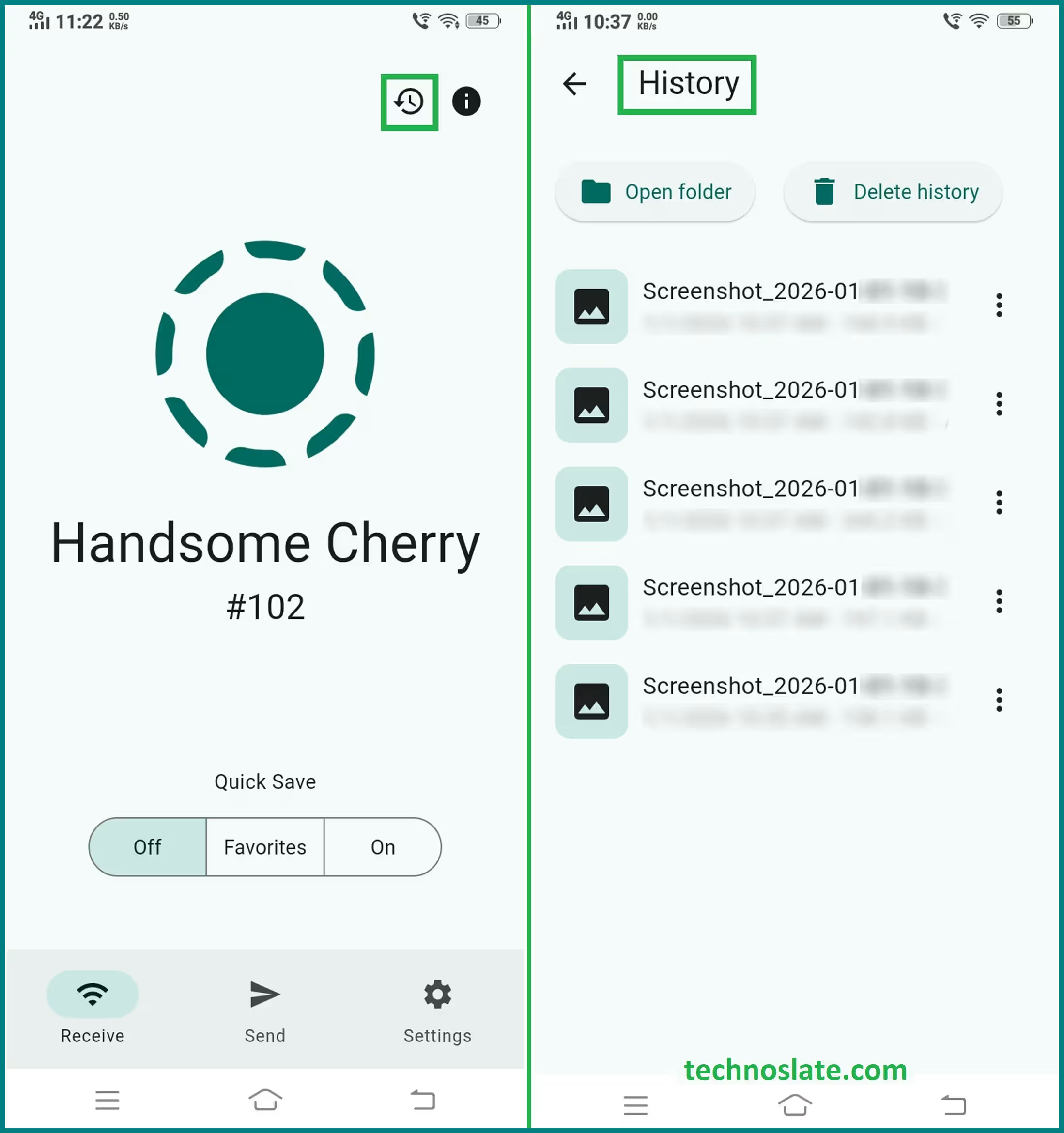
- You can also open the received file directly from the history (without going to file explorer or gallery). To view history, tap on the icon shown in the image below.
- Open LocalSend. Stay on the Receive screen. When a file arrives, tap Accept.
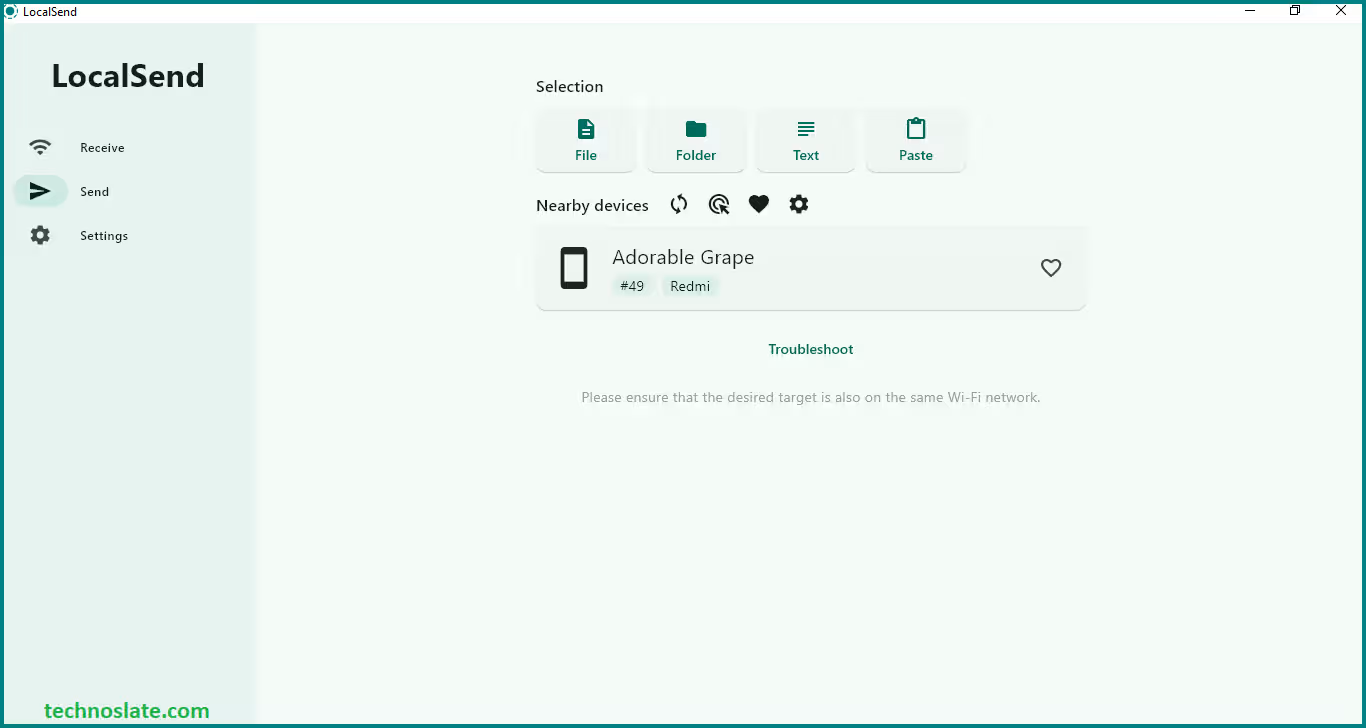
- Here is the quick look of the LocalSend in Desktop/Laptop.
Use of “Quick Save” and “Quick Save for Favourites” in LocalSend
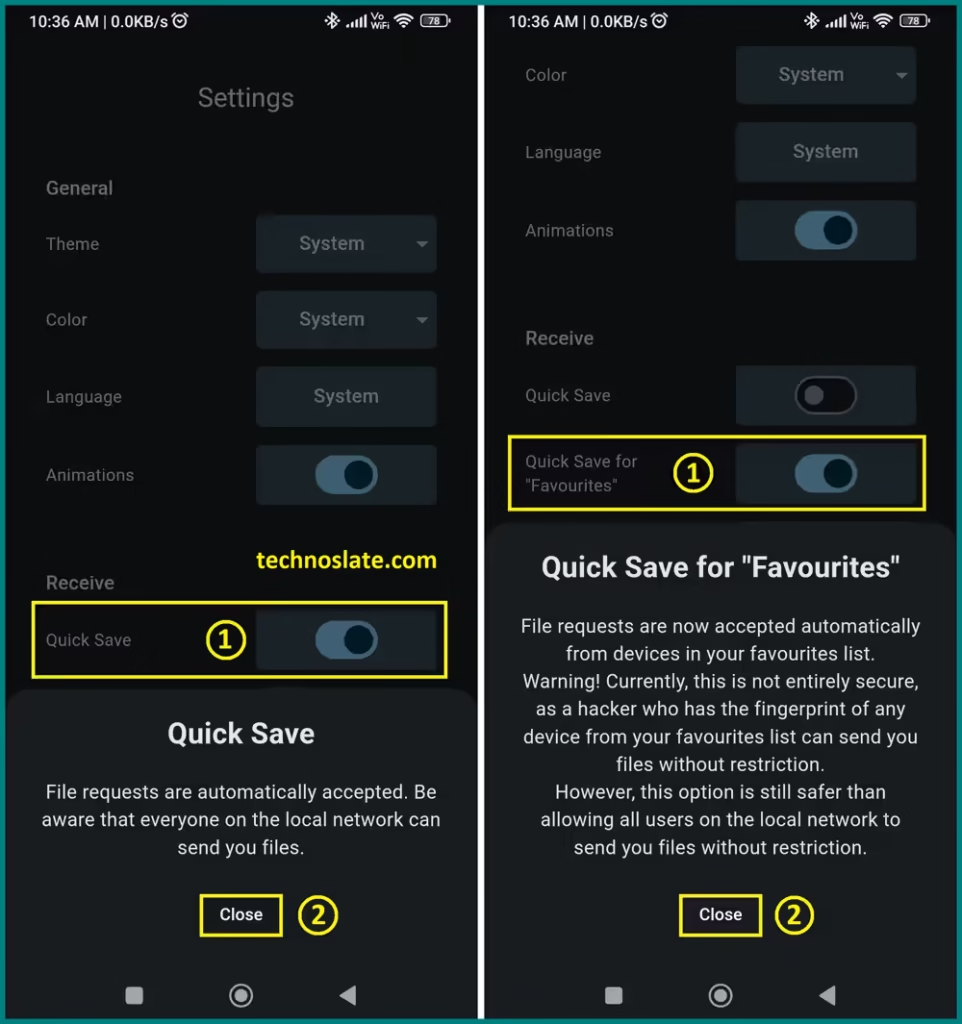
Quick Save is a setting in the Receive section of LocalSend that, when turned on, makes incoming file transfers automatically accepted and saved to your device without asking you to manually approve each one. Normally, LocalSend will show a prompt asking you to confirm a file transfer. With Quick Save enabled, that confirmation step is skipped for all senders (unless you have other security restrictions like a PIN). This Feature is very useful when you’re on a trusted network (e.g., your home Wi-Fi) and you want faster transfers without tapping Accept every time. Not recommended on public or untrusted networks because anyone could send files to you automatically.
Quick Save for Favorites is a more selective version of the above: it only auto-accepts incoming files from devices you’ve marked as Favorites. Devices in your Favorites list won’t require confirmation – but all other devices will still need you to manually accept files. You frequently share files with one or a few trusted devices (like your own phone and laptop). You want automation for those trusted devices but manual acceptance from others.
Use Cases Where LocalSend Excels
This app is particularly effective in scenarios such as:
- Moving large media files between your phone and laptop quickly at home or office.
- Sharing documents and folders in team environments with restricted internet where cloud is blocked.
- Cross-platform homes with different OS devices (Android + iOS + Windows + Linux).
- Traveling where internet is limited or expensive but local Wi-Fi is available.
- Secure environments where data privacy is critical (government, corporate, field units).
How LocalSend Compares to Other Tools
While many comparisons are straightforward, here’s a deeper look for LocalSend vs:
- AirDrop
- AirDrop works excellently within Apple ecosystems but doesn’t support non-Apple devices. This app fills that gap by working across platforms.
- Nearby Share
- Nearby Share is limited to Android/Chrome OS and occasionally struggles with reliability. This app often provides more reliable detection across diverse platforms.
- loud Services (e.g., Google Drive)
- Unlike cloud tools, This app doesn’t depend on the internet and offers faster, private transfers, although it lacks remote sharing capabilities.
- Web-based Tools (e.g., Snapdrop)
- Web tools need browsers and internet dependencies, while this app works natively and offline. However, web tools can be used without installing apps.
Tips and Best Practices for Using LocalSend
For the best experience, follow these tips:
- Connect all devices to the same stable Wi-Fi network to ensure discovery and fast transfers.
- Customize device names to avoid confusion when multiple devices show similar identifiers.
- Enable Quick Save on trusted networks to speed up repetitive transfers.
- Check firewall and router settings if devices are not detected.
- Keep the app open on mobile devices during transfers, especially for large files, to prevent interruptions.
Conclusion: Is LocalSend Worth It in 2026?
Absolutely. LocalSend stands out as one of the most versatile and privacy-centric file transfer tools available today. It bridges the gap between multiple platforms and removes reliance on cloud storage, login credentials, ads, and tracking. While it does have limitations — primarily being confined to local networks and experiencing occasional device discovery or background processing issues — its benefits are significant and impactful for everyday use. Whether you are a casual user exchanging photos between your devices, a professional needing secure document transfer, or someone tired of juggling multiple transfer methods, LocalSend is an excellent choice.
Frequently Asked Questions (FAQ) About LocalSend
- What is the application used for?
- It is used for transferring files, folders, text, and clipboard content between devices that are connected to the same local network. It allows users to share data quickly without using the internet, cloud storage, or external servers, making it ideal for secure and private file sharing.
- Is the app completely free to use?
- Yes, App is completely free and open-source. There are no hidden charges, subscriptions, advertisements, or premium features. Users can access all functionalities without creating an account or providing personal information.
- Does it require an internet connection?
- The app does not require an active internet connection. It only needs devices to be connected to the same local network, such as a Wi-Fi router or a mobile hotspot. This makes it useful in offline environments or places with limited connectivity.
- Is it safe and secure for file sharing?
- This app is considered very secure because it uses encrypted communication during file transfers. Since files are transferred directly between devices and never uploaded to a cloud server, the risk of data interception or third-party access is significantly reduced.
- Which devices and operating systems supported by the app?
- App supports multiple platforms including Windows, macOS, Linux, Android, and iOS. This cross-platform compatibility allows users to transfer files seamlessly between phones, tablets, and computers regardless of the operating system. One of LocalSend’s biggest advantages is that it works across different ecosystems.
- Can it transfer large files?
- Yes, It can transfer large files without imposing artificial size limits. The speed and reliability of large file transfers depend mainly on the quality and speed of the local network being used rather than the application itself.
- How fast is this app compared to cloud services?
- It is often faster than cloud-based services because files are transferred directly over the local network. There is no need to upload files to a remote server and then download them again, which significantly reduces transfer time for large files.
- Can I use it without installing it on both devices?
- While the best experience comes from installing the app on all devices, it also allows sharing via local links or QR codes in some cases. However, full functionality and ease of use are achieved when the app is installed on both sending and receiving devices.
- Why are my devices not showing up in the app?
- Devices may not appear if they are not connected to the same local network or if firewall settings are blocking discovery. Keeping the app open, allowing network permissions, and using a stable Wi-Fi connection usually resolves this issue.
- Is it better than AirDrop or Nearby Share?
- This app is often preferred when users need cross-platform compatibility and privacy. While AirDrop and Nearby Share work well within their own ecosystems, this app provides a unified solution for mixed device environments.
- Can it be used in offices or restricted networks?
- Yes, This app is especially useful in offices, schools, or restricted environments where cloud services are blocked or monitored. Since it operates locally, it allows internal file sharing without external data exposure.
- Does this app store or log my files?
- No, This app does not store, log, or track any user files or activity. Files are transferred directly and temporarily, and once the transfer is complete, no data is retained by the application.
- Is LocalSend suitable for long-term professional use?
- This app is suitable for both personal and professional use, especially for users who value privacy, speed, and simplicity. While it lacks remote file sharing, it excels as a reliable local transfer tool in daily workflows.
I hope you liked the article on how to transfer file using LocalSend. If this post helped you then please share it with your friends and family to know about it. If you have any questions then feel free to ask in comment section. We will try our best to help you. You can read more such interesting articles here.