Let’s be honest: most of us don’t think about online privacy until something goes wrong. Maybe a website blocks you for no clear reason, or ads suddenly feel uncomfortably personal. Most people know they should protect their privacy, but paying for a VPN every month feels unnecessary, especially if browsing is mostly casual. This is where Opera’s free VPN quietly shines.
Unlike traditional VPN services that demand subscriptions and complicated setup, Opera includes a free VPN directly inside the browser. You don’t need to install extra software, sign up, or share payment details. You simply turn it on and browse. For Windows users who want better privacy without friction, this feels refreshingly practical. That said, free doesn’t mean flawless.
It’s not magic, and it’s not perfect, but when used correctly, it can make your everyday browsing feel safer, calmer, and more in your control. Opera’s VPN has strengths, limits, and best-use scenarios that many users don’t fully understand. This guide explains exactly how it works, how to enable it, when to use it, when not to, and how to squeeze the most value out of it while staying realistic.
What Opera’s Free VPN Really Is
Opera’s free VPN is a browser-level privacy tool built directly into the Opera browser. Instead of protecting your entire Windows system, it encrypts and routes only the traffic that passes through Opera itself. This means websites you visit inside Opera see a masked IP address rather than your real one, making it harder to track your location or browsing habits. In simple words, it protects what you do inside Opera, such as visiting websites, searching the web, or reading articles, but it doesn’t cover other apps or browsers on your computer.
Because it operates only inside the browser, Opera’s VPN feels lightweight and fast to activate. There’s no separate application running in the background, no login system, and no complicated configuration. It exists mainly to enhance everyday privacy rather than provide military-grade anonymity. This design choice keeps things simple, which is exactly what many casual users want.
Why Many People Choose Opera’s Free VPN
One of the biggest reasons people use Opera’s VPN is because it’s genuinely free. In an industry full of paywalls and upsells, a genuinely free VPN feels rare. There are no hidden limits that suddenly lock you out after a few days, and you’re not constantly pushed to upgrade to a paid version. This alone makes it stand out in a world full of “free trials” that quietly expire. Opera does not ask for payment information, trial activation, or upgrades just to continue using the feature.
Another major advantage is accessibility (ease of use). Opera’s VPN is beginner-friendly by design. You don’t need technical knowledge (like encryption protocols or server configuration) to understand it or use it correctly. Because it’s built into the browser, it doesn’t slow down your entire system or clutter your computer with extra software.
From a privacy perspective, the VPN hides your real IP address and encrypts your browser traffic, which reduces tracking and adds a layer of safety, especially on public Wi-Fi networks such as those in cafés or airports. For users who value convenience over complexity without overthinking it, this approach feels just right.
The Honest Downsides of Opera’s Free VPN
Despite its convenience, Opera’s free VPN is not a complete privacy solution. Its biggest limitation is that it only protects traffic inside the Opera browser. Any activity outside the browser, including other browsers or desktop applications like like email clients or file-sharing software or any other software remains unprotected. Speed is another trade-off. Since the VPN is free and shared among many users, performance can slow down during peak times. This makes it unreliable for streaming services or streaming high-quality videos, gaming, or large downloads. Additionally, users cannot choose specific countries, only broad regions, which limits control.
It’s also worth noting that Opera’s VPN lacks advanced security features found in paid services. There is no kill switch, no custom protocol selection, and no guarantee that it will bypass geo-restrictions on popular streaming platforms. It improves privacy, but it doesn’t make you completely anonymous. Opera’s VPN improves privacy, but it does not eliminate online tracking entirely. Additionally, Opera doesn’t allow you to select specific countries, only broad regions, which limits control for users who need precise locations.
How to Enable Free VPN in Opera on Windows
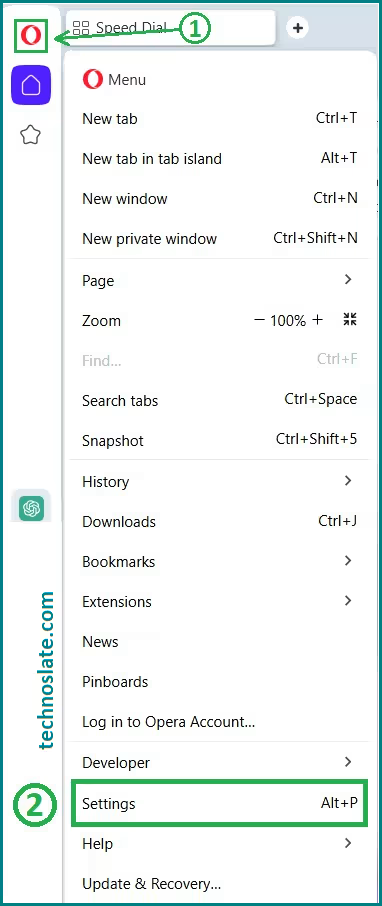
- Enabling the free VPN in Opera takes less than a minute. After installing the Opera browser on your Windows computer, open it and click the Opera logo in the top-left corner. From there, enter the settings panel or use the Alt and P keyboard shortcut to get there faster.
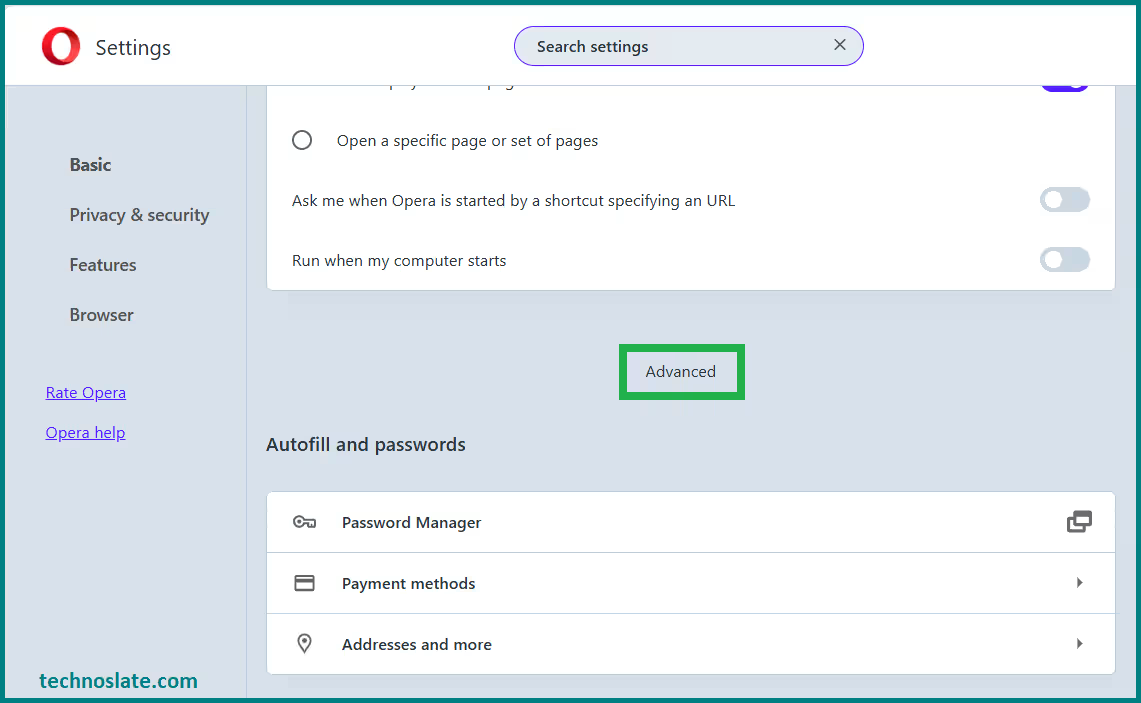
- Inside the settings menu, scroll to the page bottom and click on Advanced.
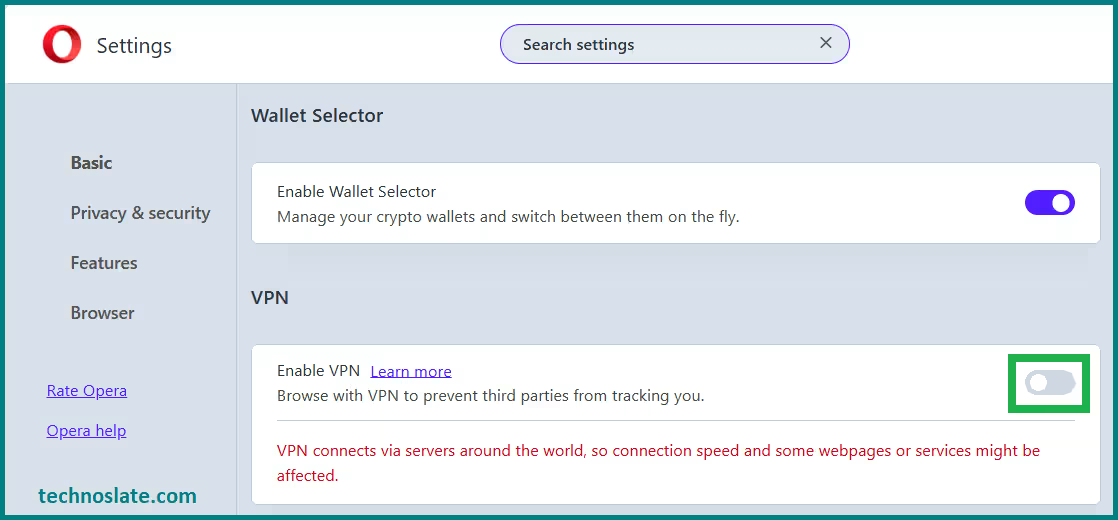
- Scroll down until you see the VPN option.
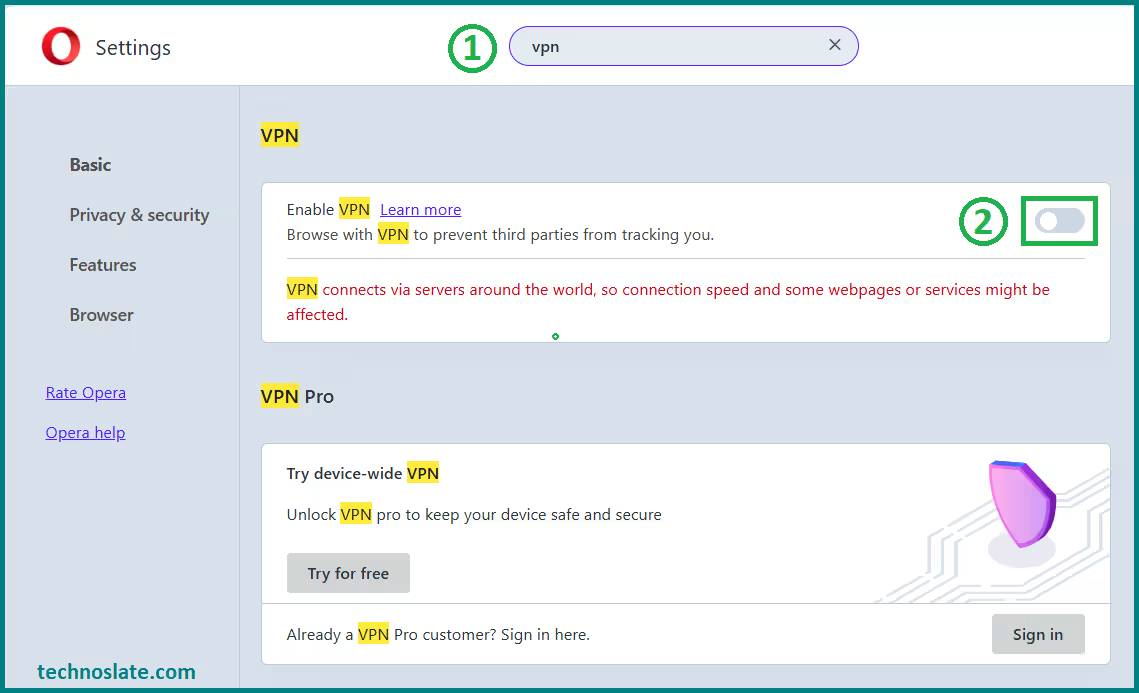
- You can also search for the VPN in search bar.
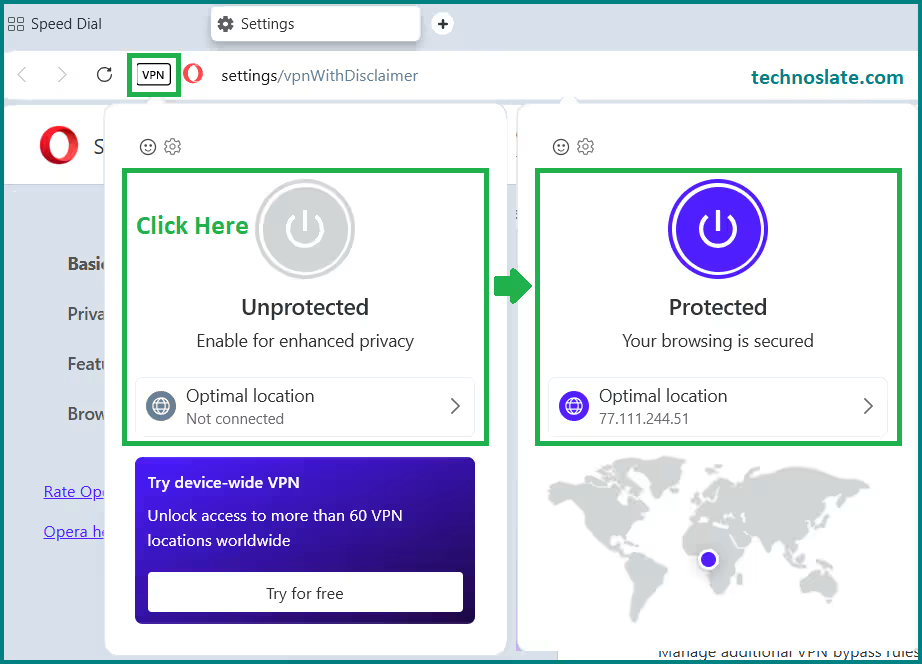
- Once you toggle it on, a small VPN badge appears in the address bar.
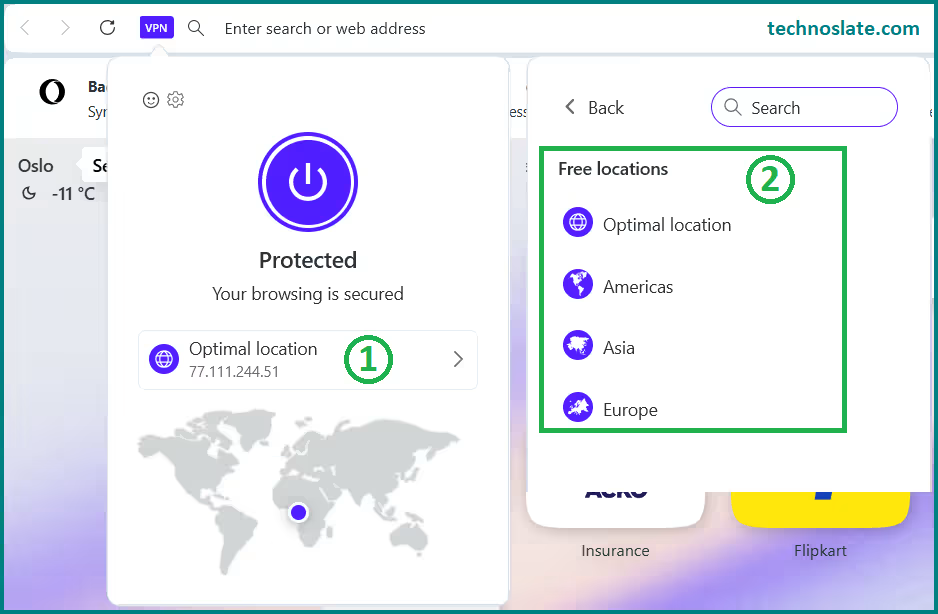
- Clicking that badge allows you to activate or deactivate the VPN and choose a general browsing region such as Europe, the Americas, Asia, or an automatic optimal location.
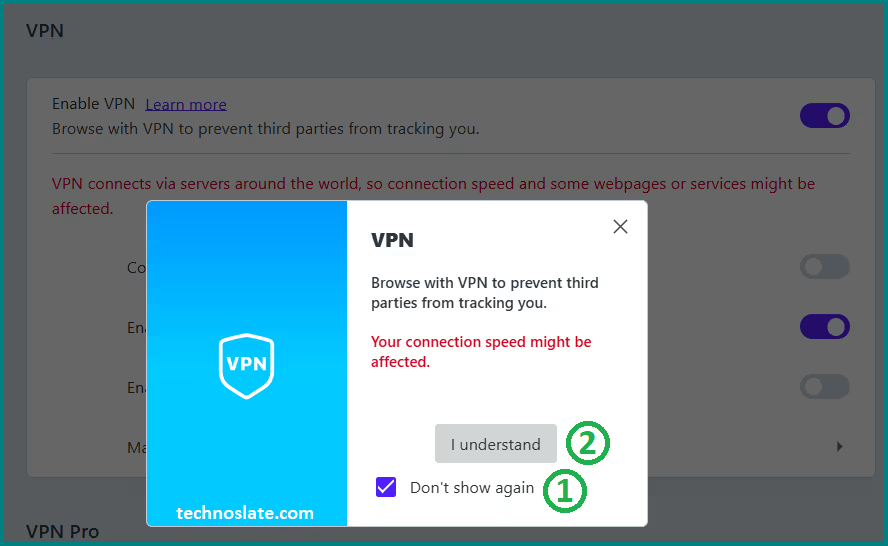
- This message (image given below) appears when you turn on Opera VPN to inform the user that VPN helps improve privacy by routing internet traffic through Opera’s servers, but it may slightly reduce internet speed and cause some websites or services to not work properly. It is not an error, only an informational warning, and you can continue using the VPN normally after accepting it.
- There’s no setup process beyond this to activate and use free vpn in opera. No emails, no passwords, no payment prompts, no account creation, and no usage limits to unlock. The VPN simply works when you want it to.
When Opera’s Free VPN Is the Right Choice
Opera’s VPN is best suited for users who want basic privacy while browsing the web. It works well for reading content, researching topics, shopping online, or using public Wi-Fi networks where encryption matters most. If you simply prefer not to expose your IP address on every website, this tool fits nicely into your routine.
However, users who need torrenting support, accessing region-locked streaming services, consistent streaming access, or full system protection should consider a paid VPN. Opera’s free VPN works best as a light privacy shield rather than a full security system.
How to Get the Best Results from Opera VPN
To get the best experience, leaving the VPN set to the optimal location usually provides the best speed and performance. Using Opera’s private browsing mode alongside the VPN adds another layer of protection by limiting stored data and cookies. Keeping the browser updated ensures the VPN feature stays secure and efficient benefiting from the latest security improvements. Turning the VPN off when speed is more important than privacy can also improve performance. Treat it as a tool you use intentionally rather than something that must stay on all the time.
Suggested Improvements That Could Make Opera VPN Better
Opera’s free VPN could become significantly stronger with a few improvements and thoughtful upgrades. Adding more server locations would give users greater flexibility. Improving speed consistency would make it more reliable during peak hours. Adding features such as a kill switch or clearer transparency about data handling would also increase confidence among privacy-focused users. Even without these upgrades, the VPN performs its intended role well, but thoughtful enhancements could push it ahead of competitors.
Frequently Asked Questions About Opera Free VPN
Is Opera’s free VPN safe to use on Windows?
Opera’s VPN is safe for basic browsing and uses encryption to protect browser traffic. While it doesn’t offer advanced security features, it is suitable for everyday privacy needs.
Does Opera VPN track user activity?
Opera states that it does not log browsing activity while the VPN is enabled. However, because it is a browser-level tool, it should not be treated as a zero-log anonymity solution.
Can Opera’s free VPN unblock Netflix or streaming sites?
In most cases, Opera’s VPN is not reliable for bypassing streaming restrictions. Streaming platforms often detect and block VPN traffic.
Does Opera VPN slow down internet speed?
Yes, some speed reduction is possible, especially during busy hours. This is common with free VPN services.
Is Opera VPN completely free forever?
Yes, Opera’s built-in VPN is free and does not require a subscription, although Opera also offers a separate paid VPN product with more features.
Final Verdict: Should You Use Opera’s Free VPN?
Opera’s free VPN is not trying to replace premium VPN services, and that’s actually its strength. It succeeds because it keeps expectations realistic. It focuses on simplicity, accessibility, and ease of use. For Windows users who want basic privacy without spending money or dealing with complicated software, it’s a genuinely useful tool. As long as you understand its limits and use it for what it’s designed to do, Opera’s VPN can quietly make your online experience feel a little safer and a lot less exposed. Sometimes, that’s more than enough. Sometimes, the best tools are the ones that don’t demand much from you – and Opera’s free VPN fits that role perfectly.
I hope you enjoyed this post about Opera’s free VPN. If you found this post helpful, please share this post with your friends and family. If you have any question in your mind or you are facing any problem then feel free to ask your question in the comment section. We will try our best to help you. You can read more such interesting articles here.