Google Chrome is one of the most widely used browsers, known for its speed, user-friendly interface, and powerful features. One feature that many users are often unaware of or underutilize is multiple profiles. This feature allows users to create separate, distinct profiles within a single browser instance, providing a way to manage different browsing activities more efficiently. In this article, we will explore what multiple profiles in Google Chrome are, how to create and use them, and weigh the advantages and disadvantages of using multiple profiles in Google Chrome.
What Are Multiple Profiles in Google Chrome?
Google Chrome’s multiple profiles feature allows you to create separate profiles, each with its own settings, extensions, browsing history, bookmarks, and other personalized configurations. This can be especially useful for people who want to separate their personal and work-related browsing or for families who share the same computer but want individual experiences. Each profile essentially acts like a different user account, even though it’s running within the same browser. You can switch between profiles with a simple click and enjoy different settings, logins, and themes tailored to each account.
Advantages of Using Multiple Profiles in Google Chrome
- Separation of Work and Personal Browsing
- One of the biggest benefits of using multiple profiles is the ability to keep work and personal browsing separate. With a dedicated profile for work, you can keep all your work-related tabs, extensions, and login credentials distinct from your personal accounts. This ensures that your personal information, bookmarks, and browsing history don’t mix with your professional activities. This separation also reduces the risk of accidentally sending personal messages from your work email or vice versa. In addition, multiple profiles in google chrome help parents manage children’s browsing. For example:
- Work profile: Saves work-related tabs, email logins, calendar, and productivity tools.
- Personal profile: Saves entertainment websites, social media accounts, and shopping preferences.
- One of the biggest benefits of using multiple profiles is the ability to keep work and personal browsing separate. With a dedicated profile for work, you can keep all your work-related tabs, extensions, and login credentials distinct from your personal accounts. This ensures that your personal information, bookmarks, and browsing history don’t mix with your professional activities. This separation also reduces the risk of accidentally sending personal messages from your work email or vice versa. In addition, multiple profiles in google chrome help parents manage children’s browsing. For example:
- Customizable Settings for Each Profile
- Each profile has its own settings. This means you can customize your themes, extensions, and bookmark bars differently for each profile. This customization makes Chrome much more personalized and organized for different types of browsing sessions. For instance:
- Your Work profile might have productivity tools and a dark theme for focus.
- Your Personal profile could have social media extensions and a lighter, more playful theme.
- Each profile has its own settings. This means you can customize your themes, extensions, and bookmark bars differently for each profile. This customization makes Chrome much more personalized and organized for different types of browsing sessions. For instance:
- Multiple Google Accounts Management
- For people who juggle multiple Google accounts (like work and personal Gmail accounts), using multiple profiles in Google Chrome makes account management a lot easier. You can sign into each profile with its corresponding Google account, ensuring you don’t get logged out of one account when switching between others. With profiles, you can easily switch between these accounts without worrying about login issues or mixing up your personal and work-related information.
- Guest Mode for Temporary Browsing
- When you share your computer with someone, Chrome offers a Guest Mode, where you can create a temporary profile. In this mode, no browsing history or personal data is saved, and it doesn’t affect the main profiles. This feature is ideal for when you want to allow someone to browse the web without worrying about their activity being mixed in with yours. To can read more about Guest Mode here.
- Organized Browsing Experience
- Multiple profiles allow for better organization of your browsing. If you have many tabs open for different tasks (work, personal interests, entertainment, etc.), creating a profile for each can help keep everything organized. For instance, you could keep your work-related tabs and research in one profile, while keeping shopping and social media tabs in another. This keeps your browser from getting cluttered, improving your focus and efficiency.
How to Create and Use Multiple Profiles in Google Chrome
Setting up multiple profiles in Google Chrome is simple and takes just a few steps. Here’s how to do it:
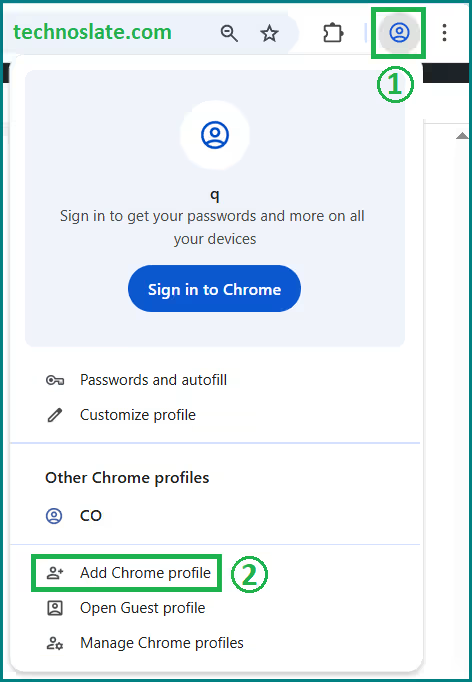
- Open Google Chrome on your computer. In the top-right corner of the Chrome window, click on the Profile icon (it might be a circle with your initial or your current profile picture). Select Add Chrome profile.
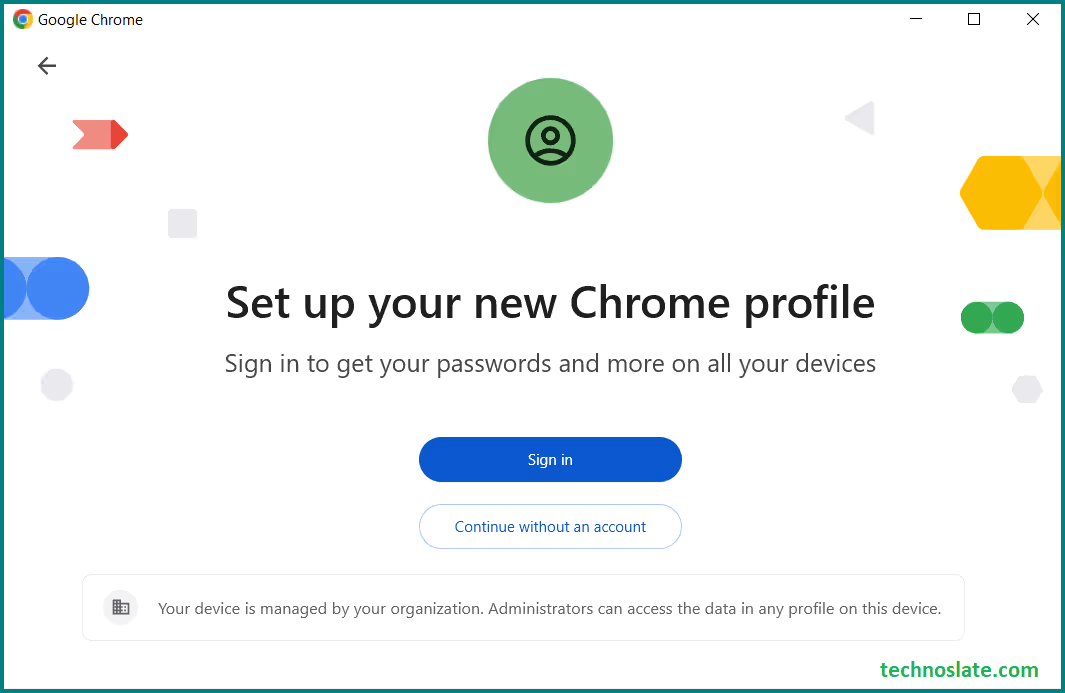
- You will see a window to setup your new chrome profile. If you want, you can sign into the new profile with your another Google account, or you can choose to skip this step for now by clicking on Continue without an account to use without signing in.
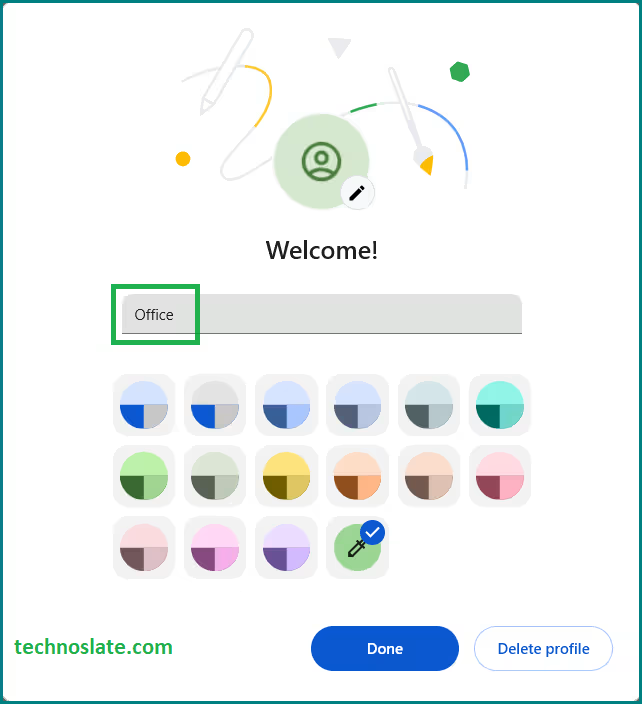
- In the window that appears, you’ll be prompted to give the new profile a name and choose an icon. Once the new profile is created, a new Chrome window will open with the fresh profile. You can begin browsing as if it were a completely separate instance of Chrome.
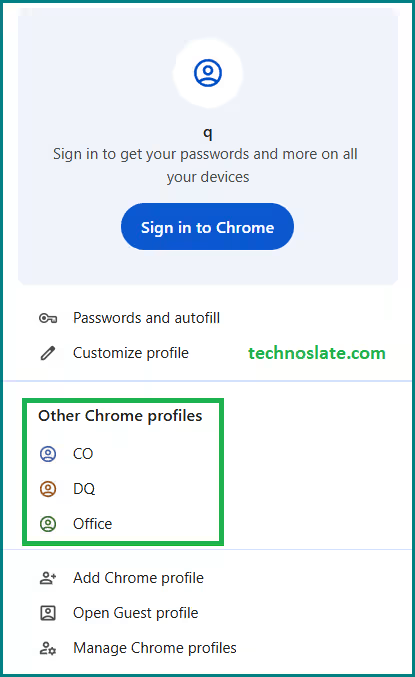
- To switch between profiles, just click the profile icon in the top-right corner of the browser and select the profile you want to switch to.
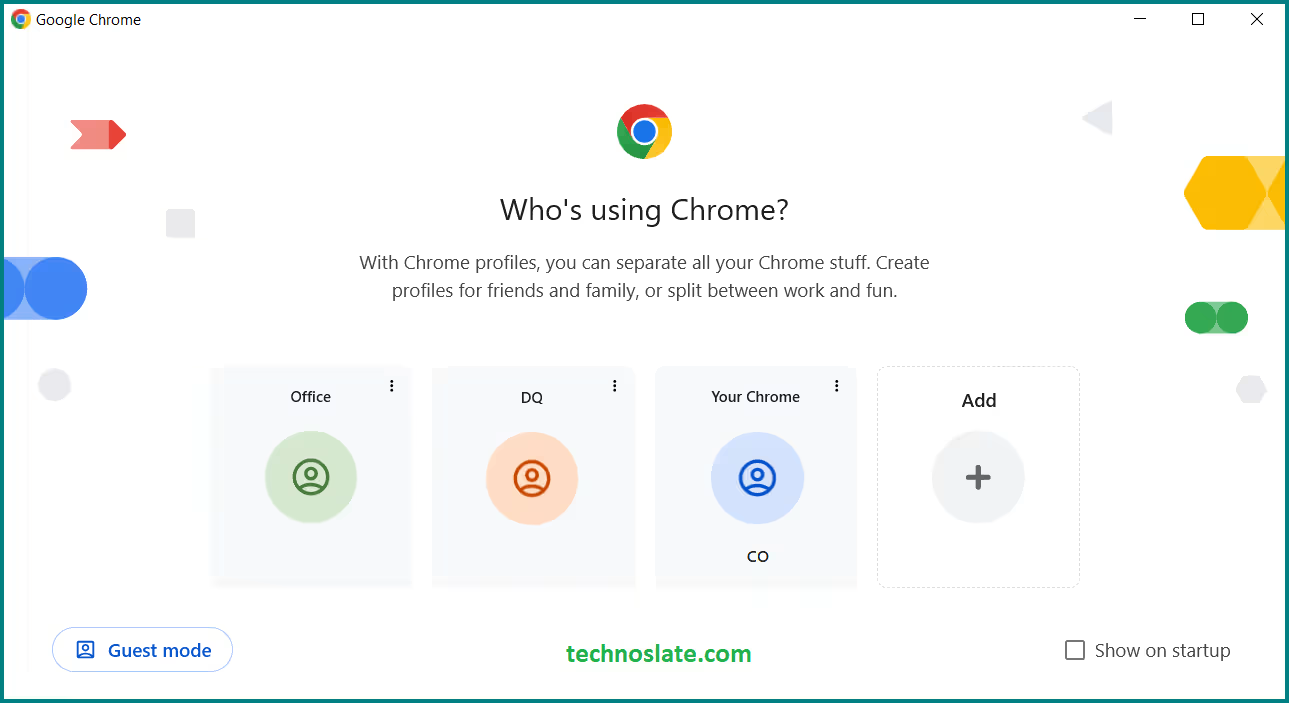
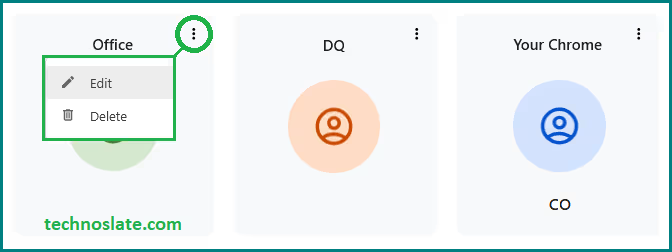
- You can also manage or remove profiles from this menu. To manage multiple profiles in google chrome, click on your Profile icon placed at top-right corner of the Chrome window. And then select Manage Chrome profiles. You will find a list of all Google Chrome profiles.
- Click on Kebab menu (three vertical dots) on that profile to Edit or Delete profile.
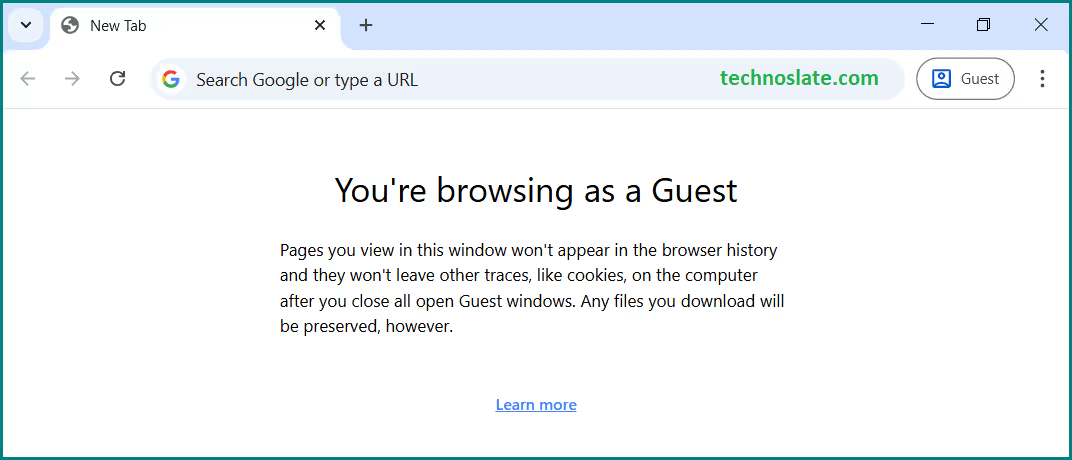
- If you don’t want to manage multiple profiles then go for Guest browsing. Guest browsing in Google Chrome lets you use Chrome without saving history, cookies, or site data once you close the window. It’s useful if you’re on a shared computer. You should read more on Guest browsing here.
Disadvantages of Using Multiple Profiles in Google Chrome
While the multiple profiles feature in Google Chrome offers many benefits, it’s not without its downsides. Let’s explore some of the potential disadvantages of using multiple profiles.
- Increased Resource Consumption
- Every time you create a new profile in Chrome, you are essentially opening a new instance of the browser. This means each profile consumes additional system resources, such as memory and processing power. If you have several profiles open at once, it can lead to significant slowdowns, especially if you’re working on a device with limited RAM or processing power. If you’re someone who tends to keep many profiles and tabs open at once, it could impact your computer’s performance.
- Complicated Profile Switching
- While switching between profiles is easy, it can still become cumbersome if you have many profiles created. Constantly switching between profiles to check different accounts or information can slow down your workflow. For example, you might forget which profile has which settings, making the process of switching back and forth a bit more time-consuming. This could be particularly annoying for users who are prone to multitasking and need quick access to everything at once.
- Syncing Across Profiles Is Limited
- Though Google Chrome allows you to sync data (like bookmarks and passwords) across different devices for each profile, syncing between profiles on the same device is not straightforward. This means that settings, history, and other personal data remain isolated to each profile. If you need data from one profile in another, you will have to manually transfer it, which can be a bit of a hassle.
- Potential for Confusion
- For users who aren’t familiar with the concept of profiles, the multiple profile setup might be confusing. New users might accidentally forget to switch to the right profile, causing them to mix work and personal browsing data or accidentally use the wrong Google account. This is particularly problematic for families or shared computers, where multiple users might be accessing the same browser but might not fully understand the implications of using different profiles.
- Lack of Seamless Integration with All Google Services
- Some Google services might not integrate perfectly across profiles. For example, while Gmail and Google Drive work well with profiles, other Google services or third-party extensions may not be as profile-aware. This could lead to scenarios where certain tools or extensions might not function as expected when switching between profiles.
What is Guest Profile in Chrome?
Guest mode is a temporary browsing profile designed for situations where someone else needs to use your browser without accessing your personal data. It creates a clean, isolated Chrome session that disappears when closed. When Guest mode is opened, Chrome starts a completely clean and isolated session with no access to bookmarks, saved passwords, browsing history, or installed extensions from other profiles. Any activity performed in this mode, including visited websites, cookies, and site data, is automatically deleted as soon as the Guest window is closed, ensuring that nothing is saved locally on the device. Multiple Profiles in Google Chrome save bookmarks, history, and passwords, while Guest Mode in Google Chrome does not save any data.
Multiple Profiles in Google Chrome are meant for regular users, whereas Guest Mode in Google Chrome is for temporary use. Guest mode focuses on local privacy rather than online anonymity, meaning it does not hide browsing activity from websites, internet service providers, or network administrators. It is especially useful when sharing a computer with another person, as the guest cannot view or switch to existing Chrome profiles. Unlike Incognito mode, which still allows access to the user’s profile data such as bookmarks and optional extensions, Guest mode is intended specifically for others to use the browser without affecting or seeing the primary user’s information. Multiple Profiles in Google Chrome require profile setup, but Guest Mode in Google Chrome opens instantly.
Common Use Cases of Guest Profile
- The Guest profile in Google Chrome is commonly used when you need to share your computer with a friend or colleague and want to keep your personal data private.
- It is also useful on public or shared machines where you do not want your browsing activity or login details to be saved.
- Guest mode allows someone to browse the internet without risking access to your saved accounts, passwords, or bookmarks.
- Additionally, it is helpful for testing websites in a logged-out state, as it opens pages without any existing cookies or user data.
- Multiple Profiles in Google Chrome are ideal for daily use, while Guest Mode in Google Chrome is ideal for one-time use.
Limitations to Keep in Mind
There are a few limitations when using Guest mode in Chrome. Extensions cannot be added permanently, as the profile resets every time the session ends. Any files downloaded during a Guest session are removed once the Guest window is closed unless they are saved to an external location. Furthermore, all settings return to their default state after each session, meaning any changes made during browsing are not preserved.
Conclusion: Are Multiple Profiles in Google Chrome Worth It?
Multiple profiles in Google Chrome offer many benefits, particularly for users who need to manage different accounts, separate work and personal browsing, or share their computer with others. The ability to create a personalized and organized browsing environment for each type of activity- whether for work, personal use, or even as a guest- can greatly enhance your productivity and online experience. Multiple Profiles in Google Chrome allow better control over browsing activities.
However, there are trade-offs. Multiple profiles in google chrome, can consume more system resources, create some confusion if not managed properly, and require a bit more effort when switching between them. For users who are highly organized and need to keep distinct aspects of their life separate, this feature is a valuable tool. But for those who prefer simplicity or use computers with limited resources, it may be best to stick with a single profile.
Ultimately, multiple profiles can be incredibly useful for managing multiple identities or tasks, but it’s important to weigh the pros and cons based on your needs and system capabilities. Multiple Profiles in Google Chrome allow sign-in with a Google account, while Guest Mode in Google Chrome does not allow sign-in. Multiple Profiles in Google Chrome help manage work and personal accounts, while Guest Mode in Google Chrome is used for quick browsing.
I hope you loved this article about Multiple Profiles in Google Chrome. If this post helped you then please share it with your friends and family to know about it. If you have any questions then feel free to ask in comment section. We will try our best to help you. You can read more such interesting articles here.