Most people never touch Windows 10 Privacy Settings, assuming the default options are fine. But what if your system is quietly tracking your activity and shaping your experience without you realizing it? If you take a few minutes to review Windows 10 Privacy Settings, you can avoid unnecessary data sharing. The real question isn’t just what these settings do – it’s whether you should keep them on or turn them off. In this guide, you’ll understand the hidden trade-offs between convenience and privacy, so you can make a smarter, more confident decision for your PC.
Windows 10 Privacy Settings Explained
Windows 10 Privacy Settings are designed to control how your system collects, uses, and shares your data while you use your PC. These settings cover things like app tracking, advertising preferences, language access, and usage behavior. When enabled, they allow Windows to personalize your experience by learning your habits, improving search results, and suggesting relevant content. At the same time, they involve a certain level of data collection, which may concern users who value privacy.
The goal of these settings is not to harm your system, but to balance convenience with control. Understanding how each option works helps you decide what level of personalization you are comfortable with and how much information you want to share. When thinking about changes, Windows 10 Privacy Settings give you the flexibility to choose what suits you best. The way Windows 10 Privacy Settings work is simple, but their impact is quite meaningful.
Should You Change Windows 10 Privacy Settings?
Whether you should change Windows 10 Privacy Settings depends on what matters more to you – convenience or privacy. If you prefer a system that adapts to your behavior and makes things easier, keeping most settings on can be beneficial. After spending some time with Windows 10 Privacy Settings, you begin to understand how your system adapts to you.
However, if you are more concerned about data tracking and want a cleaner, less intrusive experience, adjusting or turning off some options is a smart choice. Many users choose a balanced approach by disabling tracking-related settings while keeping useful personalization features active. The best decision is the one that matches your comfort level, because these settings are flexible and can always be changed later as your needs evolve.
Let apps use advertising ID
This setting allows apps to track your activity and show you more personalized ads. When it is ON, apps can build a profile of your interests. This can make ads feel more relevant, but it also means your behavior is being tracked across apps. If you turn it OFF, you’ll still see ads, but they’ll be random and less tailored, and your privacy improves because tracking is reduced.
When you leave the advertising ID turned on, apps don’t just show ads randomly; they slowly build a behavioral pattern based on what you open, how long you use it, and sometimes what you click. Over time, this can create a surprisingly accurate profile of your interests, like whether you prefer gaming, shopping, or productivity tools. This data is not directly identifying you by name, but it still represents your digital personality. Turning it off resets that identity completely, which means apps lose continuity in tracking. However, some apps that rely on ad revenue might behave slightly differently, like showing more generic promotions or asking for permissions again.
Another subtle thing is that some free apps use this system to stay financially supported. When personalization is off, developers may earn less from ads, which sometimes leads to more frequent ads instead of better ones. Also, when you reset your advertising ID, it doesn’t delete all tracking instantly everywhere, but it does break the link going forward, which is still a strong privacy move. Once you adjust Windows 10 Privacy Settings, your system can feel noticeably different.
Let websites provide locally relevant content
This allows websites to access your language preferences to show content suited to your region or language. When it is ON, your browsing feels smoother and more personalized. However, it shares small bits of your preference data. Turning it OFF increases privacy slightly, but you might notice websites not adapting well to your language or region.
With the language-based content setting, Windows is basically acting as a bridge between your system preferences and the web. It can quietly inform websites what languages you understand, which helps things like auto-translation, regional pricing, and even content filtering. When disabled, websites might default to English or another global language, even if you prefer something else. Some websites may also show content that is not relevant to your country, like different currencies or unavailable services.
There’s also a small usability impact here. For example, forms, suggestions, and search results may feel slightly less “natural” when this is off. On the privacy side, this setting is relatively low risk compared to others, because language preference alone is not very sensitive data. Still, in combination with other signals, it can contribute to fingerprinting, which is a more advanced way websites recognize users without cookies. As you go deeper into Windows 10 Privacy Settings, it becomes clear that each option plays a different role.
Let Windows track app launches
This means Windows remembers which apps you use most often to improve search results and Start menu suggestions. When it is ON, your system feels smarter and faster because it learns your habits. The downside is that Windows is monitoring your usage patterns. Turning it OFF stops this tracking, but your search and recommendations may feel less accurate.
When Windows tracks app launches, it’s not just counting how many times you open something. It also uses timing, frequency, and recency to prioritize results. For example, if you open a browser every morning, it learns that pattern. This improves search ranking in the Start menu, so your most used apps appear instantly. If you turn it off, Windows loses that learning ability and treats everything more equally, which can make search feel less intuitive.
Another thing people don’t notice is that this tracking also helps with features like “recent apps” and jump lists. Without it, those features may become less useful or even empty. From a system performance perspective, the tracking itself is very lightweight and doesn’t slow your PC in any meaningful way. The main concern is purely about data collection habits, not performance. Not everyone is comfortable with how Windows 10 Privacy Settings track usage patterns. Also, this data is mostly stored locally on your device, not heavily shared externally, which makes it less risky than cloud-based tracking. Still, if you are someone who values minimal data collection, turning it off aligns better with that mindset.
Show me suggested content in the Settings app
This allows Windows to suggest tips, features, or settings you might find useful. When it is ON, you may discover helpful features you didn’t know about. But it can also feel a bit like unnecessary suggestions or “nudges.” Turning it OFF gives you a cleaner, distraction-free experience, but you may miss some helpful tips.
The suggested content setting in the Settings app is part of Microsoft’s effort to guide users, especially beginners. It can show tips like enabling security features, trying new tools, or finishing setup steps. These suggestions are sometimes based on your usage patterns or system state. When turned off, the Settings app becomes more static and predictable, which some people prefer because it feels cleaner and less cluttered. For privacy-focused users, Windows 10 Privacy Settings may seem like a trade-off they don’t want.
However, turning it off means you might miss subtle recommendations that could improve your system, like enabling backup, updating drivers, or exploring useful features. These suggestions are not ads in the traditional sense, but they can feel similar because they promote certain features. Some users find them helpful, while others find them unnecessary or distracting. Most people ignore Windows 10 Privacy Settings at first, but they quietly shape your overall experience.
There’s also a psychological aspect. When suggestions are always present, it can feel like the system is constantly trying to influence your behavior. Turning them off gives you a more neutral, controlled environment where you decide everything yourself. Windows 10 Privacy Settings allow you to shape your system according to your comfort level.
Show me notifications in the Settings app
This controls whether Windows shows alerts or reminders inside the Settings app. When it is ON, you may get useful notifications about updates or features. The downside is it can feel slightly intrusive. Turning it OFF reduces interruptions, but you might miss important system messages (though critical ones will still appear). In certain cases, Windows 10 Privacy Settings may show suggestions that feel unnecessary. It’s perfectly fine to experiment with Windows 10 Privacy Settings until you find the right balance.
For notifications inside the Settings app, the system uses them to communicate changes, warnings, or reminders. These are usually not urgent, but they can still be important, like reminding you to complete account setup or review privacy settings. When you disable them, the system becomes quieter, and you won’t see those prompts unless you actively look for them.
One interesting detail is that critical notifications, like security alerts or major updates, will still appear even if this setting is off. So you are not completely cutting yourself off from important information. You are mainly filtering out non-essential guidance. Understanding Windows 10 Privacy Settings helps you make more confident decisions about your device.
This setting is especially useful for people who prefer a distraction-free experience. Constant notifications, even small ones, can create a sense of interruption. On the other hand, less experienced users might benefit from keeping them on, because they act like gentle reminders to maintain the system properly.
When you KEEP these settings ON
When you explore Windows 10 Privacy Settings, you start to realize how much control you actually have over your system. When these options are turned ON, your system becomes more aware of how you use it. It learns your habits slowly, like which apps you open often, what kind of content you prefer, and how you interact with your device. Because of this, your experience feels smoother and more personalized. Search results become faster and more accurate, suggestions feel more relevant, and websites adapt better to your preferences. You may also discover useful features or settings through suggestions that you might not have found on your own. Some features work more smoothly when Windows 10 Privacy Settings are active.
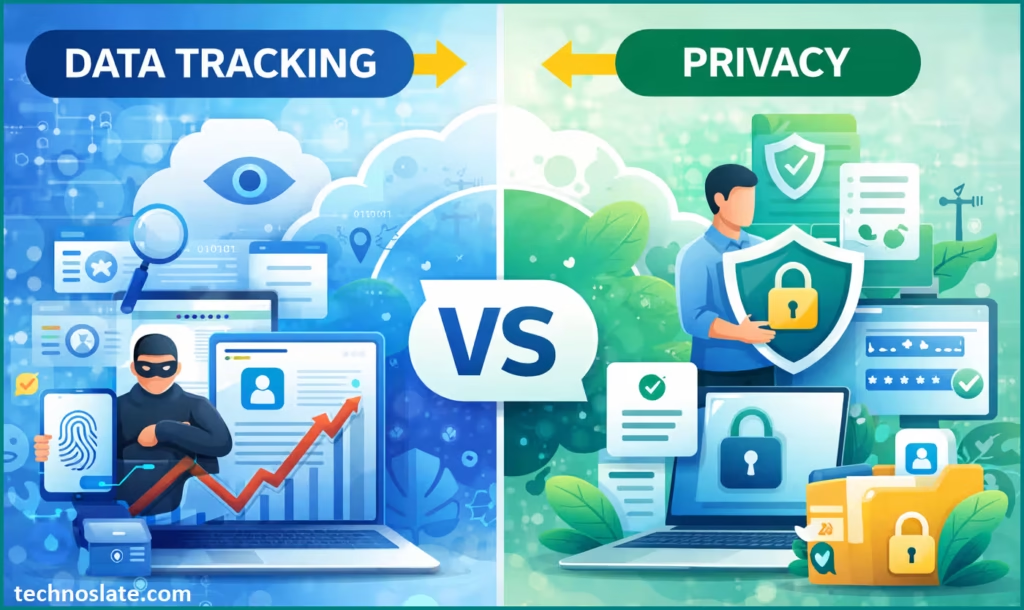
However, the downside is that this convenience comes with data collection. Your usage patterns, preferences, and interactions are being observed and used to improve personalization. Even if the data is not directly identifying you, it still builds a behavioral profile. Over time, some people feel uncomfortable knowing their system is constantly learning about them. It can also feel slightly intrusive when you see suggestions or notifications that are clearly based on your behavior. You can always revisit Windows 10 Privacy Settings whenever your preferences change.
When you TURN these settings OFF
When you turn these options OFF, your system stops trying to learn from you. This means your experience becomes more neutral and predictable. Nothing is tracking your habits, and you won’t get personalized suggestions or behaviour based improvements. This is great for privacy, because it reduces how much information your system collects and shares. You also get a cleaner and quieter interface, with fewer suggestions and interruptions. At the same time, Windows 10 Privacy Settings can raise concerns about data collection.
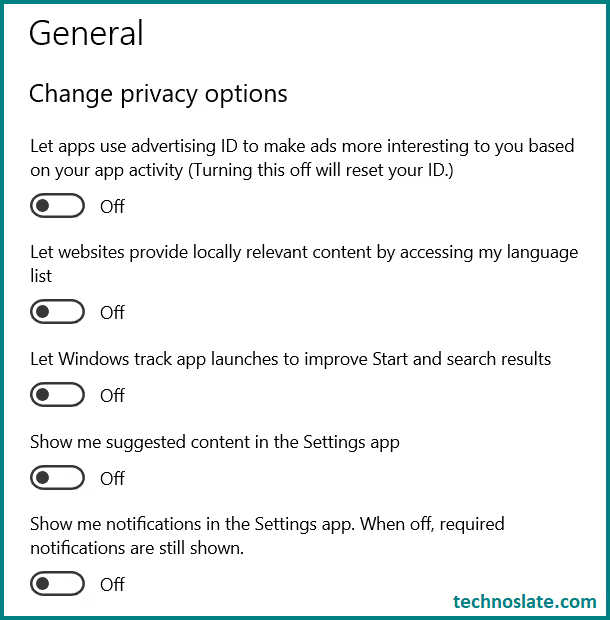
The downside is that your system may feel a bit “dumb” or less responsive to your needs. Search results might not prioritize your favorite apps, websites may not adjust to your preferences, and you might miss helpful recommendations. Some features that rely on learning your behavior may not work as efficiently, so you might need to do things manually more often.
How to Toggle On/Off Windows 10 Privacy Settings?
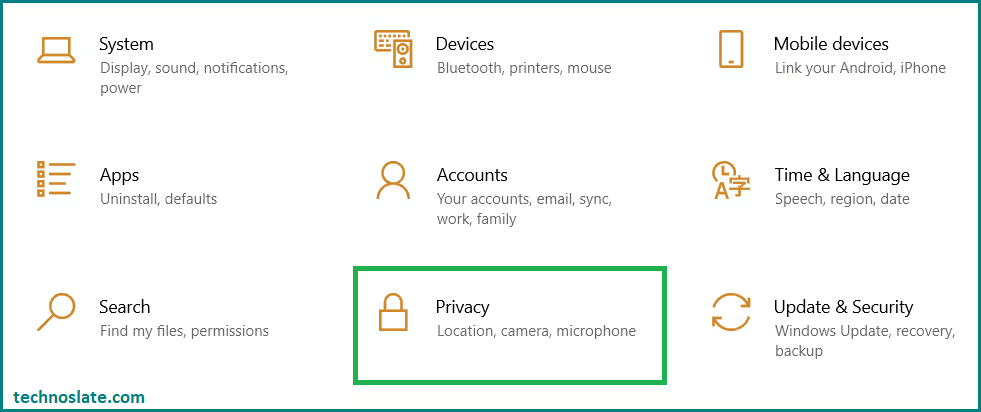
- Press Windows button from keyboard and select the Setting icon
 to open Windows 10 Privacy Settings.
 - Select Privacy.
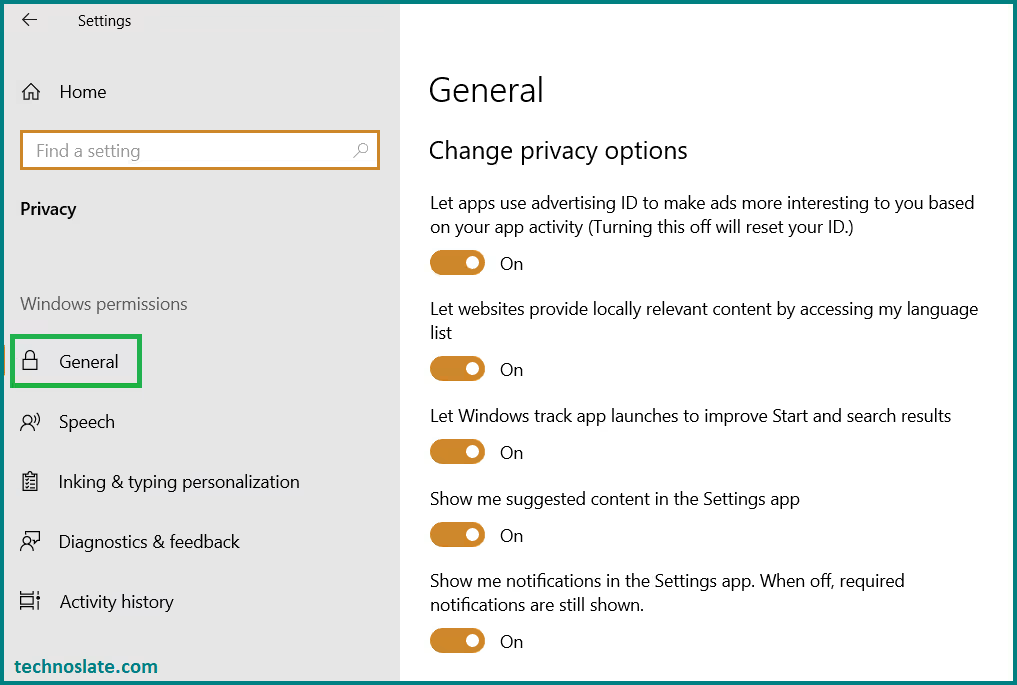
- You will be automatically landed to the General section. If not, Select General from the left side panel. Now, you can toggle on/off the any option according to your choice.
FAQ for Windows 10 Privacy Settings
- Are Windows 10 privacy settings safe to keep on?
- They are generally safe, but they do collect usage data to improve your experience. It depends on how comfortable you are with data tracking.
- Will turning off privacy settings improve performance?
- Not really. These settings have almost no impact on system speed. The difference is more about privacy and experience.
- Does turning off advertising ID remove ads completely?
- No, ads will still appear. They just won’t be personalized based on your activity.
- Can I turn these settings back on later?
- Yes, you can change them anytime. Windows allows full flexibility to switch between preferences.
- Which settings are most important to turn off for privacy?
- Advertising ID and app tracking are usually the first ones people disable for better privacy control.
- Do these settings affect internet browsing?
- Slightly. Some websites may not adapt to your language or preferences as smoothly when certain options are off.
- Is Microsoft collecting personal data through these settings?
- It collects usage data, not direct personal identity, but it can still build a behavioral profile over time.
1. Main Feature Image (Hero Image)
Use a clean screenshot or illustration of Windows 10 Privacy Settings. This sets context immediately.
2. Screenshot of “General Privacy Settings” page
Highlight all toggles ON state. This helps readers recognize what they are seeing.
3. Screenshot with all settings turned OFF
This creates a visual comparison and improves understanding.
4. Close-up of Advertising ID toggle
Focus on one setting to visually explain tracking. This adds depth to the article.
5. Illustration showing “Data Tracking vs Privacy”
A simple graphic (like a balance or shield vs data flow) helps explain the concept emotionally.
6. Example of personalized vs non-personalized ads
A mock comparison image works great here to make it relatable.
7. Optional: Clean UI image of Windows Start/Search suggestions
This supports the explanation of app tracking and personalization.
Final Recommendation
At the end of the day, there’s no single “perfect” setup for everyone when it comes to Windows 10 Privacy Settings. It really comes down to how you personally balance convenience and privacy. If you enjoy a smoother, more personalized experience where your system understands your habits and saves you time, keeping most settings turned on will work well for you. The good thing about Windows 10 Privacy Settings is that nothing is permanent.
If you look at all these settings together, they represent a balance between personalization and control. Keeping them on creates a system that adapts to you over time, almost like it’s learning your habits. Turning them off creates a system that behaves the same way for everyone, without trying to predict or assist too much. Another important thing is that none of these settings will drastically change your system’s speed or performance. Their impact is mostly on experience and privacy, not on hardware usage. So your decision should be based more on comfort level than technical necessity.
Also, many people misunderstand that turning everything off makes them completely private. In reality, it only reduces certain types of tracking. Full privacy requires a combination of settings, habits, and sometimes additional tools.
If you keep everything ON, your experience will feel more personalized, smarter, and convenient, but at the cost of some privacy and data sharing. If you turn everything OFF, your system becomes more private and quieter, but slightly less intelligent and less tailored to you. If you care about privacy, turning most of these OFF is a good idea. If you prefer convenience and personalization, keeping them ON is fine. Most people choose a mix depending on what matters more to them.
However, if you prefer more control and want to minimize how much data is being collected, it’s a good idea to turn off tracking-heavy options like advertising ID and app usage tracking, while keeping basic functionality settings enabled. This way, you still get a functional and comfortable experience without unnecessary data sharing. A balanced approach is usually the smartest choice. You don’t need to disable everything, just focus on the settings that directly affect your privacy. The best part is that these options are not permanent, so you can always adjust them later as your needs or comfort level changes.
I hope you enjoyed this post about Windows 10 Privacy Settings. If you found this post helpful, please share this post with your friends and family. If you have any question in your mind or you are facing any problem then feel free to ask your question in the comment section. We will try our best to help you. You can read more such interesting articles here.