The concept of video as wallpaper has evolved significantly in recent years. A static wallpaper, while timeless, can feel a bit flat, especially when you want to add a touch of dynamic flair to your desktop. Imagine your favorite video playing seamlessly as your wallpaper, enhancing the aesthetic appeal of your desktop, or creating an immersive work environment.
Thankfully, with the advancements in operating systems and third-party applications, setting a video as wallpaper in Windows – whether it’s Windows 7, 8, 10, or 11 – has become possible and relatively straightforward. But despite this trend, Windows still lacks built-in support for animated or video wallpapers (except for lock screens). This leaves many users endlessly searching for reliable methods across different versions of Windows.
Along the way, we will explore some unique methods, useful tips, and cover aspects.. Whether you’re a novice user or a seasoned Windows enthusiast, by the end of this article, you’ll be able to transform your desktop into a vibrant, dynamic experience. Now let’s break down the process for setting a video wallpaper on each version of Windows, including some recommended tools.
Understanding Video as Wallpaper
A video as wallpaper turns your static desktop background into a moving visual. It can be a loop of nature scenery, a sci-fi animation, a personal clip, or even recorded gameplay. Transforming your desktop into an interactive experience is possible by setting a video as wallpaper. This process uses software that hides the traditional wallpaper and plays a video behind your desktop icons, creating a dynamic background. While Windows doesn’t support animated wallpapers natively, but this effect is achieved by:
- Playing a video file behind the desktop icons, replacing the usual static wallpaper
- Allowing the video to loop endlessly
- Utilizing GPU acceleration to ensure the video runs smoothly with minimal CPU impact
- Adding interactive features in some apps, such as effects or audio-reactive elements
Additionally, some tools support other exciting features, such as:
- Web-based video wallpapers
- Interactive wallpapers
- Wallpapers that react to your music or audio
- Added visual effects over the video, like particles or light flares
Benefits of Using a Video as Wallpaper
Before we dive into the technical aspects, let’s first understand the appeal of setting a video as wallpaper.
- Aesthetic Appeal:
- Static wallpapers are nice, but they can feel mundane/ordinary. Videos add motion, energy, and life to your desktop. Whether it’s a looping background of your favorite scenes from a movie, a beautiful landscape, or abstract animations, video wallpapers bring an extra dimension to your screen. Dynamic wallpapers can transform your desktop into a visual masterpiece. They’re especially popular among gamers and creative professionals. Videos add movement and texture to your desktop, providing an exciting upgrade from static backgrounds. The change from a simple image to a dynamic video can bring new life to your workspace.
- Productivity and Motivation:
- Some users find that having a video wallpaper helps to boost productivity or create an inspiring work environment and can help with self-productivity. For example, a calming ocean wave animation might make you feel relaxed and focused while working to stay motivated and productive throughout the day. Forest ambience, or timelapse scenes can genuinely boost focus and lower stress. Similarly, a motivational image or a beautiful visual of nature can keep your spirits up.
- Unique Customization:
- Your desktop reflects your style. For tech enthusiasts and power users, setting a video as wallpaper is a fun way to personalize the operating system. It makes the desktop experience unique, and it can even be used for entertainment purposes like displaying your favorite movie scenes. Using video wallpaper adds artistic or futuristic flair customized to your interests. A video wallpaper allows you to truly express yourself. Whether it’s your favorite movie clip, a funny meme, or an abstract animation, video wallpapers give you more freedom to tailor your computer experience.
- Immersion in Gaming or Multimedia:
- If you’re a gamer or content creator, setting a video wallpaper that reflects your interests adds a personal touch to your setup. It can even enhance the overall gaming or multimedia experience if you’re watching a trailer or streaming video while working on something else.
- Branding (for office use):
- Businesses sometimes use branded loop videos on public computers or kiosks. For professional environments or public displays, using a video wallpaper can be a smart way to showcase branding or create an engaging visual experience for users.
Prerequisites Before You Set Video as Wallpaper
Hardware Requirements
Because video wallpapers require more resources than static images, ensure your computer meets the necessary hardware specifications:
- At least 4GB of RAM (8GB or more recommended for smoother performance)
- A dedicated graphics card (GPU) is ideal for better rendering and for high-resolution videos
- A solid-state drive (SSD) for faster video loading, because HDD will make the video loading slower
Software Requirements
Third party apps provide the flexibility to set any video as wallpaper and offer additional settings for enhanced functionality. Different tools work better on different Windows versions. You will need to install a third-party application to use video as wallpaper, as Windows doesn’t natively support them. Before proceeding with the steps, it’s essential to ensure that your system is ready for a video wallpaper:
- System Performance: Video as wallpapers consume more system resources than static wallpapers. Ensure your computer has adequate hardware – such as a powerful processor and a good graphics card – so that it doesn’t affect system performance.
- Third-Party Software: Windows does not natively support video as wallpaper, which means you’ll need third-party applications. These apps allow you to use video files (such as MP4, AVI, or MOV formats) as wallpaper.
- Video Formats: Make sure that your chosen video file is in a supported format. Most apps will support MP4 and AVI, but always check compatibility.
Supported Video Formats and Preferred Settings
Supported Formats to Use Video Wallpaper
There are many video formats are available. But, WEBM is a lightweight format that consumes fewer resources, and loads faster, making it ideal to use video as wallpaper, especially if you’re concerned about CPU/GPU usage. Most tools support:
- WEBM (recommended, light & fast, optimized for speed and performance)
- MP4
- AVI
- MOV (usually larger file size)
- MKV
Preferred Settings for Smooth Playback
To ensure smooth playback and optimal performance, keep the following in mind:
- Resolution: 1920×1080 (Full HD) or 1280×720 is ideal.
- Bitrate: Around 3-5 Mbps for decent quality.
- Frame Rate (FPS): 25 or 30 FPS is sufficient to use video as wallpaper – no need for 60 FPS unless you want smoother animation.
- Video Length: Keep videos under 20-30 seconds if you plan to loop them.
Setting Video Wallpaper in Windows 11
Microsoft is experimenting with native video wallpaper support (a modern version of DreamScene) in Windows Insider builds – letting you choose video files directly as your desktop wallpaper without third-party apps. This feature isn’t yet in stable builds. But, windows 11 is designed to handle modern graphics features efficiently and it’s improved GPU pipeline, making it an ideal operating system for smooth and visually rich video wallpapers. However, just like Windows 10, third-party apps are the key to enabling video wallpapers on this platform. Below are some of the reasons that why video as wallpaper works very smooth in windows 11:
- DirectX 12 improvements: Windows 11 includes improved DirectX 12 support, which allows video wallpapers to run more smoothly with better performance and fewer frame drops.
- Better memory handling: With improved memory management, Windows 11 uses system resources more efficiently, preventing video wallpapers from slowing down other applications.
- Better multi-monitor support: Windows 11 offers enhanced multi-monitor support, ensuring video wallpapers display correctly and consistently across multiple screens.
- Supports HDR video wallpapers: Windows 11 supports HDR, allowing video wallpapers to display brighter colors, deeper contrast, and a more realistic visual experience.
Method 1: Lively Wallpaper
Lively Wallpaper is a free app for Windows 11 that offers live wallpapers, including video backgrounds. Windows 11’s handling of video wallpapers is fluid, especially with apps like Lively Wallpaper, which take full advantage of the OS’s modern architecture. Lively Wallpaper offers various customization options like adjusting playback speed, adding effects, and optimizing for performance.
Lively Wallpaper is an excellent free and open-source alternative that supports video wallpapers, GIFs, and even web-based animations. It pauses playback automatically during fullscreen apps to save CPU and is very light on system resources. You can also add URLs (YouTube etc.), shaders, webpages as wallpaper. Lively Wallpaper is open-source, completely free, and supports a wide range of video formats including MP4 and WebM. To set a video as wallpaper in Lively wallpaper:
- Install Lively Wallpaper from the Microsoft Store or from the official website.
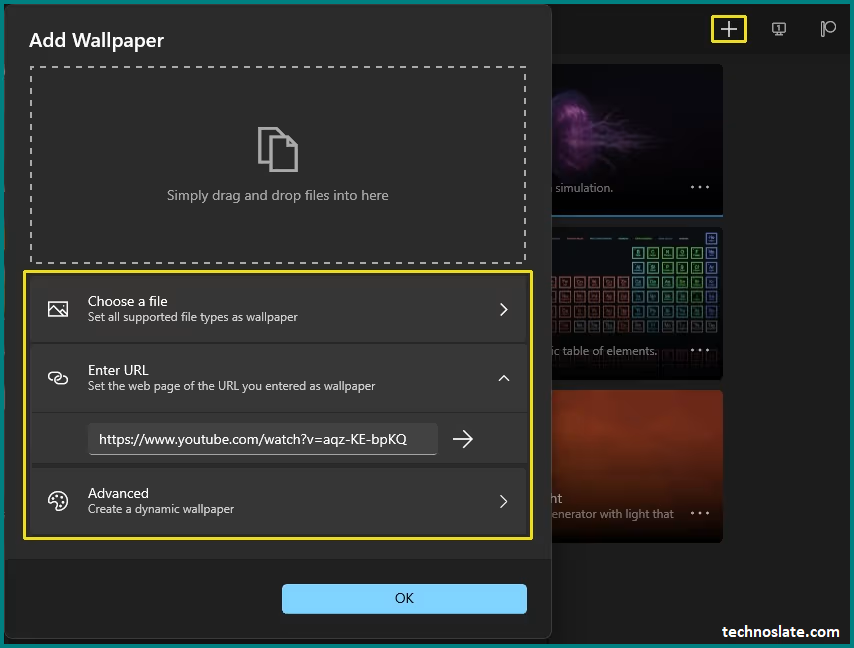
- Launch the app, click the “+” button to add a new wallpaper.
- To select your video file, click on Choose a file. You can also use youtube video by entering video URL.
- Press OK to Set Wallpaper.
Method 2: Wallpaper Engine
Wallpaper Engine is widely considered the best choice on Windows 11 because it is very feature-rich, stable, and powerful. It supports videos, animated wallpapers, 3D scenes, and interactive wallpapers, and it handles smooth playback with multi-monitor support. The user community also provides many ready-made wallpapers. It is a paid app but is widely praised for its smooth performance, workshop support, and advanced features like 3D and interactive wallpapers. Once installed, here’s how to set a video wallpaper:
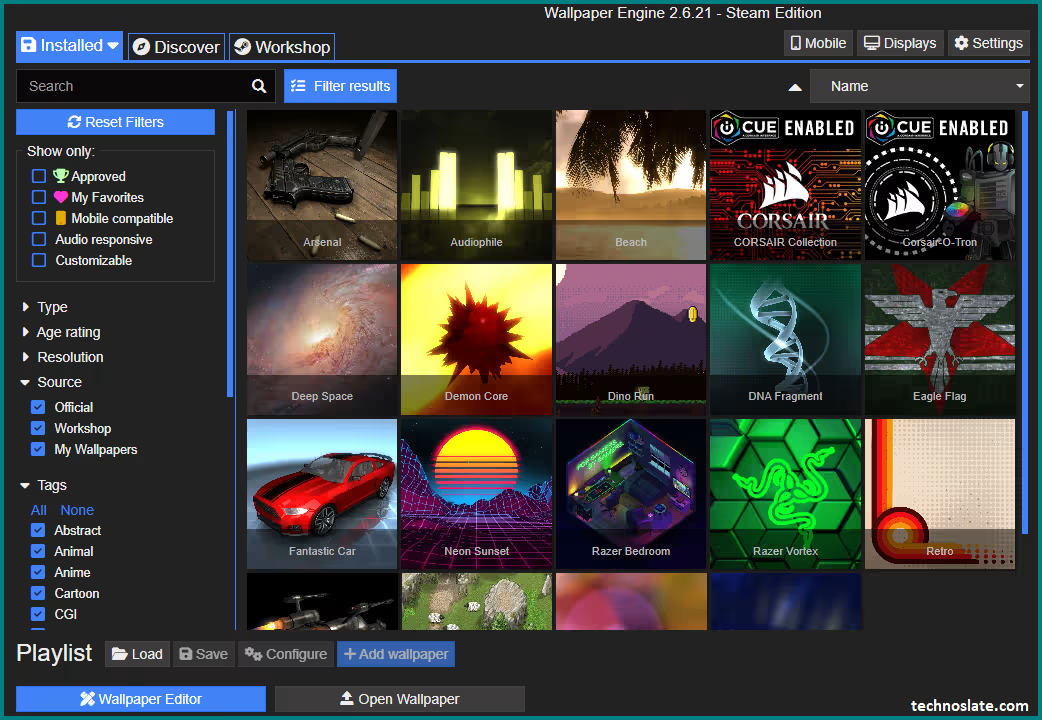
- Open Wallpaper Engine: Download and Launch the app from your Start menu.
- Browse for Videos: You can browse through the app’s gallery for existing video wallpapers, or you can upload your own. To use your own video as wallpaper, click on Add wallpaper.
- Select and Apply: After uploading or selecting a video, simply click on OK to set it as your wallpaper.
Setting Video Wallpaper in Windows 10
Your desktop doesn’t have to be stuck with the same old still image. Picture turning on your Windows 10 PC and being welcomed by a moving scene you actually enjoy -soft waves rolling onto a beach, city lights glowing at night, or a short clip from your favorite video. It instantly makes your computer feel more personal and alive. A video wallpaper can set the mood while you work, help you relax, or simply make your setup look cooler.
Instead of staring at something boring all day, you get a background that feels fresh and engaging. And the best part? Setting it up is simpler than most people expect. Windows 10 fully supports modern video wallpaper software. The OS is optimized for animated effects and multi-monitor setups. Here’s how to go about it:
Method 1: AutoWall
AutoWall is a lightweight Windows application that allows you to use videos, GIFs, or animated scenes as your desktop wallpaper on Windows 10, offering functionality similar to Wallpaper Engine but in a simpler and free form. It works best on Windows 10 systems, preferably 64-bit, and requires a GPU with hardware acceleration such as Intel, AMD, or NVIDIA graphics. For best compatibility and performance, MP4 videos encoded with the H.264 codec are recommended, and the video resolution should match your screen resolution, such as 1920×1080.
To begin using AutoWall, you need to download it from its official source, commonly GitHub, and install or extract it if it is a portable version. Once installed, you can run AutoWall normally without administrator privileges in most cases. Using extremely high bitrates or 4K videos should be avoided unless your system has a powerful GPU.
After launching AutoWall, you can set a video as wallpaper by browsing for the video file within the application, enabling the loop option, muting the audio for better usability, and applying the wallpaper. Once applied, the video will play continuously as your desktop background. For users with multiple monitors, AutoWall generally supports either displaying the same video across all monitors or assigning different videos to each monitor, depending on the version being used, and it is recommended that each video matches the resolution of its corresponding display.
Method 2: RainWallpaper
RainWallpaper is a Windows application that allows users to set videos, GIFs, and HTML or interactive wallpapers as their desktop background. It supports common video formats such as MP4, WebM, and MOV. For all Windows versions, certain general requirements apply. You need a compatible version of RainWallpaper installed, DirectX 11 or higher is recommended, GPU drivers should be up to date, and hardware acceleration should be enabled, which is the default setting. On Windows 10, RainWallpaper offers the best support and performance.
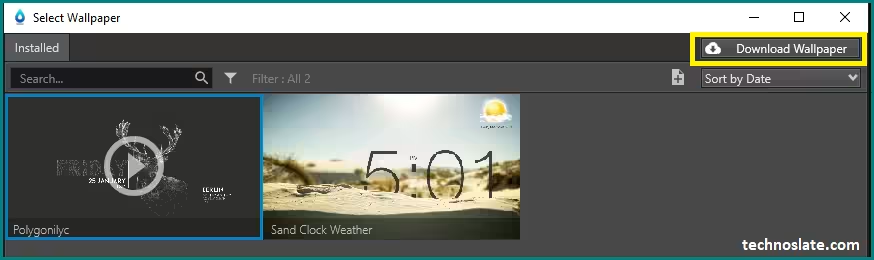
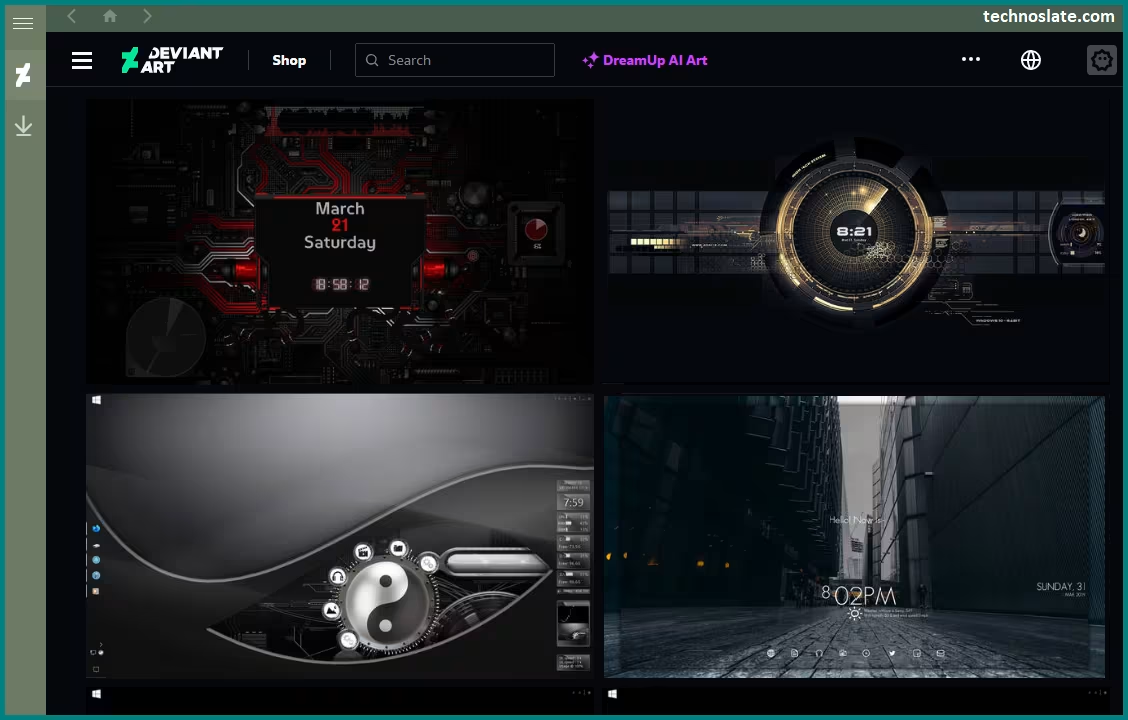
- First, install RainWallpaper from Steam or the official RainWallpaper website and launch the application.
- RainWallpaper supports MP4 files using H.264 encoding and WebM files very well. AVI files may work but can cause stuttering, while MKV files are not recommended. After adding the video, click on its thumbnail, and it will instantly become your desktop wallpaper.
- For better performance, you can right-click on the applied wallpaper and open the settings. It is recommended to enable options such as pausing the wallpaper when a fullscreen application or a maximized window is running. If the video contains audio, you can adjust the volume or mute it from the same settings menu. MP4 files using H.264 encoding and WebM files work best on these versions of Windows.
Method 3: Wallpaper Engine
This app is one of the best options for Windows 10 users who want to set a video as their wallpaper. It’s available on Steam for a small price, but it offers a ton of customization features and a large library of user-created high-quality content. It supports 3D, 2D, & Web wallpapers and Audio-reactive wallpapers. It has Performance presets. It provides Auto-pause function when in fullscreen apps.
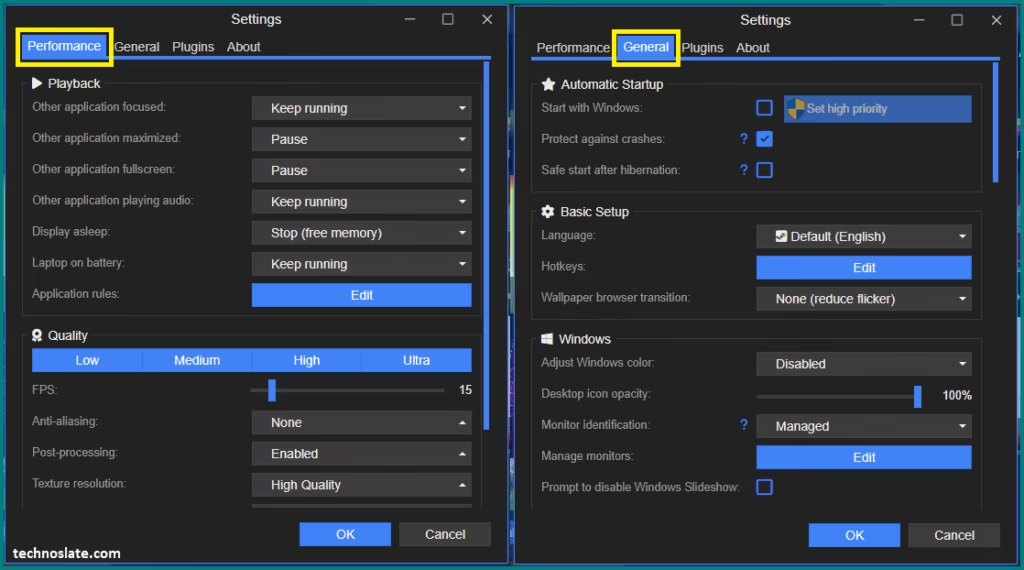
Here are screenshot of available setting options in Wallpaper Engine. Using this options, you can change Playback, Quality, Startup and Windows settings.
Method 4: Lively Wallpaper
Once again, Lively wallpaper is the another free option available for Windows 10 users. It allows you to set any video file as wallpaper with ease. Lively Wallpaper is perfect for most users, offering excellent functionality without a price tag. It supports multi-monitors and provides Web interactive animation. Windows 10 still has modern graphics APIs that both apps take advantage of. Wallpaper Engine remains the best solution if you don’t mind paying a small one-time price, while Lively is the strongest free option that still works reliably on Windows 10.
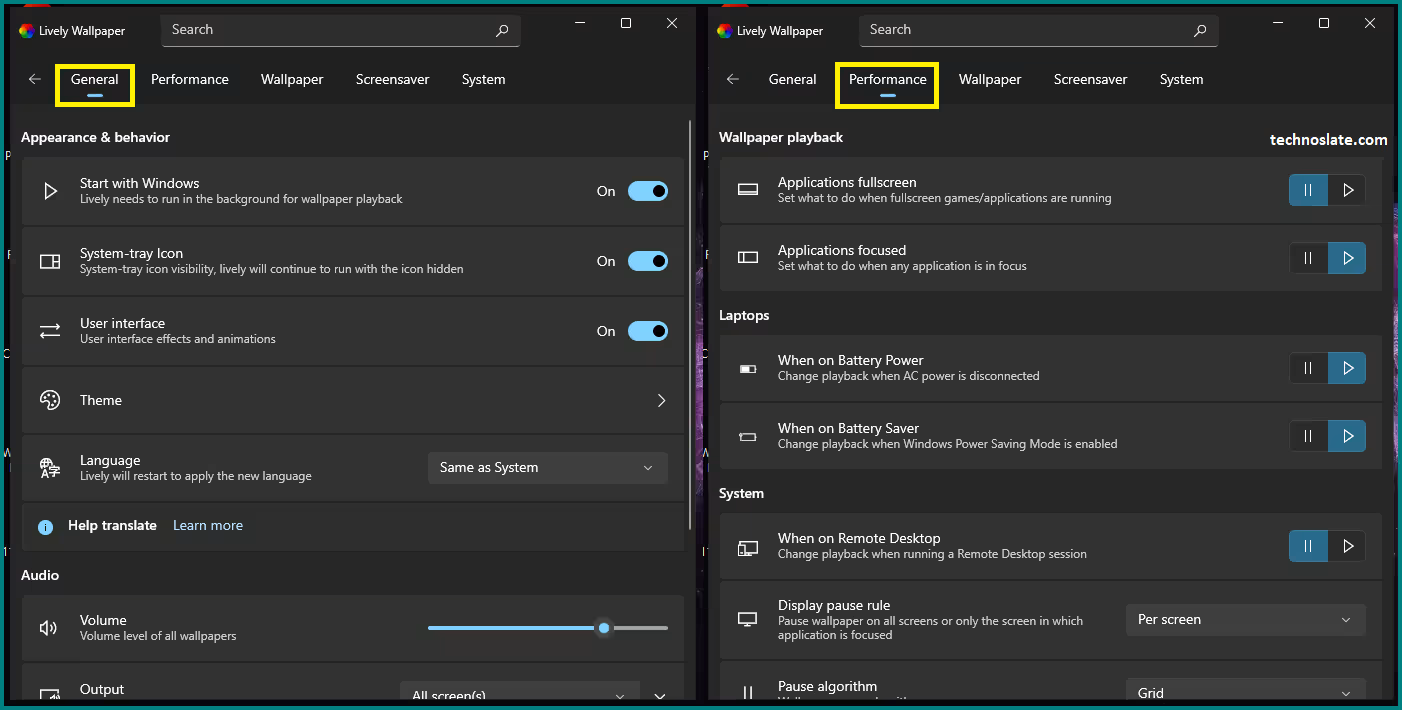
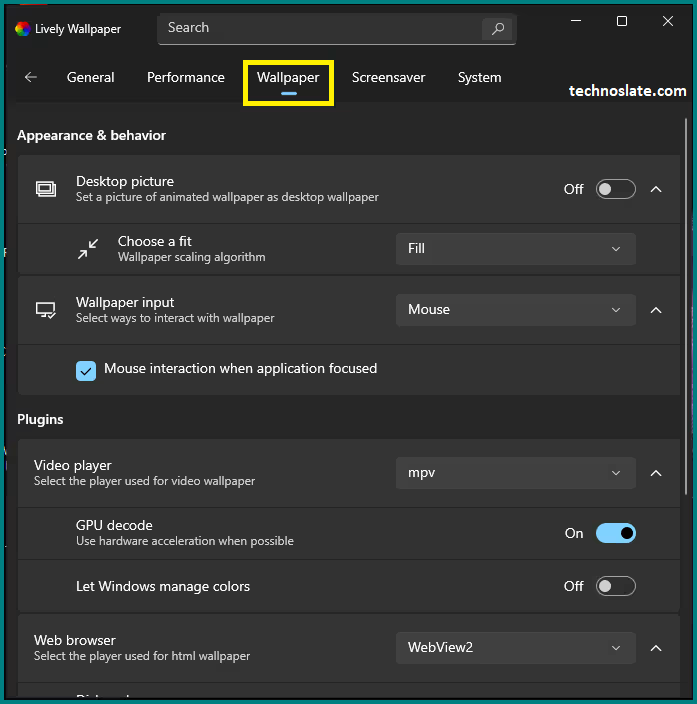
- Here are some setting options available in Lively wallpaper like General, Performance and Wallpaper settings.
Tips to Adjust Performance Settings:
Since video wallpapers are resource-intensive, you may want to tweak settings to prevent the system from lagging:
- In Wallpaper Engine, you can reduce the video quality or limit the FPS to save on system resources.
- Video Wallpaper also has options to limit resource consumption, which is useful if you’re running resource-heavy tasks like gaming or video editing.
Setting Video Wallpaper in Windows 8
Windows 8 doesn’t have built-in support for video wallpapers and lacks the newer infrastructure that Lively and Wallpaper Engine depend on, so using a simple tool like Video Wallpaper or RainWallpaper (which supports Windows 8) is the most compatible and least problematic route. However, Windows 8’s improved GPU handling makes it more efficient for video wallpapers. The process for setting a video wallpaper in Windows 8 is similar to other versions of Windows. Here are the recommended tools for Windows 8:
Push Video Wallpaper
PUSH Video Wallpaper lets you use your own MP4 videos, animated GIFs, and even YouTube videos or URLs as your desktop wallpaper instead of a static image, making your desktop look dynamic and lively. It also doubles as a wallpaper and a screensaver tool – when your PC is idle, it can play the same animations as a screensaver. The software supports modern media formats including MP4 video, animated GIFs, WebP images, and direct YouTube content, and it has an interface that focuses on playlists so you can organize multiple animated backgrounds and switch between them easily. It is a long-standing paid tool that works well on older Windows versions including Windows 7 and 8.
You can customize how wallpapers behave on a multi-monitor setup (for example, repeating the same video across screens or having separate playlists per monitor), and there are performance options to pause playback during fullscreen games or reduce resource usage when on battery. In the free version, all key features are available, but a visible watermark appears on the wallpaper.
To remove this watermark and get future updates without restrictions, you can purchase a license key (one-time payment, perpetual license) for either personal use on one PC or home use on up to five PCs. To use it, you install PUSH Video Wallpaper, create a new playlist inside the app, add your videos (or other supported media), and apply it, and the selected videos will play continuously as your desktop background.
- Download, Install, Launch
- First, download PUSH Video Wallpaper from its official website. After the download finishes, open the setup file and complete the installation by following the on-screen instructions. Once installed, launch the software. When you open PUSH Video Wallpaper, it will start running in the background and usually appear in the system tray (near the clock). Right-click the tray icon and open the main window if it does not appear automatically.
- Create a Playlist and Add Video Files
- Inside the software, click on “New Playlist” and give it a name. Playlists allow you to manage one or more videos that will be used as wallpapers. Click “Add Files” and select the video you want to use as wallpaper. MP4 videos work best, especially those encoded with H.264. You can add multiple videos if you want them to play one after another.
- Apply Video as Wallpaper and Adjust Settings
- After adding the video, select the playlist and click “Play” button. The video will immediately start playing in the background as your desktop wallpaper. Open the Settings menu to customize behavior. You can enable looping, mute the audio, pause the wallpaper when a fullscreen app or game runs, and adjust performance options to reduce CPU or GPU usage.
- After adding the video, select the playlist and click “Play” button. The video will immediately start playing in the background as your desktop wallpaper. Open the Settings menu to customize behavior. You can enable looping, mute the audio, pause the wallpaper when a fullscreen app or game runs, and adjust performance options to reduce CPU or GPU usage.
- Start with Windows (Recommended)
- Enable “Run at Windows startup” so the video wallpaper automatically starts every time you boot your PC.
- Multi-Monitor Setup (Optional)
- If you use more than one monitor, you can choose whether the same video plays on all screens or assign different playlists to different monitors.
Setting Video Wallpaper in Windows 7
Newer apps like Lively Wallpaper don’t reliably support Windows 7 because it lacks recent Windows APIs. But there is also option available for Windows 7.
Method 1: Using DeskScapes (Highly Recommended for Win7)
Unfortunately, Windows 7 and Windows 8 do not support setting videos as wallpapers natively. However, this limitation can be easily bypassed using third-party software. Disable Aero Theme for smoother playback. Here’s how to set video as wallpaper in windows 7.
One of the most popular apps for this purpose is DeskScapes. It’s a paid software that allows you to set videos as wallpapers, along with a host of other customization options. DeskScapes offers a free trial, so you can test it before committing to a purchase. For DeskScapes, simply download it from the official website and follow the installation instructions. After installation, open the program and go through the available options.
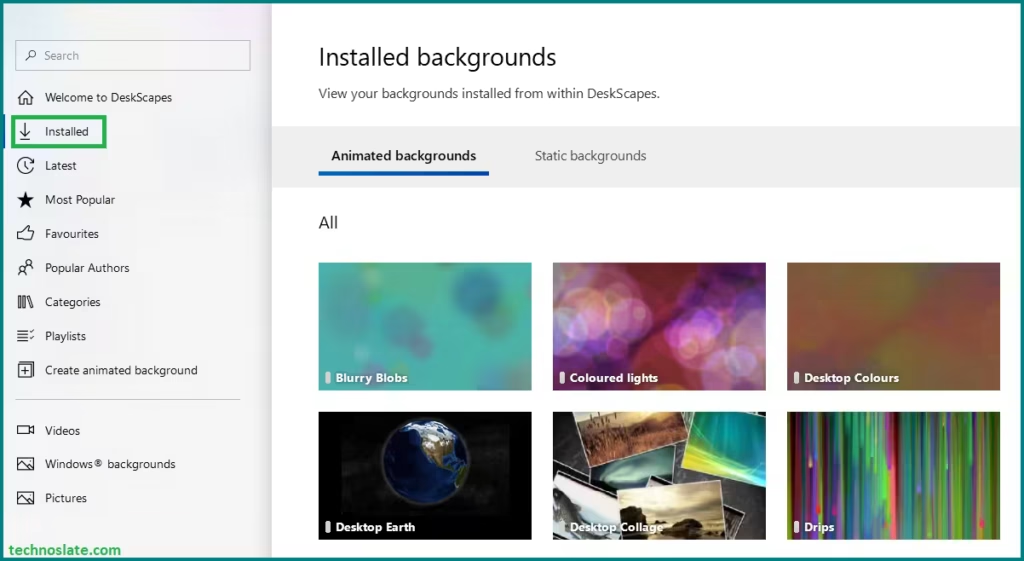
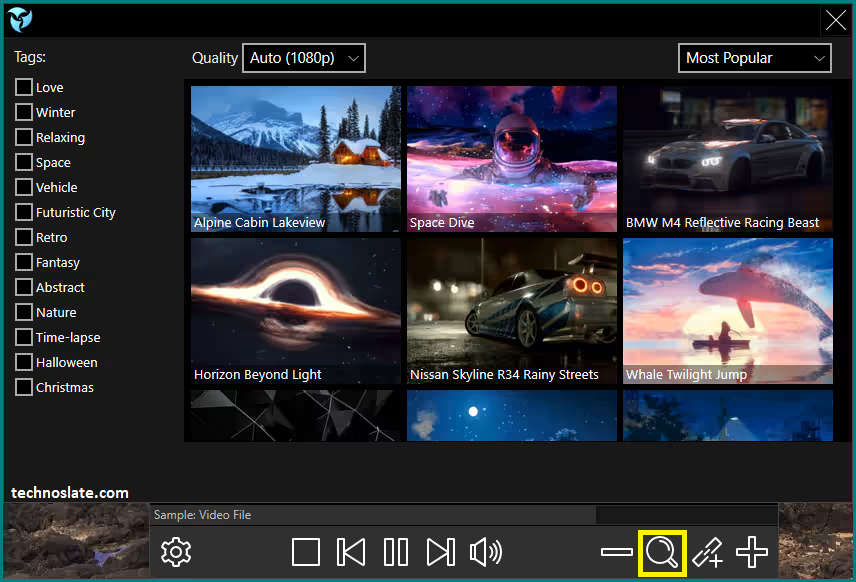
Installed category is your personal collection. If your internet is off, or you just want something that loads instantly and doesn’t change – this is where you live. Best place to manage, switch, or delete wallpapers you already trust. Latest is the category where you scroll when you’re bored or want a new vibe. In the Most Popular category, wallpapers are well-optimized, polished, and tested by thousands of users. If you care about performance or stability, this is usually a better bet than random new uploads. By accessing the Category, You don’t browse “everything” – you browse Space when you want calm, Sci-Fi when you want energy, Nature when your eyes need a break. It’s mental, not technical.
- Launch DeskScapes: Open the app after installation.
- Select Video: Click any available background, under Apply background, click on Apply as screen saver.
- Set as Wallpaper: After choosing the video, click “Apply” to set it as your desktop wallpaper.
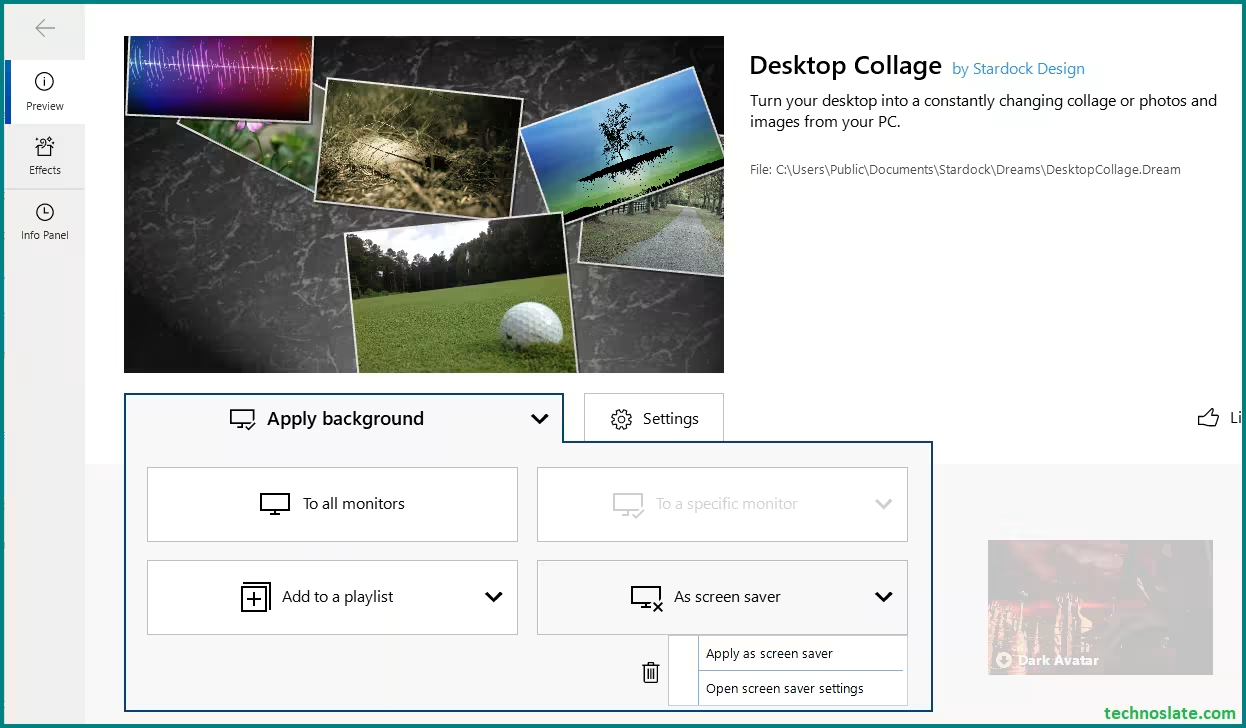
- Adjust Settings:
- DeskScapes allows you to customize how the video behaves, including the ability to loop setting for videos, control playback speed, and you can also use effects like snow, rain, blur, color shift. Make sure to adjust these settings for the best experience.
- Purchase or use as trial
- This application comes with 30 days trial period. If you like the application you can purchase otherwise the application is free to use for 30 days.
- This application comes with 30 days trial period. If you like the application you can purchase otherwise the application is free to use for 30 days.

Method 2: VLC Media Player Hack (Free Trick)
This method replaces your desktop temporarily. While this method is quick and free, it’s a bit limited. The video will play behind your desktop icons, but has limitations . You can’t configure looping settings or make any customizations. And sometimes it overlaps taskbar.
- Open VLC Media Player
- Play your selected video file.
- Right click on screen and go to Video in the top menu, then select Set as Wallpaper
Multi-Monitor Setup and Video Wallpaper Performance
Many users want to display different videos on each monitor, or even stretch one video across multiple screens. Multi-monitor setups require additional resources, making video wallpaper performance even more important. Some tools support:
- Different videos on each monitor
- One panoramic video stretched across all screens
- Cloned wallpapers across displays
Best tools for multi-monitor video wallpaper performance:
- Wallpaper Engine allows each monitor to have a unique wallpaper or a single video stretched across them.
- Push Video Wallpaper also supports multi-monitor setups.
- Lively Wallpaper also provides feature to have video wallpaper on multi-monitor.
How to Create a Seamless Looping Video Wallpaper
- Step 1: Choose the video
- Creating a seamless looping video wallpaper starts with selecting the right video clip. It is best to choose a short video that is under 20 to 30 seconds in length and naturally loop-friendly, as shorter clips help maintain smooth playback and better video wallpaper performance. Once the video is selected, the next step is editing it properly to ensure the loop looks seamless.
- Step 2: Edit the Video
- You can use free video editing tools such as Shotcut or DaVinci Resolve to edit the clip. During editing, trim any unwanted sections, clean the beginning and ending frames, and add a subtle cross-fade transition between the start and end of the video so the loop feels natural. After editing, export the video in WEBM format, as it offers better performance and lower resource usage compared to other formats.
- Step 3: Apply and Test
- When exporting the final video, use recommended settings to ensure smooth playback. A resolution of 1920×1080, a frame rate of around 25 FPS, and a bitrate between 2 to 4 Mbps provide a good balance between quality and performance. Using the WEBM VP9 codec further enhances efficiency and reduces system load.
- Step 4: Test with wallpaper software
- After exporting, apply the video using your preferred wallpaper software and test it thoroughly. Watch the loop closely to make sure there are no visible or noticeable breaks or sudden transitions. Proper testing ensures the video wallpaper loops smoothly and delivers a polished, professional-looking desktop experience. Ensure loop is seamless.
Important Tips for Video Wallpapers
- Battery Life: If you are using a laptop, video wallpapers will drain your battery faster. Always set the software to “Pause” when on battery power.
- Resource Usage: If your PC starts lagging, check the settings to lower the “FPS” (frames per second) of the video wallpaper.
To use a video wallpaper, you typically install a dedicated application such as, Wallpaper Engine, Lively Wallpaper, AutoWall, RainWallpaper, Push Video Wallpaper or DeskScapes. These programs run in the background and render a video file, usually in MP4 format with H.264 encoding, directly onto the desktop layer. Once the application is installed, you select a video, enable looping, mute the audio, and apply it as the wallpaper.
For best performance, the video should match your screen resolution, use a moderate bitrate, and run at 30 or 60 frames per second. Short, seamless looping videos work better than long clips, and lower frame rates are recommended for laptops to save battery life. Most video wallpaper apps also include options to pause playback automatically when a fullscreen application or game is running, which helps reduce CPU and GPU usage.
Video wallpapers can be used on single or multiple monitor setups, depending on the software, and can either display the same video across all screens or different videos per monitor. While visually appealing, video wallpapers consume more system resources than static images, so they work best on systems with dedicated or modern integrated graphics.
In summary, video wallpaper in Windows is made possible through third-party software that plays optimized looping videos as the desktop background, offering a dynamic and customizable visual experience at the cost of slightly higher system resource usage.
Using video wallpapers can make your Windows desktop look modern, dynamic, and visually appealing. However, without proper configuration, video wallpapers can impact system speed, GPU usage, and overall stability. This guide focuses on improving video wallpaper performance by comparing tools, optimizing settings, and solving common issues that users often face.
Troubleshooting Common Issues
- Enable GPU Acceleration
- Most modern video wallpaper software supports GPU acceleration and most software has a setting to use GPU acceleration. Enabling GPU acceleration can significantly improve video wallpaper performance by balancing the workload between the CPU and graphics card.
- Limit the FPS
- High CPU or GPU usage is one of the most common problems when using video wallpapers, especially if high-resolution or high-frame-rate videos are selected. If your system starts feeling slow after enabling video wallpapers, it usually means the settings are not optimized correctly. Reducing the FPS (frames per second) to 15–25, can improve video wallpaper performance.
- Use WEBM Format
- Using the WEBM format instead of MP4 can significantly improve video wallpaper performance because WEBM files are lighter and consume fewer system resources. Choosing a lower resolution video also helps, and in most cases, a 720p video performs much better than a 4K video while still looking visually appealing.
- Video Wallpaper Lagging or Stuttering
- If the video wallpaper feels choppy or stutters during playback, it usually indicates that the system is struggling to keep up. Lowering the FPS, Lowering the video resolution, closing unnecessary background applications, and switching the wallpaper software to performance mode or switching to the WEBM format can help stabilize playback. Using shorter video loops and storing video files on an SSD instead of a hard drive also improves smoothness. Turn on GPU acceleration if available.
- Video Stops Playing Automatically
- In some cases, the video wallpaper may stop automatically after a while. This often happens due to battery saver mode or automatic pause settings within the wallpaper software. To get rid of it, Adjust settings to prevent automatic pausing of videos. Disabling Windows battery saver and turning off options like “Pause Animated Wallpaper” ensures the video continues playing consistently without interruptions.
- Desktop Icons Disappearing or Malfunctioning
- Sometimes, enabling a video wallpaper can cause desktop icons to disappear or behave unpredictably. This issue can usually be fixed by disabling the “Show Desktop Icons” option within the wallpaper software. After that, re-enable desktop icons manually by right-clicking on the desktop and selecting the appropriate option.
- Unexpected Audio Playback
- Some video wallpapers come with sound, but many apps disable audio by default. Disabling audio when not required helps maintain better video wallpaper performance slightly and prevents distractions. Some times video wallpapers may start playing audio unexpectedly. If audio is not required, it is best to mute the sound directly from the wallpaper application.
- Excessive GPU Usage
- Excessive GPU usage can occur if the video quality settings are too high. Switching the wallpaper software to performance mode, reducing the video resolution, and lowering the frame rate can quickly bring GPU usage under control. These adjustments help maintain stable video wallpaper performance without sacrificing too much visual quality.
- Pause Wallpaper During Full-Screen Apps
- Many wallpaper programs allow you to pause the video when you launch full-screen apps like games or videos, ensuring that your PC’s performance isn’t compromised. To maintain smooth system performance, it is advisable to enable the option that pauses the wallpaper when a fullscreen application or game is running, Closing software from the system tray when it is not needed can also help reduce resource usage. If the wallpaper turns black after a system reboot, reopening software, reapplying the wallpaper, and enabling the option to start software with Windows usually resolves the issue.
Final Thoughts
Setting a video as wallpaper can add a lot of personality, creativity, and functionality to your Windows computer and brings your Windows desktop to life with animation, creativity, vibrancy and personalization. Whether you’re using Windows 7, 8, 10, or 11, you have a variety of free and paid options that can transform your desktop into a beautiful, living, breathing masterpiece. Despite its appeal, Windows doesn’t provide native support for video wallpapers – except for lock screens.
As a result, users of Windows 7, 8, 10, and 11 often need to turn to third-party applications to bring this idea to life. With tools like Wallpaper Engine and Lively Wallpaper plus by following the tips and recommendations in this guide, you can ensure that your video wallpapers run smoothly and visually captivating video wallpapers without lag or performance issues. Most importantly, you’ll be able to personalize your desktop in ways that static images simply can’t match. Feel free to experiment with the different tools, create your own looping videos, and enjoy a more dynamic Windows experience!
I hope you loved this article about how to use Video as Wallpaper in different Windows versions. If this post helped you then please share it with your friends and family to know about it. If you have any questions then feel free to ask in comment section. We will try our best to help you. You can read more such interesting articles here.