If you’ve ever spent several minutes looking for a file on your Windows PC, you already know how frustrating the built in search can be. Even when you remember the file name, Windows Search may take time to find it or return results that aren’t relevant. That’s exactly where Everything Search makes a noticeable difference. Instead of making you wait, it displays matching files and folders almost instantly as you type, making everyday file searching much faster and more convenient.
Whether you’re trying to locate a PDF, an old screenshot, a downloaded ZIP file, or a work document buried deep inside multiple folders, Everything Search helps you reach it in seconds. The interface is clean, lightweight, and easy to use, so you don’t have to learn anything complicated before getting started.
In this guide, you’ll learn what Everything Search is, why it’s so fast, the features that are actually useful in daily life, search operators that can save time, hidden capabilities many users overlook, its limitations, and how it compares with Windows Search. By the end of the article, you’ll know whether it’s the right file search tool for your workflow and how to get the most out of it.
What Is Everything Search?
Everything Search is a free file and folder search tool for Windows, developed by Voidtools. Its purpose is simple: help you find files and folders on your computer as quickly as possible. Instead of adding unnecessary features, it focuses on making file search fast, accurate, and easy to use.
After installation, it creates an index of the files and folders on your supported drives. Once the index is ready, you can start typing in the search box, and matching results appear almost instantly. As you continue typing, the results update in real time, helping you find the right file without waiting.
The software has a clean and beginner friendly interface, so you can start using it without changing any settings. At the same time, it also offers advanced search options for users who want more control, making it suitable for both casual users and power users.
Key Highlights
- Free for personal and commercial use
- Available as both an installer and a portable version
- Works with Windows 10 and Windows 11
- Searches files and folders almost instantly
- Uses very little system memory
- Handles large file collections without slowing down
Although it looks like a simple search box, it can save a surprising amount of time in daily use. Whether you’re looking for a document, photo, installer, or project folder, you can usually find it in seconds instead of browsing through multiple directories manually.
Why Is Everything Search So Fast?
The biggest reason behind Everything Search‘s speed is that it doesn’t scan your entire drive every time you search. Instead, it creates an index of files and folders on supported NTFS drives during the initial setup. When you search for a file later, it looks through this index instead of checking every folder again, which is why results appear almost instantly.
Everything is fast because it bypasses Windows Search and instead of crawling through folders, it reads the Master File Table, a hidden master list on NTFS drives that logs all file names. It loads this lightweight database of file names and paths into your computer’s RAM. Think of it like searching for a contact on your phone. Your phone doesn’t search every app or file each time, you simply search the contact list and get the result immediately. It follows a similar idea for files and folders.
Another reason it stays fast is that the index updates automatically in the background. If you create, rename, move, or delete a file, those changes are reflected quickly, so you don’t have to rebuild the index manually in normal use.
For most users, this approach works well because we usually remember at least part of a file name, its extension, or the folder where it was saved. That’s exactly what Everything Search is built to help you find, quickly and with minimal effort.
Essential Features You’ll Use Every Day
Everything Search keeps things simple. Instead of offering dozens of unnecessary tools, it focuses on features that make finding files faster and easier.
- Instant Search
- Start typing a file or folder name, and matching results appear almost immediately. The results update as you type, so you don’t have to press Enter after every search.
- Search Across Multiple Drives
- If your files are stored on different internal drives, it can display results from all indexed drives in one place. This saves you from searching each drive separately.
- Sort Search Results
- You can organize search results by Name, Path, Size, Date Modified, or Date Created. This is especially useful when multiple files have similar names.
- Quick File Actions
- Right click any result to perform common actions without opening File Explorer. You can open the file or folder, open its location, copy the full path, rename, delete, or view properties.
- Lightweight Performance
- It starts quickly, uses very little system memory, and remains responsive even when handling a large number of files. These core features are enough for most users to locate files in seconds. If you want even more precise results, the built in search operators can help narrow down your search with just a few extra characters.
Search Operators That Save Time
If you usually search by file name, it works great on its own. However, search operators can help you find exactly what you need when your PC contains hundreds or thousands of files. They let you filter results using details like file type, size, date, or folder. Here are some of the most useful operators for everyday use:
- Find downloaded files quickly: Can’t remember where a ZIP file or installer was saved? Type part of its name or use
ext:ziporext:exeto locate it instantly. - Locate large files: Running out of storage? Use the
size:operator to find large files that are taking up space. - Find recently edited documents: If you worked on a file today or this week, combine the file name with the
dm:operator to narrow the results. - Search photos or videos: Looking for media files? Use extensions like
ext:jpg,ext:png, orext:mp4instead of opening every folder. - Open project folders faster: If you regularly work with the same projects, simply type part of the folder name instead of navigating through multiple directories.
- Clean up duplicate downloads: Search for files with the same name or extension to quickly review old installers, PDFs, or other downloaded files you no longer need.
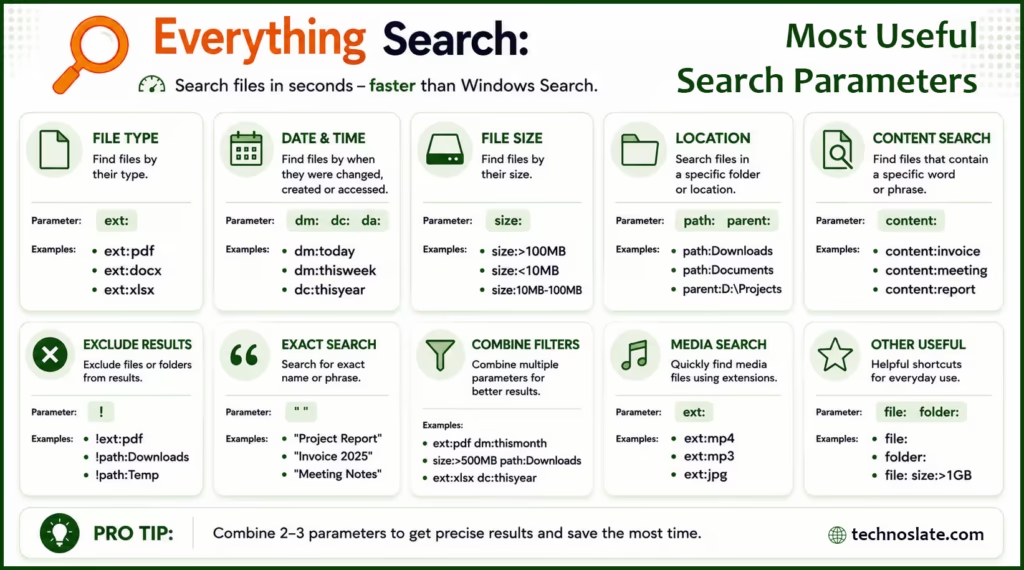
Pro Tip: You don’t need to memorize every operator. Learning just a few common ones like
ext:,size:, anddm:is enough to make everyday searches much faster. You can also combine operators to make your search more specific. For example search command given below shows PDF files larger than 10 MB that were modified this month. ext:pdf size:>10mb dm:thismonth
These simple use cases show why it is more than just a replacement for Windows Search. It helps reduce the time spent looking for files, so you can focus on the work that actually matters.
Hidden Features Worth Exploring
Most people use Everything Search only to find files, but it includes several useful features that can make everyday work more efficient. These aren’t essential for beginners, but they’re worth exploring once you’re comfortable with the basics.
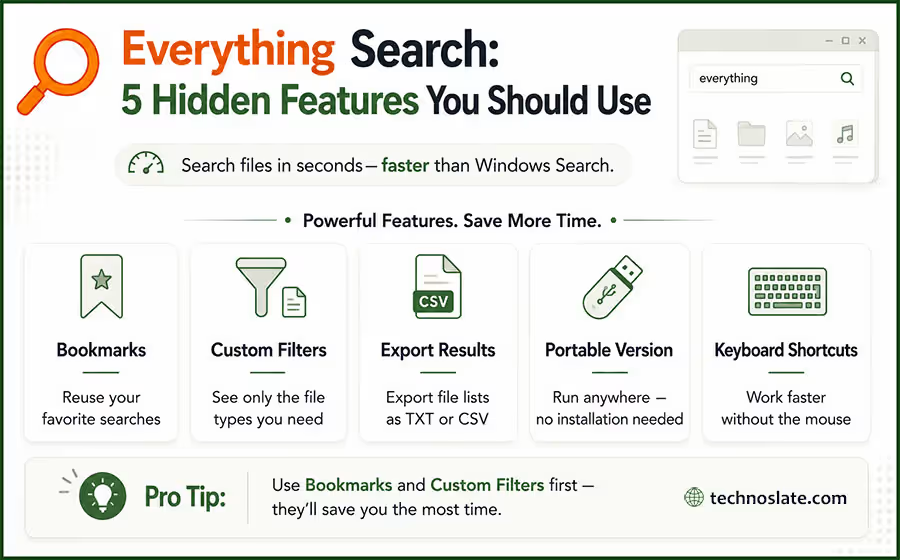
- Bookmarks
- If you frequently run the same search, you can save it as a bookmark. Instead of typing the query every time, simply open the bookmark and your saved search is ready.
- Custom Filters
- Custom filters let you create one click views for specific file types. For example, you can create filters for Documents, Images, Videos, or even project files you access regularly.
- Export Search Results
- Need to share a file list or keep a record of search results? It lets you export the current results to formats like TXT or CSV, which is useful for documentation and inventory tasks.
- Portable Version
- If you don’t want to install another application, the portable version is a great option. You can run it directly from a USB drive or keep it in a folder without making a traditional installation.
- Keyboard Shortcuts
- Almost every action in it has a keyboard shortcut. Once you learn the most common ones, you can search, open files, and navigate results much faster without reaching for the mouse.
Pro Tip: Start with Bookmarks and Custom Filters first. They require very little setup but can save a lot of time if you regularly search for the same types of files.
Limitations You Should Know
Although Everything Search is one of the fastest file search tools for Windows, it’s important to understand what it isn’t designed to do.
The biggest limitation is that it doesn’t search the content inside documents by default (because it requires more system power and time). If you’re looking for a Word or PDF file because it contains a particular sentence, it won’t find it unless that text is part of the file name. If you mainly remember file names rather than the text inside documents, this approach works surprisingly well.
The software also works best with NTFS drives, as they’re designed to support its fast indexing system. If you search files stored on network locations or non NTFS drives, the experience may be different because those locations are handled differently.
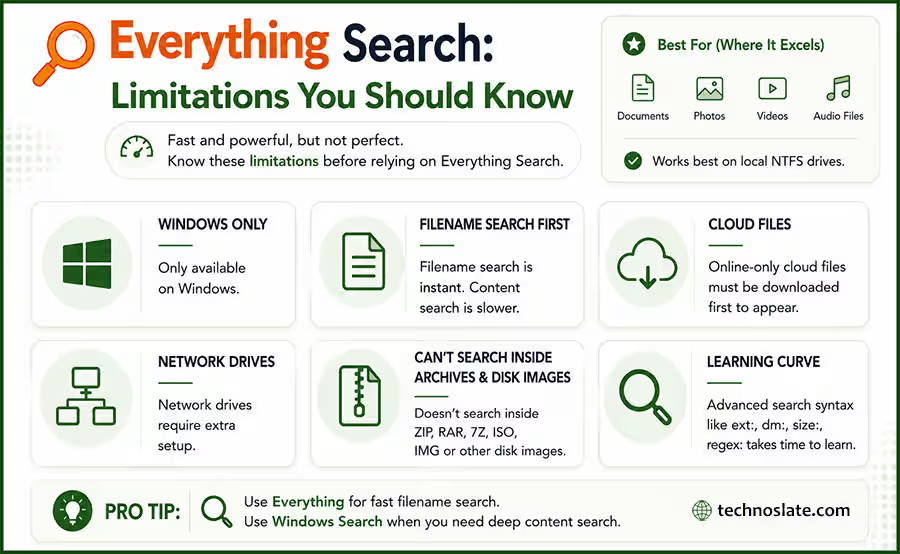
Another thing to keep in mind is that Everything Search isn’t meant to replace File Explorer. While you can open, rename, move, or delete files directly from the search results, its primary purpose is to help you locate files quickly, not organize your entire file system.
For most users, these limitations won’t be deal breakers. If your goal is to find files and folders by name in the shortest possible time, Everything Search delivers exactly what it promises.
Everything Search vs Windows Search
Both Everything Search and Windows Search help you find files, but they are built with different priorities. Choosing the right one depends on what you’re trying to do. It is designed to locate files and folders by their names as quickly as possible. If you remember even a part of a file name, you’ll usually find it within seconds. Its lightweight design and instant results make it a great choice for users who work with a large number of files every day.
Windows Search, on the other hand, is more deeply integrated into the operating system. Besides files and folders, it can search installed apps, system settings, emails (when supported), and the contents of indexed documents. This makes it more suitable when you need broader system wide search rather than just fast file lookup. Here’s a quick comparison:
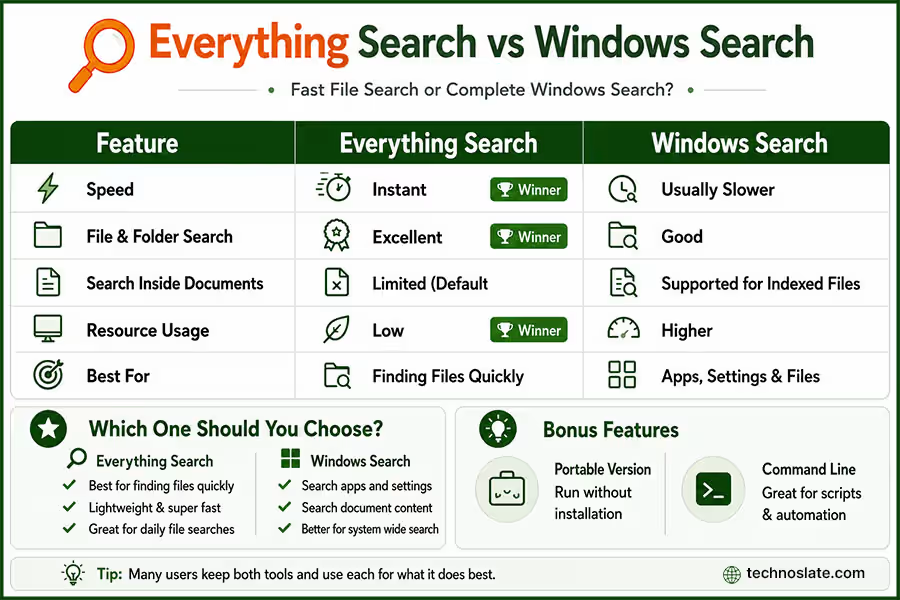
If your daily work involves locating files and folders, it is the better choice. However, if you frequently search document content, apps, emails, or Windows settings, Windows Search still has its place. Some users keep both tools and use each for what it does best.
Many users also overlook the portable version. It offers almost the same core functionality as the installed version, making it a practical choice if you don’t want to install additional software or often work on different computers.
Finally, Everything Search isn’t limited to its graphical interface. It also supports command line searches, allowing advanced users to include it in scripts and automated workflows. While this feature isn’t necessary for everyday use, it’s a useful capability that many people never discover.
Frequently Asked Questions
- Does Everything Search work with external hard drives?
- Yes, but it depends on how the drive is connected and which file system it uses. If you regularly use an external drive, you can include it in Everything Search so its files become searchable.
- Can I use Everything Search without replacing Windows Search?
- Absolutely. Many users keep both tools installed. They use it for finding files quickly and Windows Search for tasks like searching apps, settings, or document content.
- Does it slow down my computer?
- In normal day to day use, it has very little impact on system performance. Once the initial index is created, the software uses minimal system resources while keeping the index updated in the background.
- Is Everything Search safe to use?
- Yes. it is developed by Voidtools and is widely trusted by Windows users. To avoid modified or outdated copies, always download it from the official website.
- Who should use Everything Search?
- It’s a great choice for anyone who frequently searches files and folders on Windows. Whether you’re a student, office worker, content creator, or developer, it can save time by helping you locate files almost instantly.
I hope you loved this article about Everything Search Chrome Extension. If this post helped you then please share it with your friends and family to know about it. If you have any questions then feel free to ask in comment section. We will try our best to help you. You can read more such interesting articles here.