If you regularly work with multiple tabs in Chrome, the OneTab Chrome Extension can help keep your browsing experience organized. Many users leave articles open for later reading, keep product pages for comparison, save videos to watch later, or switch between several websites throughout the day. As those tabs continue to accumulate, finding the right page often becomes more difficult than expected.
OneTab browser extension offers a simple solution. It lets you save open tabs in a single list, allowing you to clear your browser without losing access to important pages. Whenever you need a saved tab again, you can restore it with just a few clicks.
Despite its popularity, many people do not fully understand what this extension is designed to do. Some see it as a tool for improving browser performance, while others use only its most basic feature. In reality, its value comes from helping users manage large numbers of tabs more efficiently and keeping browsing sessions easier to control.
In this guide, you will learn what OneTab chrome extension is, how it works, its most useful features, key benefits, limitations, and the situations where it can genuinely improve the way you manage tabs in Chrome.
What Is OneTab Chrome Extension?
The OneTab Chrome Extension is designed to help users manage large numbers of open tabs more effectively. Instead of keeping every tab visible in the browser window, it allows you to collect them into a single organized list.
The extension is especially useful for people who often work on multiple tasks at the same time. For example, you might have several articles open for research, a few shopping websites for product comparisons, work related pages, and videos you plan to watch later. Managing all of them through the tab bar can quickly become inconvenient.
Rather than treating each tab separately, OneTab chrome extension provides a central place where you can keep them together and access them whenever required. This makes it easier to maintain an organized workspace without losing track of important pages.
Because of its simple approach, OneTab has become one of the most widely used tab management extensions among Chrome users who want a cleaner and more structured browsing experience.
How to Install OneTab Chrome Extension
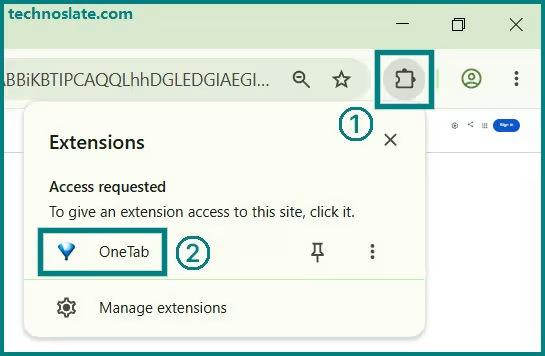
Installing OneTab chrome extension takes only a few minutes and does not require any technical knowledge. After installation, you can click the extension icon whenever you want to save your open tabs into a single list.
- Open the Chrome Web Store in your browser.
- Search for OneTab in the search bar. Or you can also get it from here.
- Select the official OneTab browser extension from the search results.
- Click the Add to Chrome button.
- Review the requested permissions and click Add Extension to continue.
- Once the installation is complete, the OneTab icon will appear in the Chrome toolbar.
How Does OneTab Work?
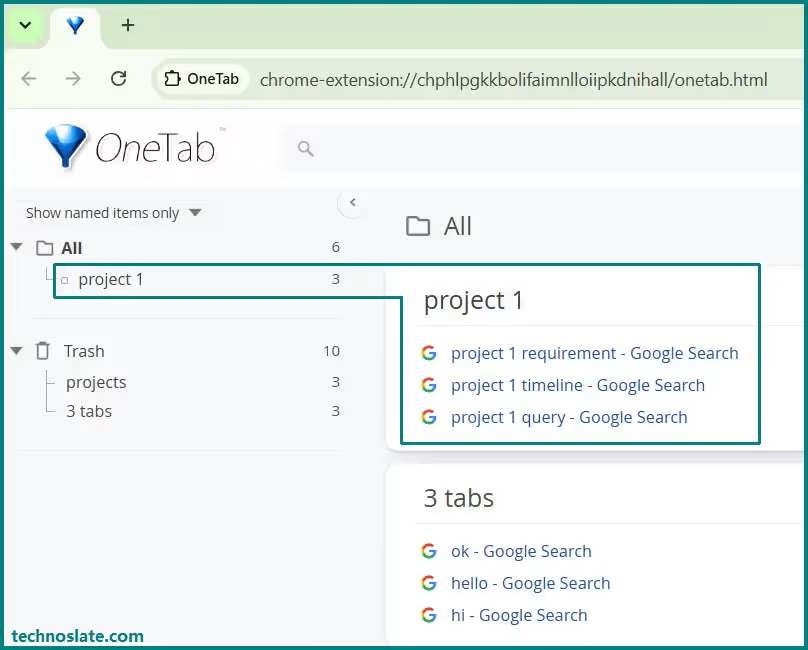
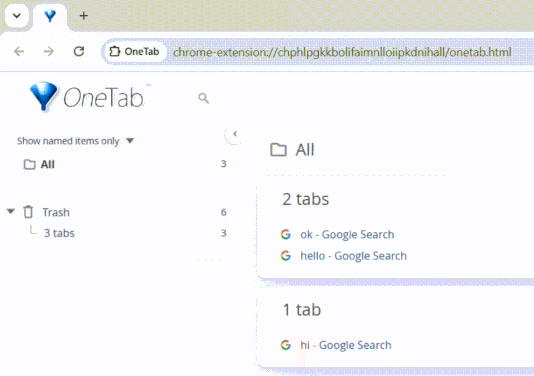
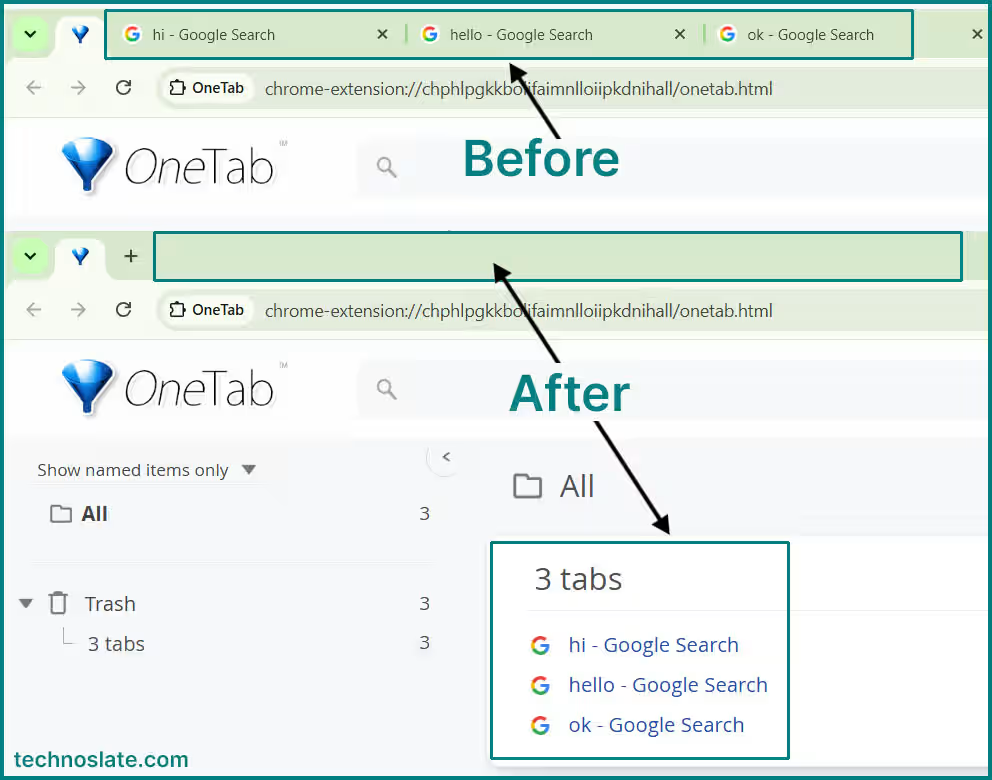
The OneTab chrome extension is designed to make tab management simple. When you click the OneTab icon, the extension gathers all currently open tabs and places them into a single list on a dedicated page. The original tabs are then removed from the tab bar, leaving your browser much easier to navigate.
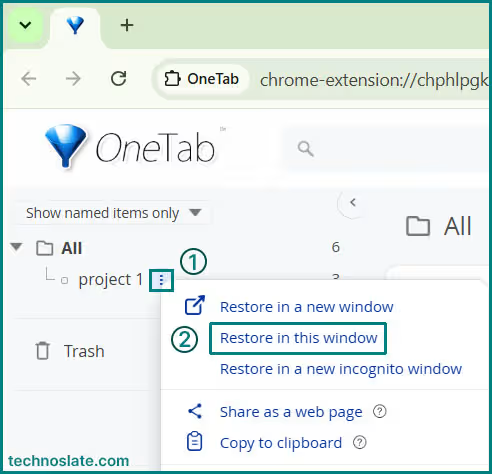
Whenever you need a saved page again, you can restore individual tabs or reopen an entire group. This allows you to continue working with the websites you saved earlier without searching through browser history.
One important detail many users do not know is that OneTab does not save a complete copy of a webpage. Instead, it keeps a record of the page’s web address and displays it in your saved tab list. This approach is what allows the extension to handle large collections of tabs efficiently.
For everyday users, the process feels straightforward: save tabs when they are no longer needed on screen and restore them later when they become relevant again. As a result, it becomes easier to keep ongoing projects, research sessions, and temporary browsing activities organized.
Key Features and Benefits of OneTab Chrome Extension
The OneTab Chrome Extension is designed to make tab management simpler without changing how you browse. Instead of keeping dozens of pages open, it gives you a practical way to organize them while keeping everything accessible.
- Save All Tabs in One Click
- Move every open tab into a single list instantly. This helps clear your browser without losing the pages you want to revisit later.
- Move every open tab into a single list instantly. This helps clear your browser without losing the pages you want to revisit later.
- Restore Pages Whenever Needed
- Open an individual tab or bring back an entire saved collection, making it easy to continue where you left off.
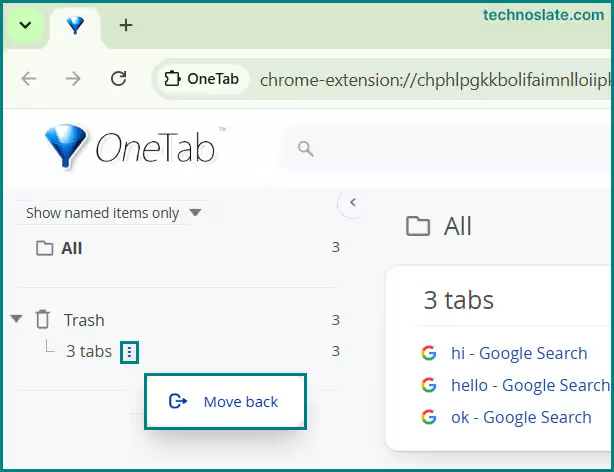
- You can also recover/restore pages, if you deleted any page or group of pages by mistake. While that is not possible in traditional browsing.
- Open an individual tab or bring back an entire saved collection, making it easy to continue where you left off.
- Organize Tabs by Task or Topic
- Keep related pages together for projects, research, travel plans, shopping comparisons, study sessions, or any other activity that requires multiple sources.
- Keep related pages together for projects, research, travel plans, shopping comparisons, study sessions, or any other activity that requires multiple sources.
- Find Saved Pages Faster
- Use the search function to locate specific tabs quickly, even when your saved collections become large.
- Share Resources with Others
- Generate a shareable list of tabs and send it to teammates, clients, classmates, or anyone who needs access to the same resources.
- Generate a shareable list of tabs and send it to teammates, clients, classmates, or anyone who needs access to the same resources.
- Back Up and Transfer Saved Tabs
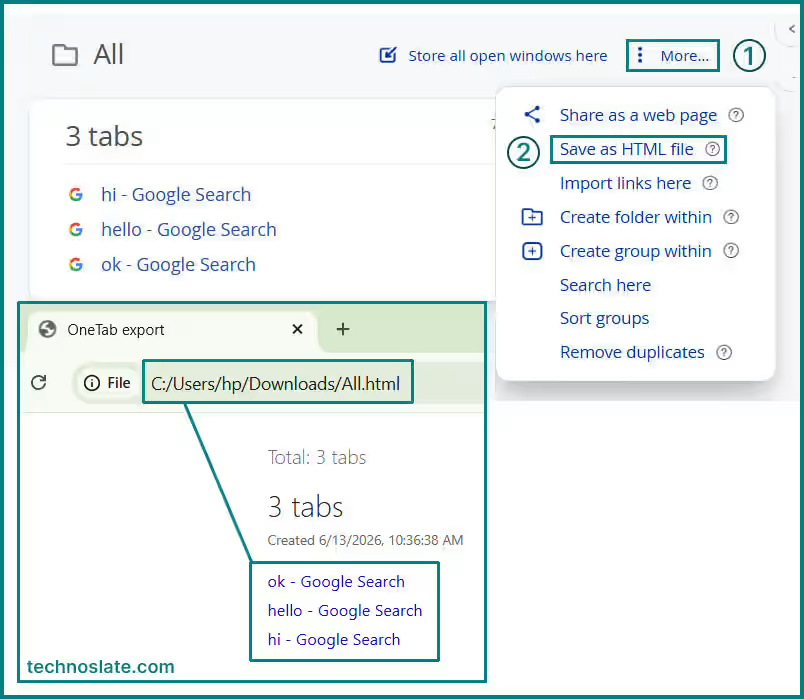
- Export your tab collections for safekeeping and import them later when switching browser profiles or setting up a new device.
- Maintain a Cleaner Browsing Experience
- With fewer tabs competing for space, your browser remains easier to navigate and active pages are simpler to identify.
- With fewer tabs competing for space, your browser remains easier to navigate and active pages are simpler to identify.
- Stay Focused Across Multiple Projects
- Switch between different tasks without losing track of important websites, reducing the need to search through browser history or reopen pages repeatedly.
- Uses Less Memory
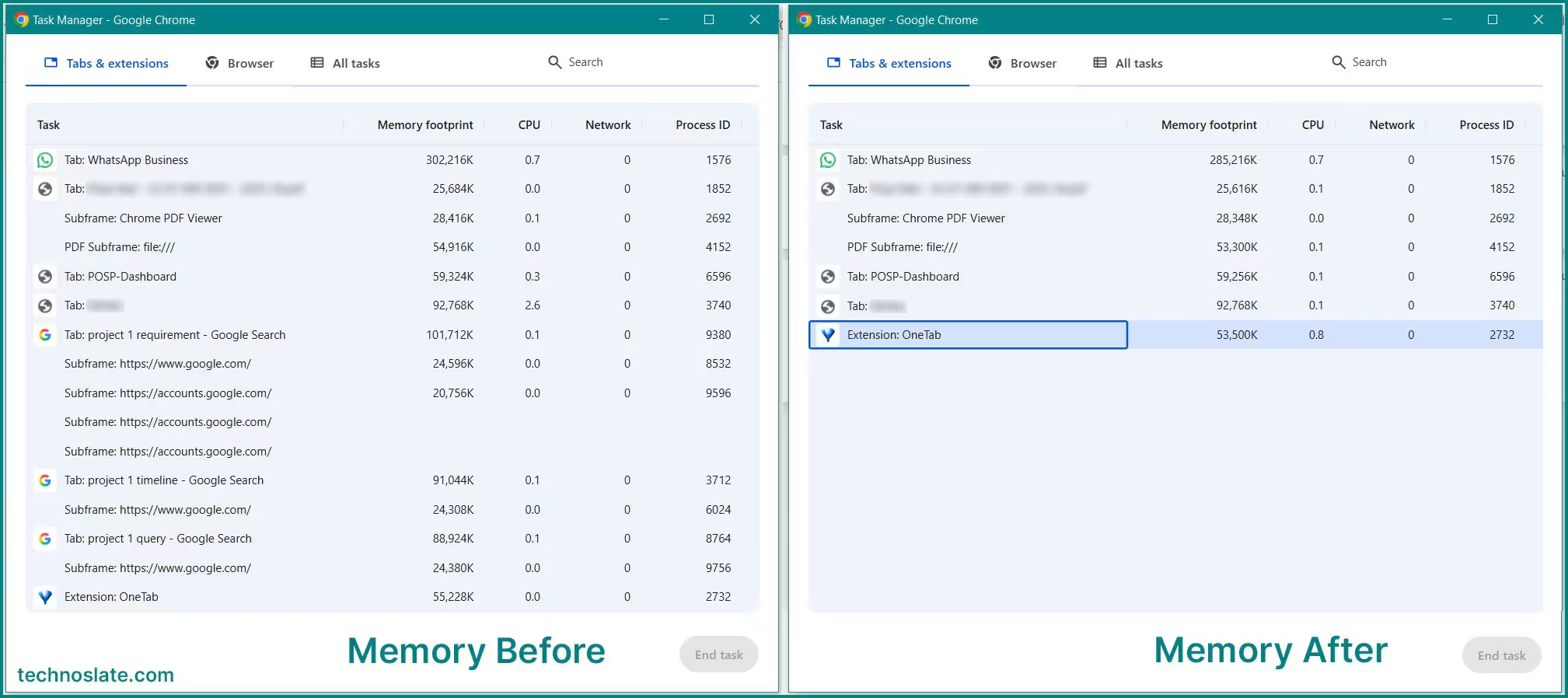
- It saves memory by turning all your open tabs into a single, organized list. It closes inactive tabs without deleting them, which frees up RAM and helps Chrome run more smoothly. This makes your browser faster, reduces clutter, and can even improve battery life on laptops.
- It saves memory by turning all your open tabs into a single, organized list. It closes inactive tabs without deleting them, which frees up RAM and helps Chrome run more smoothly. This makes your browser faster, reduces clutter, and can even improve battery life on laptops.
- Manage Research More Efficiently
- Collect information from multiple sources in a structured way, making long research sessions easier to review and continue over time.
- Store Short Term Resources Without Bookmarking Everything
- Keep temporary pages available for future reference without adding them permanently to your bookmarks. This is useful for reading lists, event planning, product comparisons, and other short term activities.
Real Life Use Cases of OneTab Chrome Extension
OneTab can fit into different browsing habits depending on how you use Chrome. While the extension works the same way for everyone, the situations in which it becomes valuable often vary from one user to another.
Students frequently collect study material from different sources, including articles, tutorials, videos, and reference websites. During exam preparation or project work, these resources can quickly fill the browser with tabs. OneTab provides a convenient way to keep them together until they are needed again. Creating content often involves researching topics, reviewing competitor articles, checking sources, and gathering ideas. Instead of leaving every reference open throughout the day, writers can store them in a dedicated collection and return to them when continuing their work.
Developers regularly work with documentation, code repositories, learning resources, and troubleshooting guides. Keeping these pages organized makes it easier to switch between projects without losing access to important references.
Research projects often require reviewing information from many websites over an extended period. OneTab can help keep related sources together, making it easier to continue the research process without rebuilding the same collection of resources repeatedly. When comparing products, prices, specifications, and reviews, it is common to open many pages at once. Instead of keeping comparison tabs open for days, shoppers can save them and revisit them when they are ready to make a decision.
Important Things to Know Before Using OneTab
OneTab can make tab management much easier, but understanding how it works will help you use it more effectively.
- Saved Tabs Reopen as Web Pages, Not Saved Sessions
- OneTab browser extension stores links to your tabs rather than preserving every detail of a browsing session. If a page contained unsaved form entries, dynamically loaded content, or activity inside a web app, that information may not be available when the tab is reopened.
- Best Suited for Temporary Tab Collections
- OneTab works particularly well for pages connected to ongoing tasks, research, planning, or short term projects. For websites you want to keep indefinitely, traditional bookmarks are often the better choice.
- Create Separate Groups for Better Organization
- A well structured collection is easier to manage than a single list containing hundreds of tabs. Organizing pages by topic, project, or purpose makes future retrieval much more convenient.
- Keep a Backup of Important Collections
- If your saved tabs contain valuable references or long term research, exporting them periodically provides an extra layer of security and makes migration easier if you change devices or browser profiles.
- Use Caution When Sharing Tab Lists
- Before generating a shareable list, review the contents carefully. This helps ensure that personal, sensitive, or irrelevant pages are not included unintentionally.
- Not a Replacement for Every Browser Tool
- OneTab browser extension is designed specifically for tab management. Browser history, bookmarks, reading lists, and other organizational features still serve different purposes and may remain useful alongside it.
- Some Pages Are Better Left Open
- Web based tools that rely on continuous activity, such as document editors, dashboards, or project management platforms, may not return to the exact working state you left. In these situations, keeping the tab active can be more practical.
- Occasional Cleanup Improves Long Term Usability
- As collections grow, older or irrelevant tabs can accumulate. Reviewing saved lists from time to time helps keep OneTab organized and ensures that useful resources remain easy to find.
Is OneTab Safe to Use?
For most users, the OneTab Chrome Extension is generally considered safe to use. Like many other browser extensions that work with open tabs, it requires permission to access tab information in order to perform its core function.
A common concern among users is whether the extension can see the websites they have open. The reality is that access to tab information is necessary because OneTab needs to identify and save the pages you choose to store. Without that access, the extension would not be able to function as intended.
As with any browser extension, it is a good practice to install OneTab from trusted sources and review permissions before adding it to your browser. This helps ensure that you understand what access the extension requires and why it needs it.
Users who regularly save important collections of tabs should also consider keeping occasional backups. Doing so provides an extra layer of protection if browser settings, extensions, or saved data ever need to be restored in the future.
Should You Use OneTab Chrome Extension?
The answer largely depends on how you use Chrome. If you frequently keep large numbers of tabs open, switch between multiple tasks, or collect resources for ongoing projects, OneTab can make tab management much easier. It provides a structured way to keep pages accessible without leaving them permanently open in the browser.
On the other hand, users who typically work with only a small number of tabs may not notice a significant difference in their daily browsing experience. In those situations, Chrome’s built in tools and standard bookmarks may already be sufficient.
OneTab is best viewed as an organization tool rather than a replacement for every browser feature. When used for the right purpose, it can help create a cleaner and more manageable workflow without adding complexity to your browsing routine.
Tips for Using OneTab Chrome Extension More Effectively
Using OneTab is straightforward, but a few simple habits can make it more useful over time.
- Avoid placing every saved tab into a single collection. Keeping work, study, shopping, and personal browsing sessions separate makes navigation easier later.
- Some saved tabs may no longer be relevant after a few weeks or months. Removing outdated collections helps keep your saved lists organized and easier to browse.
- Giving meaningful names to tab collections makes them easier to identify at a glance. Simple labels are often more useful than generic names.
- If you are moving from one task to another, saving the current set of tabs can help create a clean workspace for the next activity without losing access to previous resources.
- Bookmarks work well for websites you visit regularly, while OneTab is useful for temporary collections related to ongoing tasks. Using both tools for their intended purpose can create a more organized browsing workflow.
Frequently Asked Questions (FAQs)
- Can I use OneTab browser extension on more than one computer?
- OneTab does not automatically keep the same tab collections across different devices. If you use multiple computers, you may need to transfer saved tab data manually using the export and import options.
- What happens if a website is no longer available after I save it?
- OneTab can only save access to a webpage that still exists. If the website is removed, the page is deleted, or the address changes significantly, the saved entry may no longer open the original content.
- Can OneTab save pinned tabs?
- Yes. Pinned tabs can also be included when saving tabs, depending on how you use the extension’s settings and commands.
- Does OneTab work in Incognito Mode?
- OneTab chrome extension can be used in Incognito Mode if permission is enabled in Chrome’s extension settings. It is not enabled automatically.
- Can I rename tab groups in OneTab browser extension?
- Yes. Saved collections can be given custom names, making it easier to identify different projects, topics, or browsing sessions later.
- Is OneTab useful for long term information storage?
- OneTab browser extension is best suited for managing active collections of tabs. For information that needs to be preserved for months or years, dedicated tools such as bookmarks, note taking apps, or knowledge management systems may be more appropriate.
Conclusion
Managing tabs becomes more challenging as online activities grow throughout the day. Whether you are researching a topic, working on multiple projects, or saving pages for later, keeping everything organized can make browsing more efficient.
OneTab browser extension offers a simple way to manage those tabs without changing how you normally use Chrome. Its straightforward approach, useful organizational features, and flexibility make it a practical choice for users who regularly deal with large numbers of open pages. If tab overload is a common problem in your browser, OneTab browser extension is worth considering. Used correctly, it can help create a more organized browsing environment while keeping important pages easy to access when they are needed.
I hope you enjoyed this post about OneTab chrome extension. If you found this post helpful, please share this post with your friends and family. If you have any question in your mind or you are facing any problem then feel free to ask your question in the comment section. We will try our best to help you. You can read more such interesting articles here.
- MYNT Material You New Tab – Should You Install It in Chrome?
- Buyhatke – Save Thousands in Big Billion Days
- SponsorBlock Chrome Extension: 7 Smart Reasons Millions of Users Love It
- Unhook Chrome Extension: 7 Powerful Features That Make YouTube Less Distracting
- Consent-O-Matic Chrome Extension Explained: 9 Powerful Things You Should Know Before Using It
Pingback: Unhook Chrome Extension: Stop Wasting Hours on YouTube in 2026