Most people assume nothing can go wrong because everything looks fine on the surface. No warnings, no alerts, just smooth internet access. That’s exactly why public WiFi safety is often ignored. We’ve all been there. You’re stuck at an airport with a long delay, watching your battery drop and your patience follow. Or maybe you’re sitting in a cozy cafe, trying to get some work done, but your signal is barely hanging on. Messages won’t load. Emails won’t send. Everything feels slow. Then you see – “FREE_GUEST_WIFI.” But what most people don’t realize is that this exact moment is where public WiFi safety becomes a real concern.
And just like that, everything changes. There’s a small rush of relief, almost like finding water when you didn’t realize how thirsty you were. You tap “connect” without thinking twice. It feels like a little gift. A win. But that moment, that quick, almost automatic decision, is where something interesting happens in our brains. We stop being cautious and start being grateful. This question is where your journey into understanding public WiFi safety begins, and it might change the way you connect forever.
The Real Cost of “Free”
We tend to think of cost in terms of money. But with free Wi-Fi, the trade-off isn’t financial, it’s invisible. What you’re really risking is your data, your privacy, and sometimes your identity. That “free” connection isn’t necessarily dangerous every time. But it lowers your guard just enough to make risky behavior feel normal, logging into accounts, checking bank apps, sending sensitive information. And that’s where the illusion does its work.
“Free” is a powerful word. It doesn’t just mean zero cost, it feels like kindness. When a cafe or airport offers Wi-Fi, we instinctively trust them more. It blends into the whole experience: good coffee, a comfortable seat, helpful service and now, free internet. It feels safe. But here’s the part we rarely think about public WiFi safety is providing Wi-Fi is easy. Securing it properly is not. Most public networks are built for convenience, not protection. Businesses offer the connection, the pipe, but what flows through it often isn’t guarded as well as we assume.
Using public Wi-Fi can feel private because we’re alone with our screens. Head down, headphones in, world shut out. None of these feel risky in the moment. That’s the point. The danger of ignoring public WiFi safety is subtle – it doesn’t interrupt your experience or show obvious warning signs. But that privacy is an illusion. A better way to think about it isn’t a quiet cafe, it’s a crowded public space where everyone can potentially overhear you.
Without proper encryption, your data isn’t tucked away safely. It’s moving through shared airwaves that anyone nearby can access with the right tools. Things like passwords, messages, or even payment details can become visible. You’re not whispering. You’re broadcasting. And the strangest part? It doesn’t feel risky. That’s what makes it so easy to ignore.
Next time you see that “Connect” button, just pause for a second. Ask yourself: What am I about to do on this network? You don’t have to avoid public Wi-Fi entirely. Just treat it with the same awareness you’d have in any public space. Because while the connection might be free, your privacy isn’t.
The Digital Listeners: How Your Data Gets “Stolen” in Thin Air
You don’t need to picture some hoodie wearing hacker furiously typing in a dark room to understand what really happens on public Wi-Fi. In reality, most attacks are surprisingly simple. When you connect to an unsecured network, you’re not entering a high tech battlefield, you’re walking into a space where the doors are wide open, and anyone curious enough can quietly look around. This is where public WiFi safety starts to feel confusing. The danger isn’t loud or obvious. It’s subtle, invisible and that’s what makes it effective. Here are three of the most common ways your data can slip away without you even noticing:
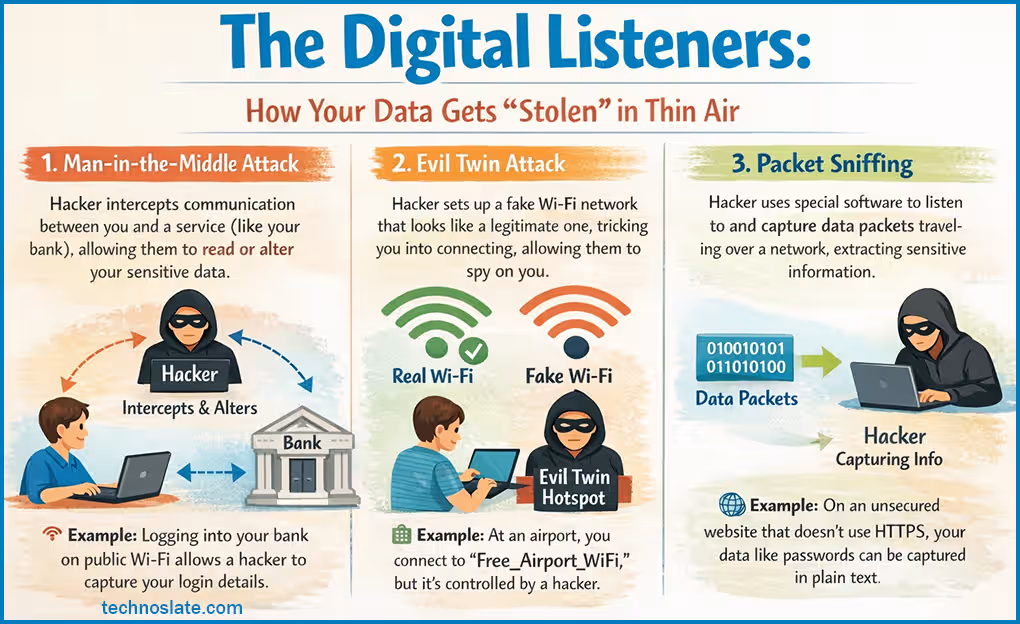
- The Man-in-the-Middle (MitM) – Nosy Postman
- Many users assume free internet is harmless, but public WiFi safety tells a different story. Imagine you’re sending a letter to your bank. Now imagine someone intercepts that letter, opens it, reads everything inside, carefully reseals it, and sends it on its way. You’d never know it was touched. That’s exactly what happens in a Man-in-the-Middle attack. A hacker places themselves between your device and the Wi-Fi network. Because the connection isn’t properly secured, everything you send like emails, passwords, login sessions, passes right through them first. From your perspective, everything works normally. But behind the scenes, someone could be quietly watching it all.
- The Evil Twin – When the Network Isn’t What it Seems
- This one works because it plays on something very human: trust. A hacker sets up a fake Wi-Fi network with a name that looks completely legitimate, something like “Airport_Free_WiFi” or “Cafe_Guest.” Fake hotspots are a common trick used to bypass public WiFi safety awareness. It might even have a stronger signal than the real one. Your phone doesn’t know the difference. Sometimes, it connects automatically. But once you’re on that network, you’re not just being observed, you’re inside a system controlled by someone else. They can redirect you to fake websites that look exactly like the real ones, your email, your social media, even your bank. You log in like usual and hand over your credentials without realizing it. It’s not hacking in the dramatic sense. It’s more like a convincing disguise. In short, ignoring public WiFi safety can expose your personal data without any visible warning.
- Packet Sniffing: Listening to Everything at Once
- Now picture a crowded room full of conversations. Most of us assume no one is really listening. But imagine someone standing in the corner with a powerful microphone, recording everything at once. That’s what packet sniffing does. Hackers use simple tools to capture the bits of data, called packets, that travel between devices on a network. If the website you’re using isn’t properly secured (no HTTPS), that data can be read almost as easily as plain text. They don’t even need to focus on you specifically. They just collect everything and sort through it later to find anything valuable, passwords, messages, payment details.
When you’re on public Wi-Fi, the space around you isn’t empty, it’s full of invisible information moving back and forth. And without the right protections, that information is surprisingly easy to access. It doesn’t mean every network is dangerous. But it does mean this: You’re not as alone as you feel when you’re online in public.
The “Comfort” Trap: The Small Mistakes We All Make
We’re creatures of habit. Walk into your favorite cafe, hear familiar music, smell good coffee, and without even thinking about it, you relax. Your shoulders drop, your guard comes down. It feels safe. And that feeling quietly spills over into how we use the internet too. We assume that because a place feels comfortable in real life, it must be safe digitally as well. But in cybersecurity, that kind of trust is often exactly what creates risk. Most problems don’t come from genius hackers pulling off dramatic attacks. They come from small, everyday habits, the kind we barely notice.
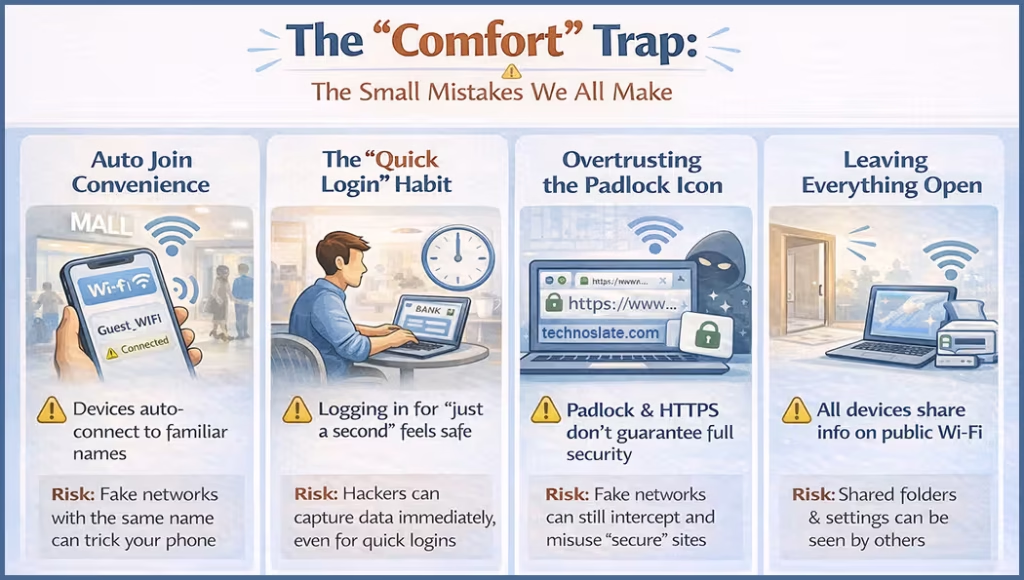
- The “Auto Join” Convenience
- This one feels harmless. Your phone connects to Wi-Fi automatically. No effort, no thinking, it just works. You walk into a mall, an airport, a cafe and you’re instantly online. But here’s the catch: Your device isn’t checking if the network is safe. It’s just checking if the name looks familiar. So if you’ve ever connected to something like “Guest_WiFi”, a fake network with the exact same name can trick your phone into connecting without asking you. No warning. No pop-up. Just connected. Convenience quietly opens the door. A lack of awareness is the biggest weakness in public WiFi safety.
- The “I’ll Just be a Second” Mindset
- We’ve all said it. I’ll just check my bank balance quickly. or I’ll log in for a second, nothing important. It feels low-risk because it’s quick. Like grabbing something and leaving before anything can go wrong. But digital threats don’t work on human timing. The moment you tap “login,” things can already be captured. Automated tools don’t need time to “catch” you, they’re always watching, always ready. So being quick doesn’t really protect you. It just feels like it does. Hackers take advantage of poor public WiFi safety by targeting unprotected devices.
- Trusting the Little Padlock Too Much
- That small padlock icon in your browser feels reassuring. It tells you the connection is secure, and that’s true, to a point. HTTPS is important. It protects your data in many situations. But it’s not a guarantee of total safety. On a fake or compromised network, attackers can sometimes interfere in ways that make secure sites behave less securely, without it being obvious to you. So while the padlock is a good sign, it’s not a free pass to stop thinking.
- Leaving the Front Door Open
- At home, we connect everything. Laptops, TVs, printers, sharing files, sending photos, moving things around easily. It’s convenient, and it works. But when you carry those same settings into a public network, it’s a bit like leaving your house door open in a crowded street. Other devices on the same network can sometimes see yours. In some cases, they can even access shared folders or files if protections aren’t in place. And you wouldn’t even notice, it happens quietly, in the background.
None of these mistakes feel reckless. That’s the point. They feel normal. Easy. Convenient. And that’s exactly why they’re so common. Good security isn’t just about installing the right tools, it’s about noticing these small habits and adjusting them just a little. Because most of the time, the biggest risks don’t come from what we don’t know. They come from what we do automatically, without thinking.
The Digital Secret Service: What That Little “HTTPS” Padlock Really Means
In the middle of all the uncertainty that comes with public Wi-Fi, there’s one small thing most of us rely on without even thinking about it: That tiny padlock icon in the browser. We see it every day. It’s familiar. Reassuring, even. But very few of us actually stop and ask, what is it really doing? If you care about staying safe online (especially on public networks), this little symbol matters more than you think.
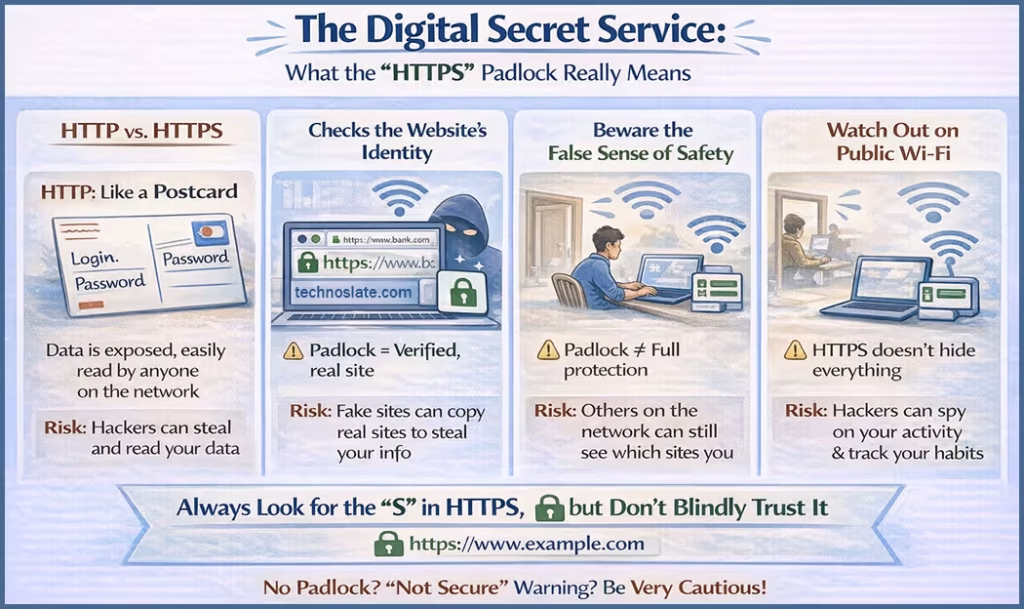
- The Difference Between HTTP and HTTPS
- Let’s make this simple. Using a website with HTTP is like sending a postcard. Whatever you write, your login details, passwords, messages, can be read by anyone who happens to handle it along the way. On public Wi-Fi, that “anyone” could easily be someone snooping on the network.
- Now compare that to HTTPS. That’s like putting your message into a locked, sealed box before sending it. Even if someone intercepts it, all they see is scrambled, unreadable data. They can grab it, but they can’t understand it. That’s what the padlock represents: your data being protected while it travels.
- It’s also Checking Who You’re Talking to
- The padlock isn’t just about hiding your data, it’s also about trust. When you see it, it means the website has been verified by a trusted authority. In simple terms, someone has confirmed: yes, this site is who it says it is. Why does that matter? Because on public Wi-Fi, fake websites are a real problem. A login page might look exactly like your bank or email, but actually be a copy designed to steal your details. The padlock helps you avoid that trap. No padlock? Or a “Not Secure” warning? That’s the sign for you to stop right there.
- Where We Get it Wrong: The False Sense of Safety
- Here’s the subtle mistake most of us make. We see the padlock and relax completely. We assume everything is safe, the site, the connection, the whole environment. But that’s not quite true. HTTPS protects the specific conversation between you and that website. It doesn’t protect everything else happening on the network. Someone on the same Wi-Fi might not see your password, but they can still see where you’re going. They can tell which sites you visit, when you visit them, and sometimes build a picture of your habits. It’s like having a private conversation in a crowded room. People may not hear your exact words, but they can still see who you’re talking to.
- The Simple Rule to Remember
- Always look for the “S” in HTTPS. If it’s missing, don’t enter anything sensitive, no passwords, no personal details, nothing important. Think of it like this: If a stranger on the street asked for your private information, you wouldn’t hand it over. Treat unsecured websites the same way. That little padlock isn’t everything, but it’s a strong first line of defense. And sometimes, noticing small things like that is what makes the biggest difference.
Your Safety Shield: Simple Tools That Protect You on Public Wi-Fi
If public Wi-Fi feels a bit like the digital wild west, then relying on caution alone isn’t enough. You don’t need to become a tech expert or carry around complicated tools, but you do need a few quiet safeguards running in the background. Think of them as your personal security team, working while you focus on your coffee, your work, or your trip. Here are the ones that actually make a difference:
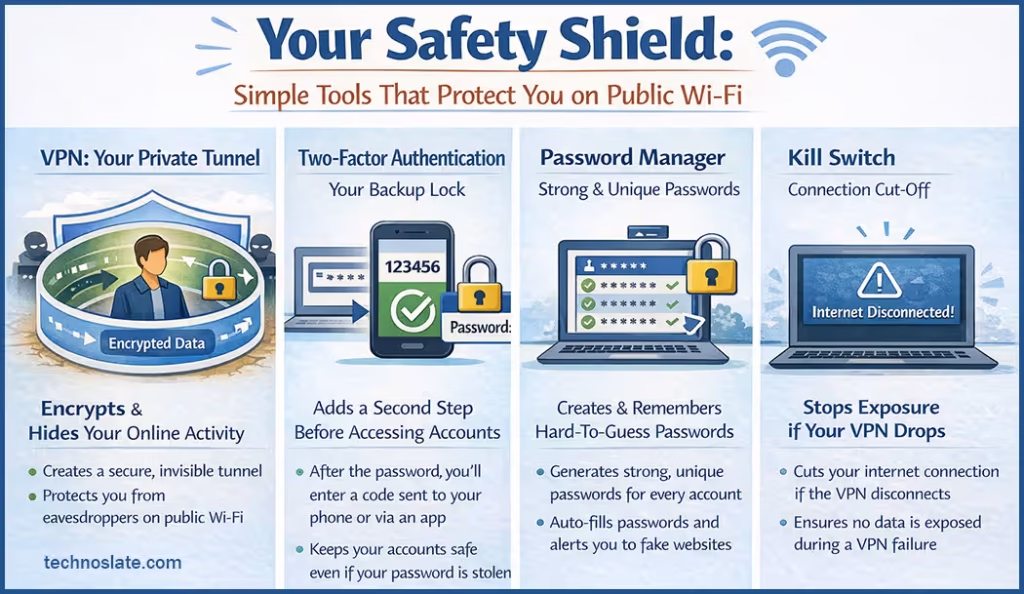
- The VPN: Your Private Space in a Crowded Network
- Imagine you’re in a crowded room where everyone can potentially overhear conversations. A VPN creates a private, invisible tunnel just for you. When it’s turned on, everything you do online, browsing, apps, messages, gets encrypted before it even leaves your device. So even if someone is trying to “listen in,” all they see is unreadable noise. To them, you’re basically invisible. It’s one of the simplest ways to protect yourself on public Wi-Fi, and once it’s on, you don’t really have to think about it again. One honest note: completely free VPNs often make money by tracking or selling your data. So if privacy is the goal, a trusted paid option is usually the safer choice.
- Two-Factor Authentication (2FA): Your Backup Lock
- Think of your password as your front door key. Now imagine someone manages to copy that key, that’s always a risk, especially on unsecured networks. Two-factor authentication adds a second lock. Even if someone gets your password, they still can’t get in without a second step, usually a code sent to your phone or generated by an app. It’s something only you have access to. So even when things go wrong, this step can stop a breach in its tracks.
- Password Managers: Making “Strong Passwords” Effortless
- Let’s be honest, most of us reuse passwords because it’s easier. But “easy to remember” often means “easy to guess.” A password manager takes that burden off you. It creates strong, unique passwords for every account and remembers them so you don’t have to. There’s also a subtle benefit most people don’t realize: If you land on a fake website, your password manager usually won’t auto-fill your details, because it doesn’t recognize the site. That hesitation can be a quiet warning that something isn’t right.
- The “Kill Switch”: Protection When Things Slip
- Sometimes, even your protection tools can briefly disconnect. A VPN might drop for a second, and that’s all it takes for your data to be exposed. That’s where a “kill switch” comes in. If your VPN connection breaks, the kill switch immediately cuts off your internet connection. No gap, no accidental exposure, just a clean stop until you’re protected again. It’s one of those features you hope you never need but you definitely want in place.
None of these tools are complicated. You don’t need to constantly monitor them or understand how they work in detail. Most of the time, it’s just: Set them up once → turn them on → let them do their job. Because staying safe online isn’t about being paranoid or overly technical. It’s about putting a few quiet barriers between your private life And a very public space.
Public WiFi Safety on Mobile vs. Laptop: Same Wi-Fi, Very Different Risks
It’s easy to assume that if you’re on the same Wi-Fi network, the risks are the same, whether you’re using your phone or your laptop. But that’s not really how it works. Your phone and your laptop behave very differently behind the scenes. One is constantly syncing your personal life in the background, while the other is built to share, connect, and discover other devices. And those differences? That’s where the risks show up.
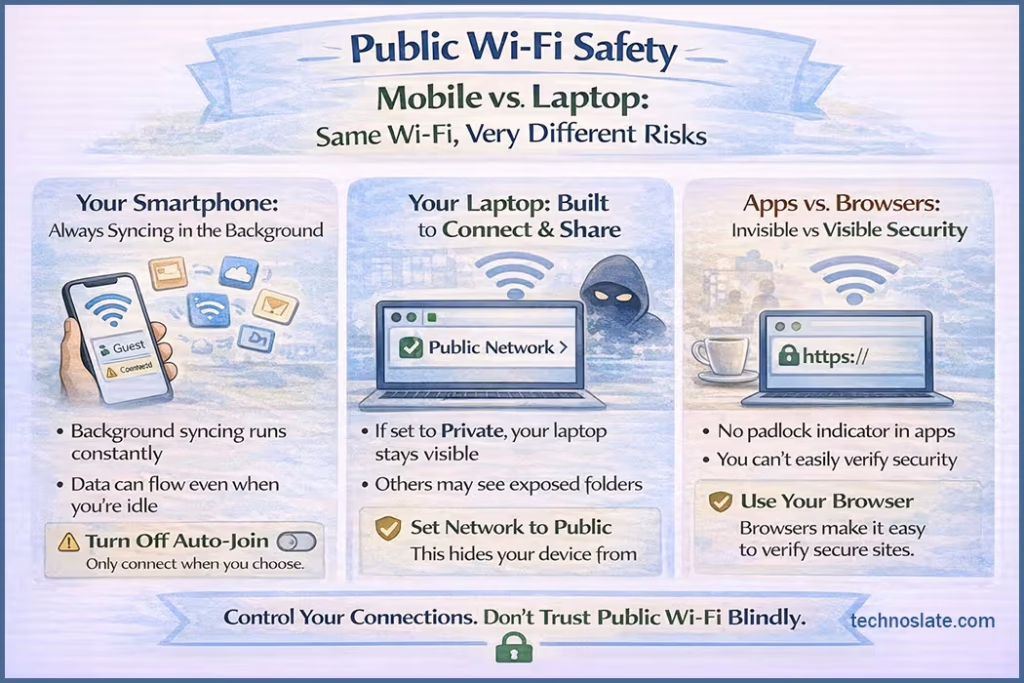
- Your Smartphone: Always Working in the Background
- Your phone is designed to make life easier. Even when you’re not using it, it’s quietly doing things, checking emails, syncing photos, refreshing apps, backing up data. It’s always connected, always updating. That’s convenient, but also a bit risky on public Wi-Fi. Because the moment you connect to a network, all of that background activity can start flowing through it. Emails syncing, photos uploading, messages refreshing, sometimes before you even unlock your screen. If the network isn’t safe, that data could be exposed without you realizing anything is happening.
- What helps:
- Make your phone a little less “friendly” with networks. Turn off auto-join or automatic connections. That way, your phone only connects when you choose, not when it recognizes a name. A little control goes a long way.
- Your Laptop: Built to Connect and Share
- Laptops are designed for productivity. At home or work, they’re often set up to find printers, connect to shared drives, or exchange files with other devices. It’s what makes them so useful. But on public Wi-Fi, that same behavior can become a problem. If your laptop still thinks it’s in a “trusted” environment, it may stay visible to others on the network. In simple terms, it’s like leaving a window open in a place where you don’t know who’s outside. Someone on the same network might not need to “hack” anything, they could just look for exposed folders or weak points.
- What helps:
- Whenever you connect to public Wi-Fi, set your network to “Public” (on Windows or macOS). This tells your device to shut off sharing features and stay hidden. Think of it like closing the curtains and locking the doors.
- Apps vs. Browsers: Not Always What You Expect
- A lot of people assume apps are safer than websites. And sometimes they are, but not always. While many modern apps use strong security, some don’t. And unlike a browser, apps don’t show you clear signals like the HTTPS padlock. You can’t easily tell if your connection is secure or not. So you’re trusting something you can’t really see.
- What helps:
- If you’re on public Wi-Fi without extra protection (like a VPN), it’s safer to use your browser, where you can actually check for security indicators. And for sensitive things like banking or personal accounts, it’s better to wait or switch to a safer connection.
Think of it this way: Your phone is like a personal diary, always updating, always active. Your laptop is more like a workstation, with doors and connections that need managing. Different devices, different risks, but the same goal: Keeping your personal data yours. And most of the time, it doesn’t take much, just a few small settings, a bit of awareness, and knowing how your devices behave when you’re not paying attention.
Your Public Wi-Fi Hygiene Checklist: A Simple Habit That Keeps You Safe
Knowing the risks is one thing. Remembering them when you’re tired, in a rush, or just trying to get things done? That’s the hard part. Think of this like digital hygiene, something quick and routine, like washing your hands before eating. You don’t overthink it. You just do it. This is your simple go-to checklist whenever you connect to public Wi-Fi.
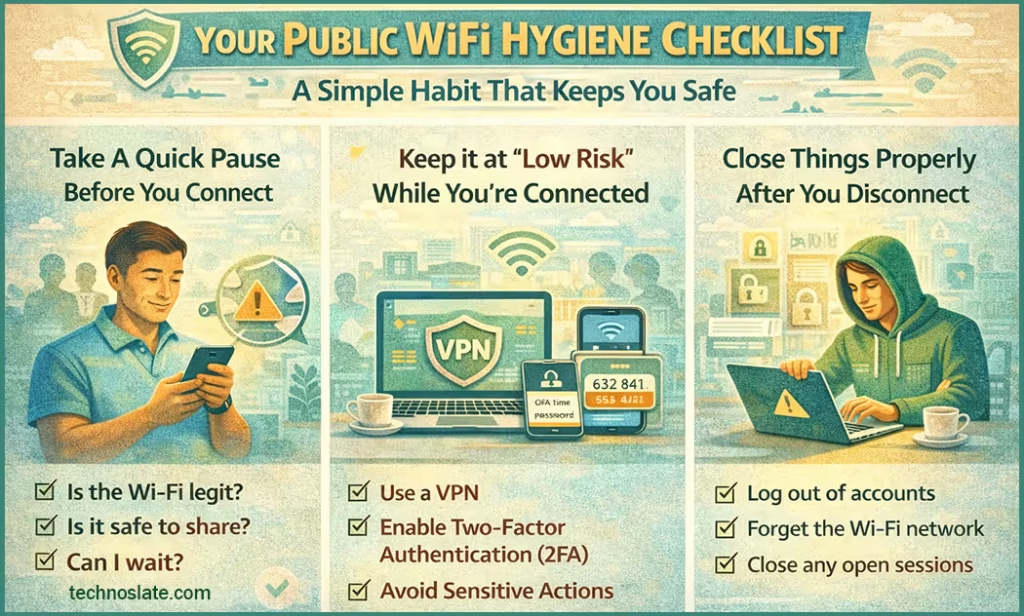
Take a Quick Pause Before You Connect
Think of this step as looking around before you sit down. Just a quick awareness check. It only takes a few seconds, but it makes a big difference.
- Double-check the network name
Don’t just tap the first “Free Wi-Fi” you see. Ask staff for the exact name. If you see similar-looking options, that’s a red flag. - Make sure your device isn’t auto-connecting
You want to choose the network, not have your phone decide for you. - Turn off sharing features
On laptops, disable file sharing. On phones, switch off things like AirDrop or Nearby Share unless you actually need them.
Keep it at “Low Risk” While You’re Connected
A good mindset here is: browse, don’t trust. Public Wi-Fi is fine for some things, but not everything.
- Avoid anything financial
Banking, payments, transfers, it’s just not worth the risk. If it’s urgent, use mobile data instead. - Be careful with shopping
Typing in card details on public Wi-Fi is a gamble. Better to wait until you’re on a secure network. - Keep an eye on the address bar
That little “HTTPS” and padlock? It matters. If it disappears or looks off, don’t continue.
Close Things Properly After You Disconnect
It’s like locking the door after you leave, not just walking away. Most people skip this part, but it’s important.
- Forget the network
Don’t let your device reconnect automatically in the future, especially if a fake version shows up later. - Log out of important accounts
Email, work dashboards, anything sensitive, log out manually instead of just closing the tab.
If something feels off, slow connection, strange pop-ups, requests to install something, don’t ignore it. Just disconnect. No network is worth the risk of giving away your data. You don’t need to be perfect. You don’t need to remember everything. Just build a small habit: Pause → connect carefully → do only what’s safe → disconnect cleanly. That alone puts you ahead of most people using public Wi-Fi. And most of the time, that’s all it takes.
Better Safe Than Sorry: Smarter Alternatives to Public Wi-Fi
By now, public Wi-Fi might feel a little less “free and easy” and a bit more like a gamble. And honestly, that’s not a bad realization. The good news? You don’t always have to rely on it. In most situations, you actually have better, safer options, you just have to think of them. Sometimes, staying secure isn’t about doing more. It’s about choosing differently.
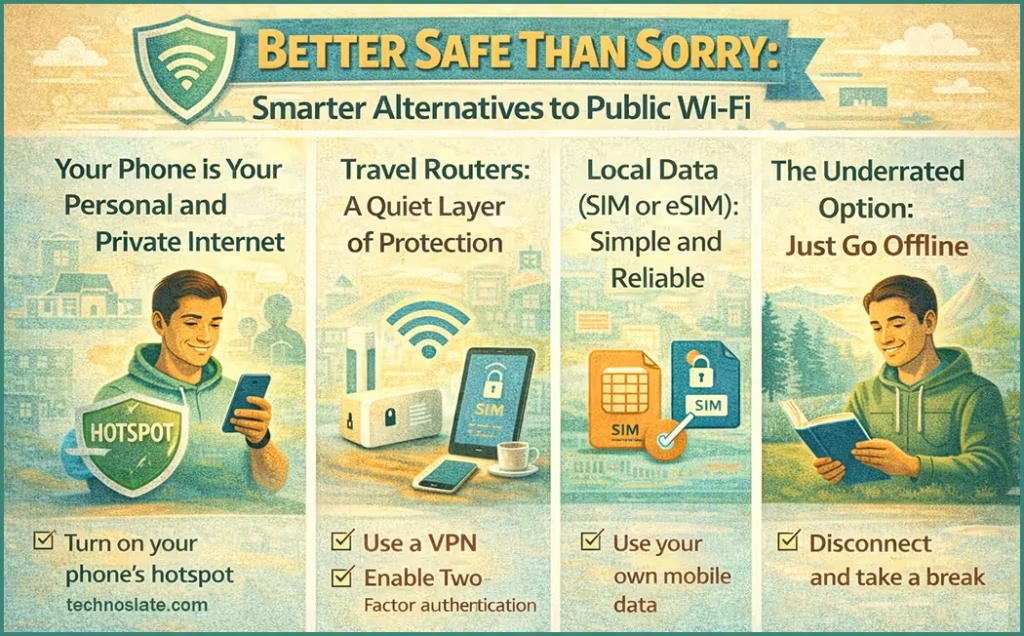
- Your Phone: Your Personal, Private Internet
- Your smartphone isn’t just a device, it’s your safest backup plan. With a mobile hotspot, your phone becomes your own private Wi-Fi network. No strangers, no shared space, just you and your connection. It’s like carrying your own little bubble of internet wherever you go. It feels much more safer because It runs on cellular data (4G/5G), which is much harder for others to intercept, making it more secure than public Wi-Fi. You control who connects, so only trusted devices can access your network. You set the password, allowing you to keep your connection private and protected. The only trade-off is that it uses more battery and consumes your data. But when you compare that to the risk of exposing personal information, it’s usually a trade worth making, especially for anything important.
- Travel Routers: A Quiet Layer of Protection
- If you travel often or work on the go, this one’s worth knowing. A travel router is a small device that connects to a hotel or public network, and then creates a private network just for you. So instead of all your devices connecting directly to public Wi-Fi, they connect to your router. Think of it as adding a buffer between you and everyone else. You set it up once and everything else just connects safely through it.
- Local Data (SIM or eSIM): Simple and Reliable
- When you’re in a new city or country, chasing free Wi-Fi can be frustrating, and risky. A local data SIM or eSIM is often the easier option. You stay connected through official mobile networks instead of relying on random cafes or public hotspots. It’s usually faster, more stable, and, most importantly, more predictable.
- The Underrated Option: Just Go Offline
- We’re so used to being constantly connected that we forget how much we can do without internet. A little preparation can completely remove the need for risky Wi-Fi. Once everything’s on your device, you’re not depending on whatever network you happen to find. And that freedom? It’s underrated. Before heading out, you can Download maps for navigation so you can access directions even without an internet connection. Save shows, music, or podcasts in advance to enjoy entertainment offline anytime. Sync documents or notes you’ll need to ensure you can access important information on the go.
Conclusion
Public Wi-Fi shouldn’t be your default anymore. It’s better to think of it as a backup option, something you use when you really need it, not something you automatically connect to. Because in the end, this isn’t just about security. It’s about peace of mind. Being able to sit down, open your laptop, or check your phone without that quiet worry in the back of your head. And sometimes, the safest move is simply choosing a connection you trust, because it’s yours.
Throughout this article, we explored how public WiFi works, the dangers it presents, and the practical steps users can take to stay protected. The key takeaway is that Public WiFi Safety is not just about avoiding threats, it is about being aware, cautious, and proactive while using these networks. Simple habits like using a VPN, avoiding sensitive transactions, and verifying network authenticity can make a significant difference. At the same time, advanced protection techniques and responsible actions by service providers further strengthen Public WiFi Safety. Ultimately, the responsibility lies with both users and organizations to create a safer digital environment. By staying informed and applying the right precautions, you can enjoy the benefits of public WiFi without compromising your security.
I hope you loved this article about Public Wifi Safety Tips. If this post helped you then please share it with your friends and family to know about it. If you have any questions then feel free to ask in comment section. We will try our best to help you. You can read more such interesting articles here.
- 15+ Opera Browser Features You Won’t Find in Chrome or Firefox
- 7 Powerful Digital Life Backup Systems That Can Recover Your Phone or Laptop Data in 1 Hour
- 4 Best External Storage Solutions for Windows & Android to Boost Your Device Performance in 2026
- How USB Data Blocker Can Protect Your Phone from Juice Jacking in 2026