If you’re looking for a way to unsubscribe from all emails in Gmail without searching your inbox, you’re not alone. Over time, newsletters, promotional offers, and marketing emails can pile up and make your inbox harder to manage. While unsubscribing is easy, finding every subscription across thousands of emails is what usually takes the most time.
Instead of opening emails one by one, you can review subscriptions from a single screen and unsubscribe from unwanted emails much faster. Most guides recommend opening emails one by one, scrolling to the bottom, and looking for the unsubscribe link. That approach works, but it becomes frustrating when your inbox contains hundreds of newsletters from different senders. In this guide, you’ll learn how to access that page, view your email subscriptions, and unsubscribe from unwanted newsletters in just a few clicks.
Open Gmail’s Subscription Page
Many users want to remove email subscriptions but struggle to find every newsletter in their inbox. Fortunately, Gmail includes a subscription view that can be accessed by modifying the inbox URL and that can show many of your newsletter subscriptions in one place. Instead of searching through individual emails, you can access this page directly and view subscribed senders in one place. Follow these steps:
- Sign in to your Gmail account. Open Gmail Inbox.
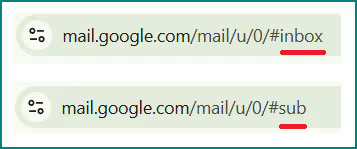
- In the address bar, locate the end of the URL:
- https://mail.google.com/mail/u/0/#inbox
- Replace
inboxwithsub. The URL should now look like given below. You can also copy and paste it directly. - Press Enter. After the page loads, Gmail will display a list of newsletter and mailing list subscriptions it has identified for your account.
View All Newsletter Subscriptions in One Place
Once the page opens, you’ll see a list of newsletter senders that Gmail has identified from your inbox. This removes the need to search for subscriptions manually or open individual emails to find unsubscribe links. Each row contains the sender’s name on the left and an Unsubscribe button on the right.
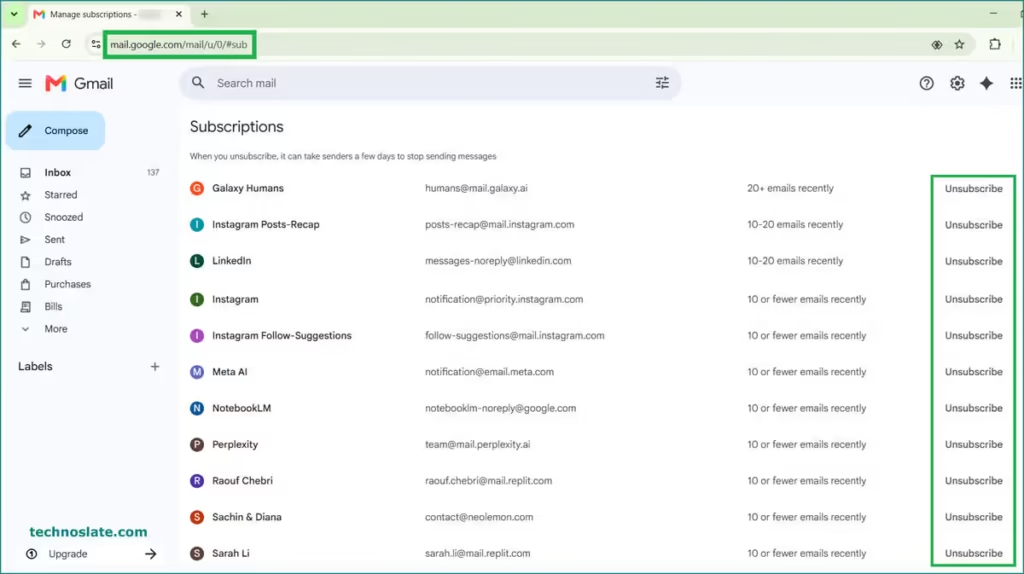
Take a moment to review the list before removing anything. Some subscriptions may still be useful, while others may no longer be relevant. Since everything is displayed on a single screen, it’s much easier to decide which senders you want to keep and which ones you want to remove. If a sender no longer provides value, you can unsubscribe directly from the same page without opening any emails.
Unsubscribe from Unwanted Emails
Removing a subscription takes only a few seconds. You don’t need to open the sender’s emails or look for an unsubscribe link in the email footer. Simply click the Unsubscribe button next to the sender you want to remove. Gmail will display a confirmation message asking whether you want to continue. Click Unsubscribe again to confirm your choice. If your inbox is filled with newsletters, this page can help you remove email subscriptions more efficiently.
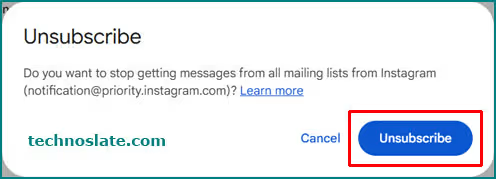
After confirmation, the sender will be removed from the list immediately. This makes it easy to work through multiple subscriptions without leaving the page. You can repeat the same process for any other newsletters you no longer want to receive. If your goal is to unsubscribe from multiple email subscriptions, the process becomes much simpler when all eligible senders are listed together.
Important Things to Know
This page is designed to help manage newsletter and mailing list subscriptions. As a result, not every sender in your inbox will appear here. For example, account related emails such as password reset messages, security alerts, order confirmations, and banking notifications are generally not treated as newsletter subscriptions.
It’s also important to understand that unsubscribing does not remove emails that have already been delivered to your inbox. The action only affects future messages from that subscription. In some cases, a sender may take a short time to process your request. If you receive another email shortly after unsubscribing, it may have been scheduled before the change was applied.
Why This Page Is Useful
Many people want to unsubscribe from all emails in Gmail, but the real challenge is finding those subscriptions first. This tricky URL solves this problem by grouping eligible newsletter subscriptions together. This method provides a faster way to remove email subscriptions that are no longer relevant to you.
This URL allows you to review senders one after another without switching between emails, search results, or inbox folders. For users who regularly sign up for online services, shopping websites, blogs, and promotional offers, this can save a significant amount of time.
What If the Subscription Page Shows Only a Few Senders?
The number of subscriptions displayed can vary from one account to another. If a sender does not provide Gmail with the information required for subscription management, that sender may not appear on this page.
Some newsletters may still require you to unsubscribe using the link provided inside the email. For this reason, the subscription page should be viewed as a convenient management tool rather than a complete list of every marketing email you have ever received.
Frequently Asked Questions
- Does this method work on all Gmail accounts?
- The subscription page is available through Gmail, but the subscriptions displayed may differ between accounts.
- Can I unsubscribe from multiple newsletters at the same time?
- The page provides an unsubscribe button for each sender. You need to confirm the action separately for every subscription you want to remove.
- Will old newsletter emails be deleted automatically?
- No. Existing emails remain in your inbox unless you delete them manually.
- Can I subscribe again later?
- Yes. If you unsubscribe from a newsletter and later decide you want it back, you can usually subscribe again through the sender’s website.
- Does this method work on mobile devices?
- The subscription page is primarily designed for Gmail in a web browser. Availability and behavior may vary depending on the device and Gmail version being used.
- Why can’t I find a specific sender on the subscription page?
- Not all senders appear in this list. Some companies manage subscriptions differently, so Gmail may not display them on this page.
Conclusion
The page is especially useful for users who want to stop email subscriptions from multiple senders in one session. Managing email subscriptions becomes much easier when you can see them in a single place. Instead of searching through your inbox and opening individual emails, you can access Gmail’s subscription page, review the listed senders, and remove unwanted newsletters directly from there.
If your inbox has become crowded with promotional emails, taking a few minutes to review this list can help reduce future clutter and make important messages easier to find.
I hope you enjoyed this post can be useful to unsubscribe from all emails. If you found this post helpful, please share this post with your friends and family. If you have any question in your mind or you are facing any problem then feel free to ask your question in the comment section. We will try our best to help you. You can read more such interesting articles here.