Whenever I’m working, I often play music, podcasts, interviews on YouTube in the background. But sometimes while working, a recommended video appears on the screen or any video thumbnail catches my attention. Before I know it, my attention has shifted away from work and I started watching videos. I don’t always need to watch what’s playing, especially when I’m listening to music, podcasts, lectures, or interviews. I just want the audio to keep playing while I focus on what I’m doing.
The problem is that YouTube is built around video content. Even when I only want to listen, the visuals can tempt me to look away from my work. But the solution is straightforward: instead of displaying the video, this extension can hide its visual content while audio playback continues. This gives you a way to make YouTube less visually distracting when watching the video isn’t necessary.
What Is “Music Mode for YouTube”..?
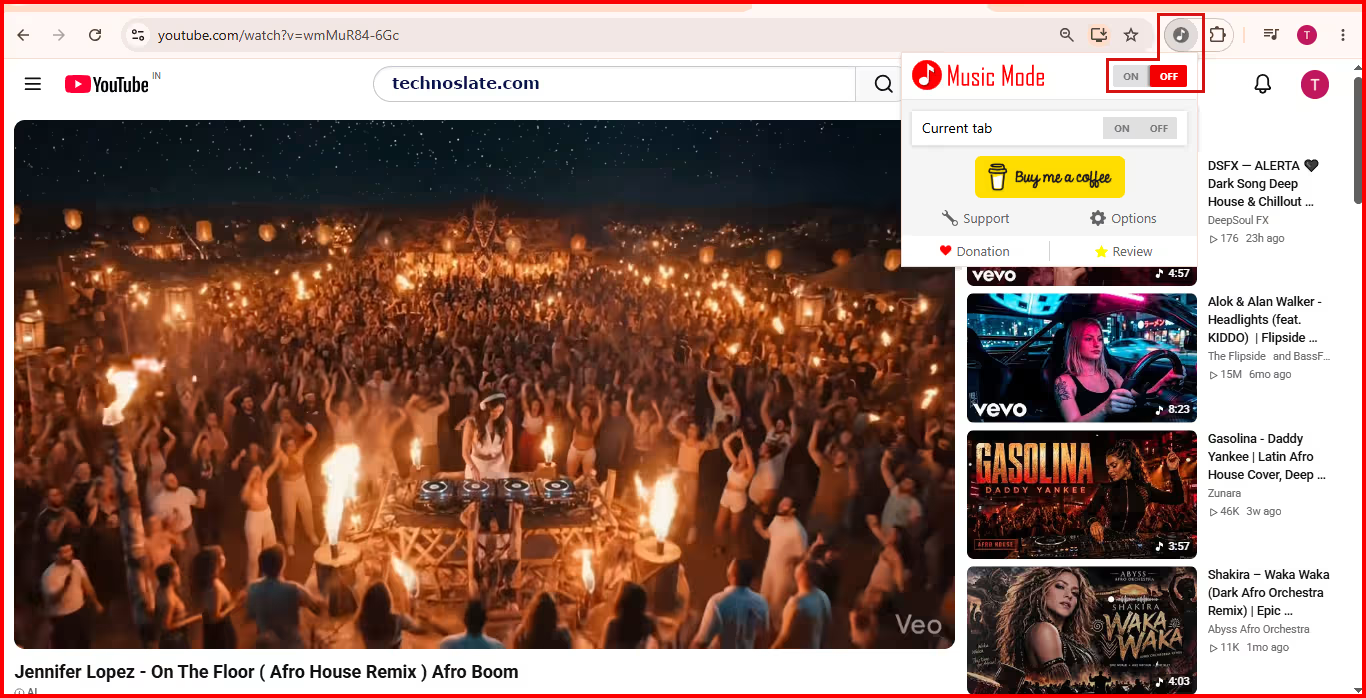
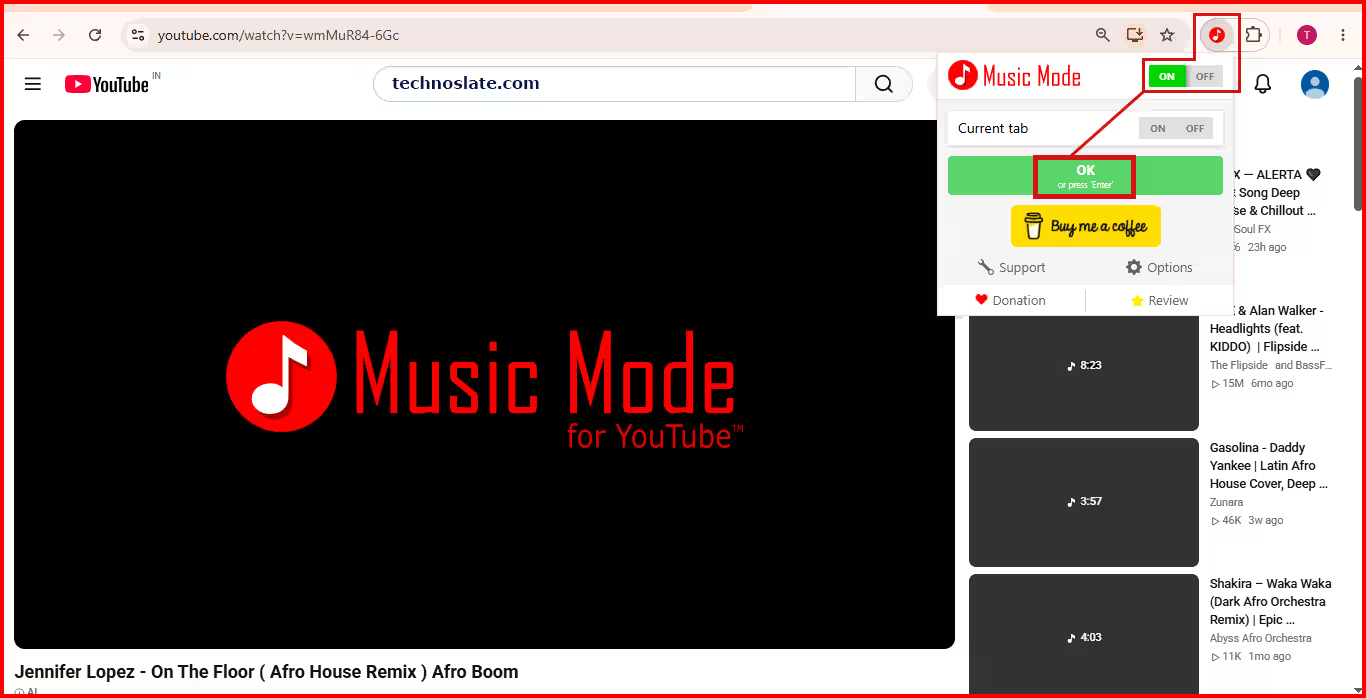
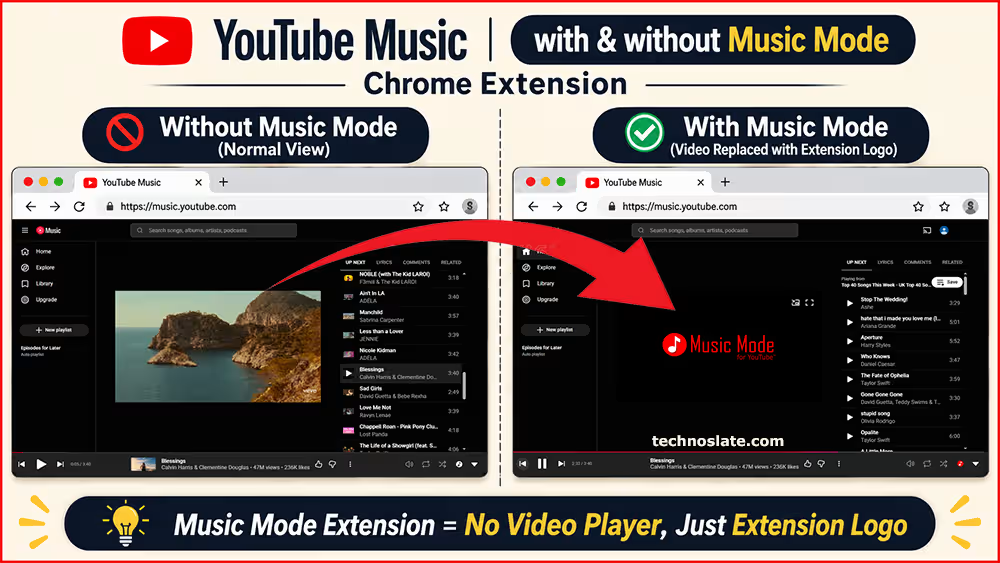
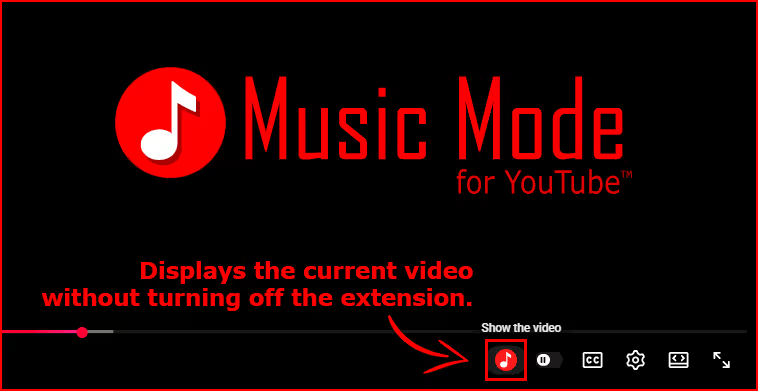
To solve the problem of visual/video distraction, the Music Mode for YouTube has been created. It is a browser extension designed to let you listen to YouTube content without having to keep the video visible on your screen. It helps reduce these distractions by hiding video content (in video player) while keeping audio playback active. Music Mode for YouTube extension displays only video thumbnail or brand logo in video player. So you can focus on your work without unnecessary visuals.
What makes this approach useful is its simplicity. I don’t need a separate music player just to listen to audio content on YouTube. I can continue using YouTube while reducing the visual distractions that come with video playback. However, it’s important to understand that hiding a video and completely blocking its video stream are not the same thing. The extension’s behaviour also differs between regular YouTube and YouTube Music, so it is worth checking which features are supported on the platform you use.
Key Features of Music Mode for YouTube
- Hides the video in video player on YouTube. The video itself is not blocked; it is only hidden.
- Blocks video playback on YouTube Music while keeping the audio playing.
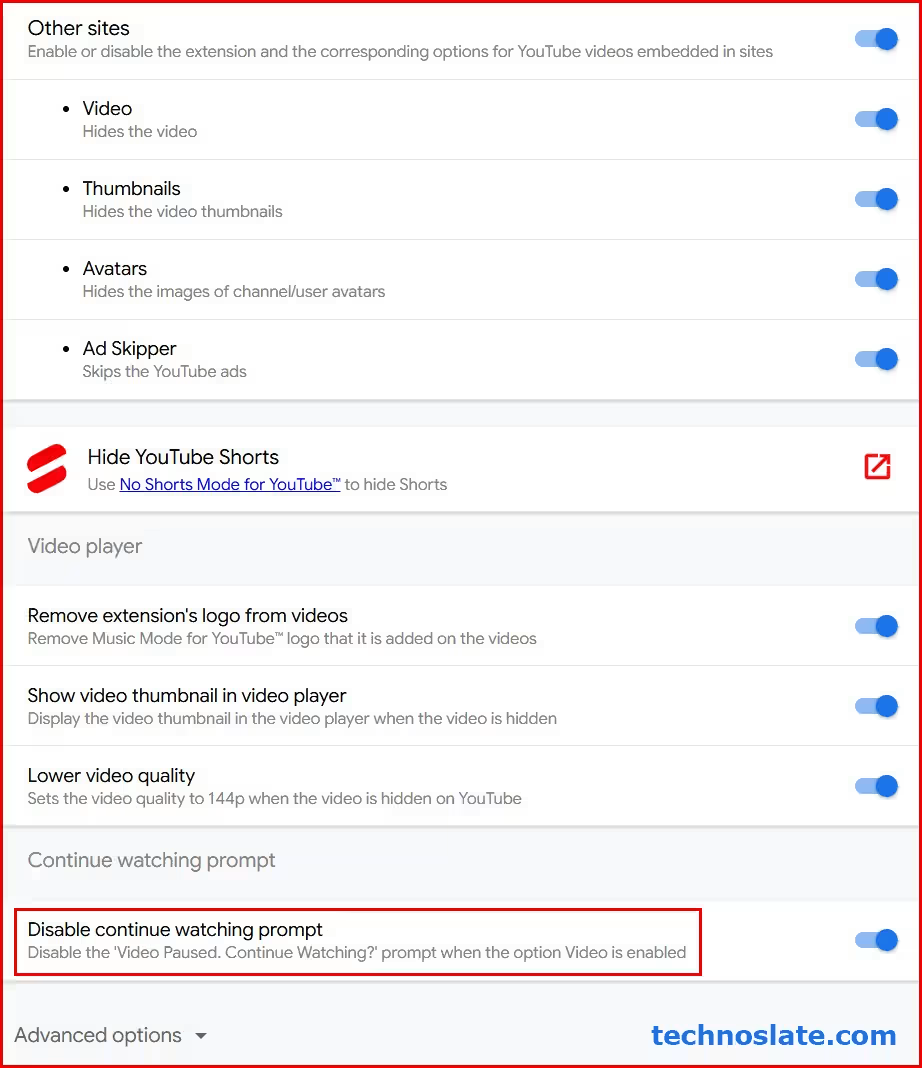
- Hides video thumbnails on YouTube, YouTube Music, and embedded YouTube videos on third party websites.
- Hides channel and user profile pictures, along with other images displayed on YouTube.
- Lowers the quality of hidden YouTube videos. This feature is listed separately in the extension’s Chrome Web Store description.
- Includes an optional feature to skip ads on YouTube and YouTube Music.
- Disables YouTube’s “Video paused. Continue watching?” message. According to the developer, this feature works only when video blocking is enabled.
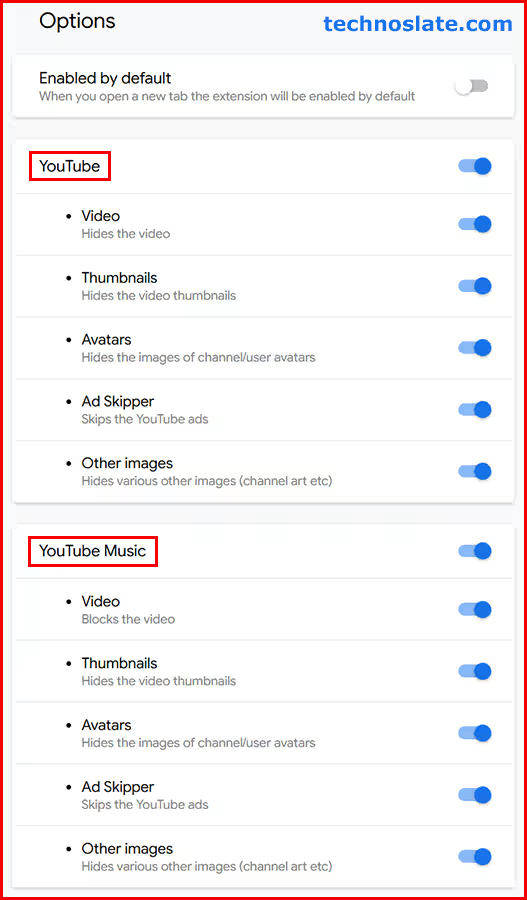
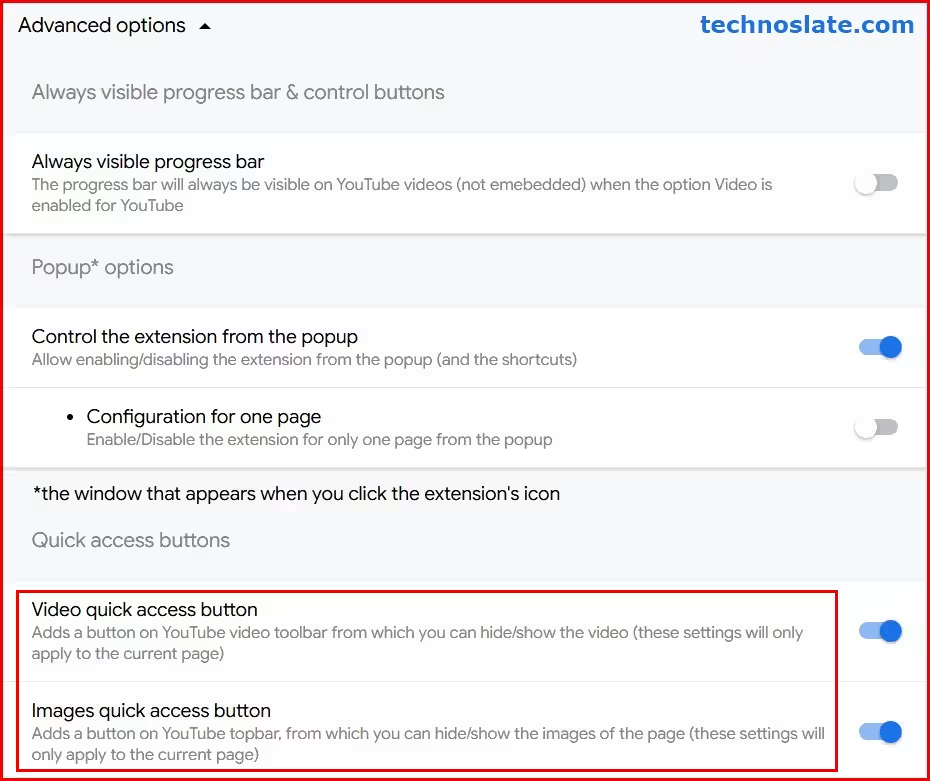
- The extension can also be enabled for all tabs or selected tabs. Lets users enable or disable individual features separately for:
- YouTube, YouTube Music, Embedded YouTube videos on other websites
- Adds two buttons directly to YouTube, allowing users to hide videos and thumbnails without opening the extension’s popup.
Known Limitations and Compatibility
Before installing the extension, keep the following limitations in mind:
- Browser Support: The article’s source information lists Chrome 88+, Firefox 109+, and Edge 91+. It may also work in Chromium based browsers such as Brave, Opera, and Vivaldi when the required extension platform is supported. Check the current store listing for the latest compatibility details.
- Android Support: It does not work directly in the standard Chrome app for Android. Compatible browsers such as Kiwi Browser or Firefox for Android may offer extension support, depending on current availability.
- YouTube Shorts: The extension does not hide Shorts. A separate tool may be needed if Shorts are the main distraction.
- Embedded Players: Embedded YouTube videos are supported, but individual controls may behave differently depending on the host website and player.
- Platform Changes: Some features may change or stop working as YouTube updates its platform.
Browser updates and platform changes can affect how the extension works, so check its latest listing before relying on specific features.
Common Problems with Music Mode for YouTube and How to Fix Them
Sometimes Music Mode may not work as expected. This can happen after a YouTube update, because of another browser extension, or due to an incorrect setting. Before reinstalling the extension, try these simple solutions.
- Music Mode Does Not Hide the Expected Content
- If it is not hiding certain YouTube elements, check whether the related option is turned on in the extension settings. Also, remember that YouTube and YouTube Music have separate settings. Changing an option on one website may not change anything on the other. If the problem continues, reload the page or turn the extension off and on again.
- A Setting Stops Working After a YouTube Update
- Sometimes YouTube changes its design or features, which can affect how Music Mode works. If a setting that worked before suddenly stops working, check whether a newer version of the extension is available. You can also visit the developer’s GitHub page to see if the problem has already been reported.
- Another Browser Extension Causes Problems
- Sometimes two browser extensions can interfere with each other, especially if both change how YouTube looks or works. To check this, temporarily turn off other YouTube related extensions and reload the page. If Music Mode starts working, turn those extensions on one by one to find which one is causing the problem.
- YouTube Playback or Controls Stop Working Properly
- If YouTube’s playback buttons or other controls are not working properly, first turn off Music Mode and check whether the problem still exists. You can also try reloading YouTube, opening it in a new tab, or checking it in another supported browser. This will help you understand whether the problem is caused by Music Mode or YouTube itself.
- The Problem Still Does Not Go Away
- If none of the above solutions works, you can contact the developer for help. Before doing so, keep these details ready:
- Your browser name and version.
- Your installed Music Mode version.
- Whether the problem occurs on YouTube or YouTube Music.
- The setting you were trying to use.
- What you expected to happen and what actually happened.
- A screenshot or screen recording, if needed.
- If none of the above solutions works, you can contact the developer for help. Before doing so, keep these details ready:
You can also check the project’s GitHub page to see whether other users have reported the same issue.
Helpful Tip: Try changing only one setting at a time and check whether it fixes the problem. This makes it easier to find the actual cause instead of changing several things without knowing what worked.
Privacy and Permissions: Is Music Mode for YouTube Safe to Use?
The developer states that Music Mode for YouTube does not collect user data and that preferences are stored locally in the browser. The Chrome Web Store privacy declaration also says the extension does not collect or use user data. These are useful disclosures, but a developer’s statement is not the same as an independent security audit.
One useful thing about Music Mode for YouTube is that its source code is publicly available on GitHub. This gives technically interested users an opportunity to examine how the extension is implemented instead of relying entirely on its store description. You can review its repository here: Music Mode for YouTube – GitHub Repository
Tech savvy users can examine its manifest files, permission declarations, configuration handling, and relevant source files. You can also use Chrome DevTools to observe network activity while using the extension. This won’t prove the absence of every possible data transfer, but it can help identify requests made during your testing.
Overall, the available documentation provides a useful starting point for evaluating the extension’s privacy practices. Just remember to distinguish between what the developer declares, what the source code shows, and what you independently verify.
How to Test Performance of Music Mode for YouTube
Installing the extension is just the first step. You also need to check whether it works properly during everyday YouTube use. A few simple tests can help you identify which features work as expected and whether any settings affect playback.
- Establish a baseline: Play a video you commonly use for background listening. Note how the player, page elements, and audio behave when you switch tabs.
- Change one setting at a time: Enable a single option, observe the result, and then move to the next. This makes unexpected behaviour easier to trace.
- Check background playback: Switch to another tab and confirm that audio continues. Test pause, resume, and volume controls, then return to YouTube and check that the player still responds.
- Test each platform separately: If you use both regular YouTube and YouTube Music, repeat the checks on each. If relevant, test an embedded player on another website.
- Inspect loading behaviour if needed: In Chrome DevTools, open the Network tab and use the Media and Img filters to see whether video or image resources are still requested. Remember that a hidden element may still load resources, and some requests may belong to other page components.
- Record problems clearly: Note your browser and extension versions, the website, the setting involved, and the steps that reproduce the issue. Temporarily disabling other YouTube related extensions can help identify conflicts.
Who Should Use Music Mode for YouTube?
The extension is most useful when you regularly listen to YouTube content but rarely need to watch it.
- People who listen while working: Hide visual content when music or a conversation or an interview is playing in the background, so thumbnails and video footage are less likely to pull your attention away.
- Students and learners: Listen to lectures or language lessons while taking notes. For lessons that rely on diagrams, demonstrations, or on screen examples, keep the video visible.
- Podcast and interview listeners: Focus on the conversation without needing to keep the presenter on screen.
- People listening during everyday tasks: Use YouTube as a background audio source while cooking, cleaning, or relaxing.
It may be less useful for people who mainly watch tutorials, films, gaming videos, or lessons where visual explanations are essential. If a dedicated music or podcast app already meets your needs, you may not need an additional browser extension.
Which Platform Should You Use?
The choice depends on the type of content you usually listen to. If your listening habits include podcasts, interviews, educational discussions, and other non music content, regular YouTube offers a broader content library. However, you should keep its video blocking limitations in mind when using the extension.
If your primary interest is music, YouTube Music is worth considering because the developer specifically documents video blocking support for this platform.
One important point: don’t judge the extension’s performance on one platform based on your experience with the other. Test both separately if you regularly switch between them. Ultimately, understanding this distinction helps set realistic expectations before choosing where to use Music Mode for YouTube.
Frequently Asked Questions About Music Mode for YouTube
- Can I still support creators while using Music Mode?
- Yes. You can continue to subscribe, comment, and use available creator support options such as memberships or merchandise.
- Does it change YouTube recommendations?
- No. The extension is designed to change the viewing experience, not YouTube’s recommendation algorithm. Recommendations continue to be managed by YouTube.
- Can I use it to listen to copyrighted music?
- Yes. It does not change copyright rules or grant additional permissions. YouTube’s licensing terms and rights holder conditions still apply.
- Does it work with every YouTube video?
- Not necessarily. Compatibility depends on the video, player, browser, and the feature being used.
- Does Music Mode work with YouTube Live streams?
- Yes, in most of the cases. But, compatibility with live streams may vary. Some features might not work as expected.
Music Mode for YouTube: Is It Worth Trying?
Music Mode for YouTube is a practical option if you already use YouTube for background listening and find its visual elements distracting. Its strongest appeal is straightforward: it lets you keep listening while reducing the amount of video content competing for your attention.
It is not a replacement for a dedicated music or podcast app, and its features are not identical across regular YouTube, YouTube Music, and embedded players. If your routine is built around listening rather than watching, the extension is worth trying. Have you used Music Mode for YouTube? Share which features worked well for you and which browser you tested.
We appreciate you taking the time to read this article. If you found the information helpful, share it with others who may benefit from it. Have a question or want to share your experience? Leave a comment below, and we’ll do our best to respond. Keep exploring our blog for more useful guides and insights below.